1.Handle the honeycomb panel with care. Dropping or impact may cause deformation, affecting the flatness and ventilation performance during processing.
2.After each job, dust or debris may remain inside the honeycomb holes. Please remove and clean the panel promptly.
3.When handling the panel, insert your fingers into the semi-circular metal grip ring and lift the edge firmly. Avoid grabbing the mesh surface directly to prevent scratches or panel deformation.
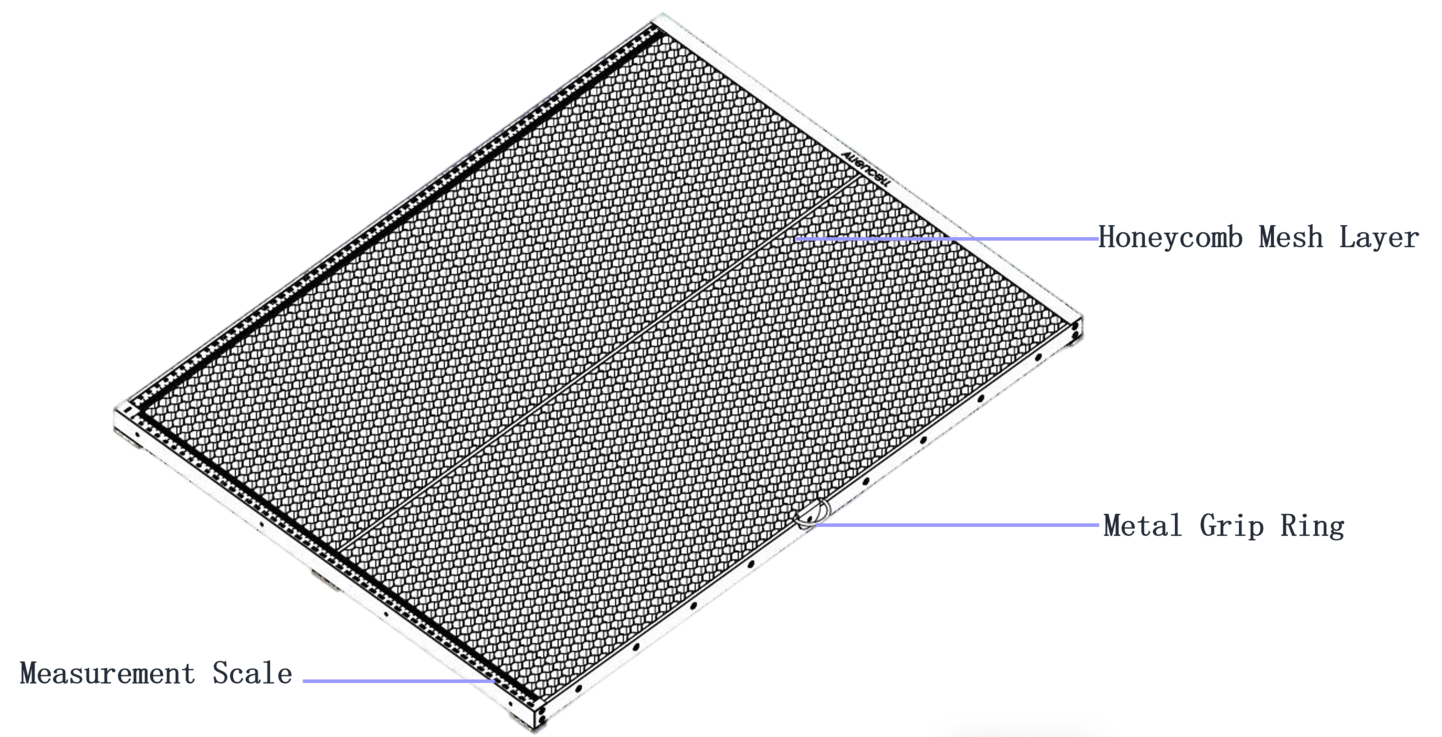
¶ 1. Honeycomb Panel Specifications
| Specification | Description |
|---|---|
| Product Name | Honeycomb Panel |
| Size | 630 mm × 480 mm |
| Material | Metal honeycomb structure |
¶ 2. Packing List
| No. | Image | Name |
|---|---|---|
1 |
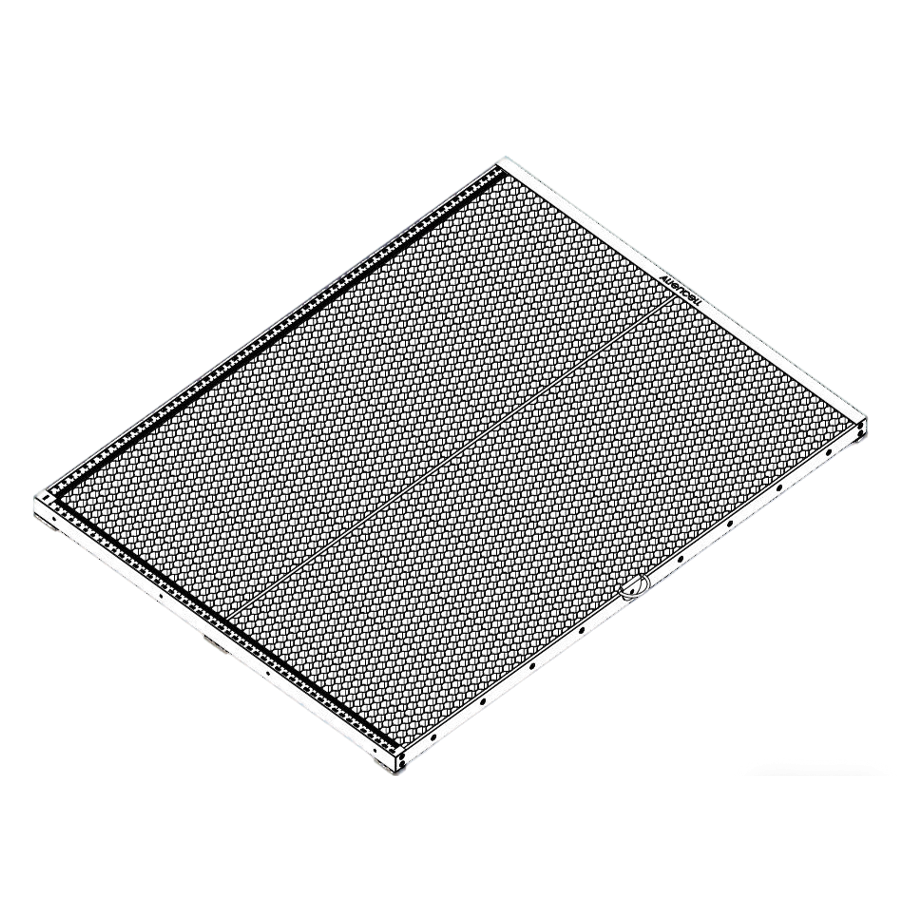 |
Honeycomb Panel ×1 |
2 |
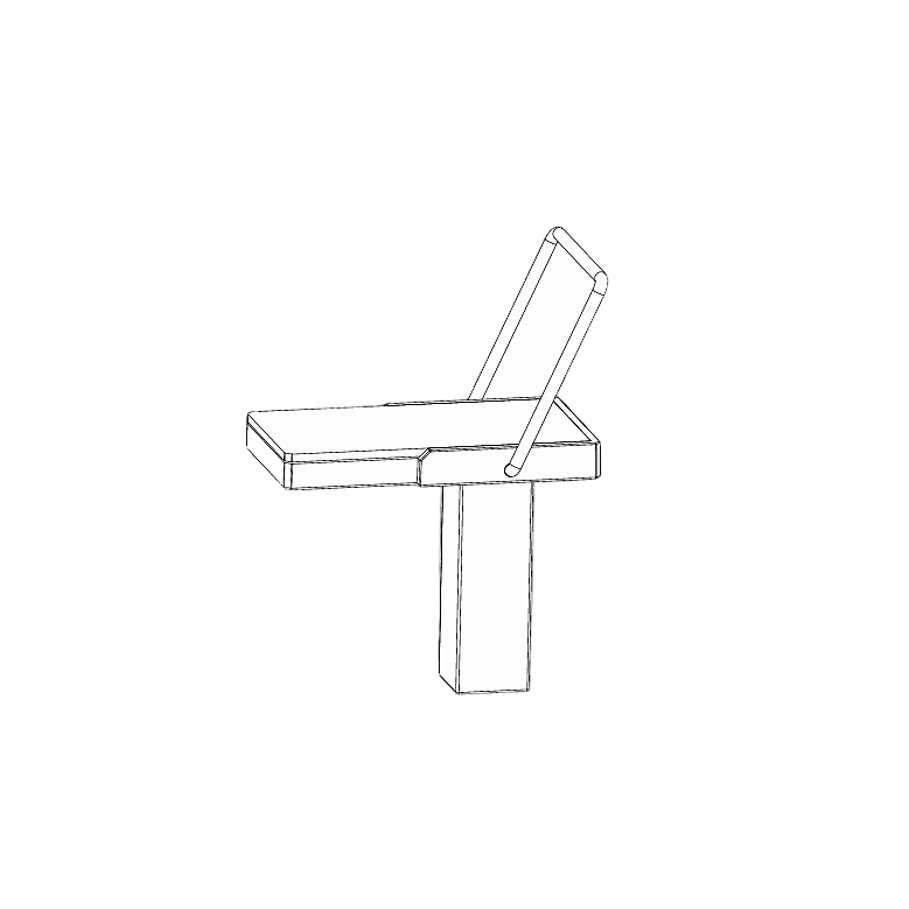 |
Material Pins ×4 |
3 |
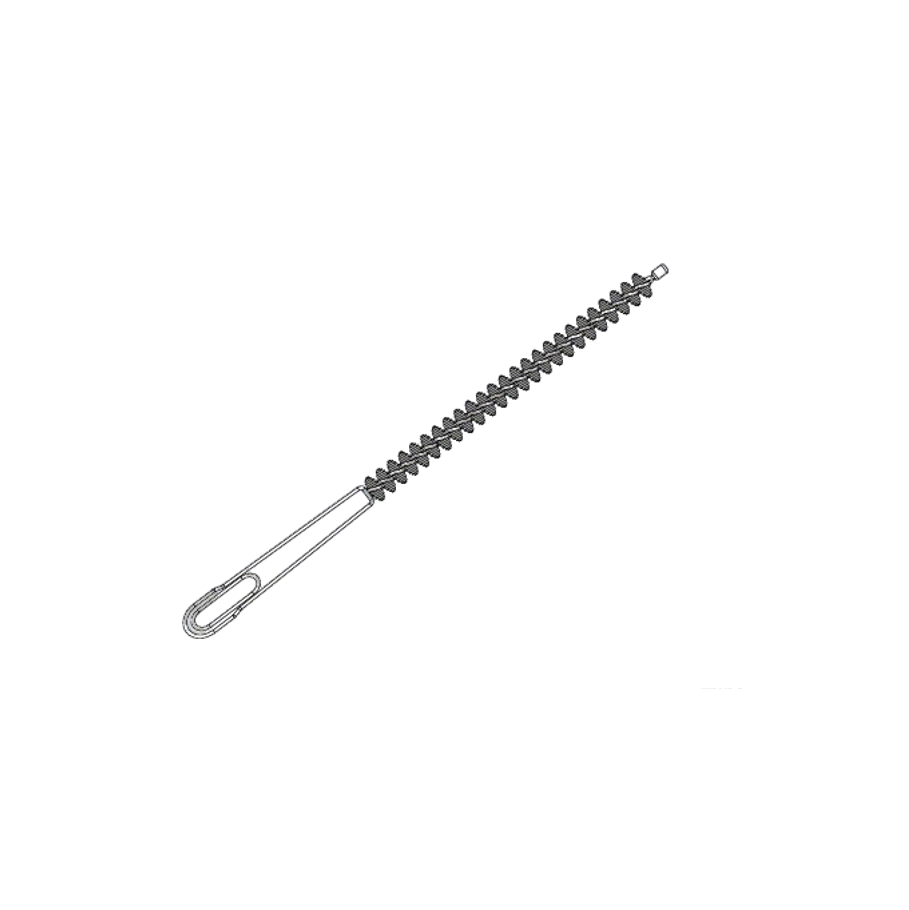 |
Brush ×1 |
4 |
 |
User Manual ×1 |
¶ 3. Instructions for Use
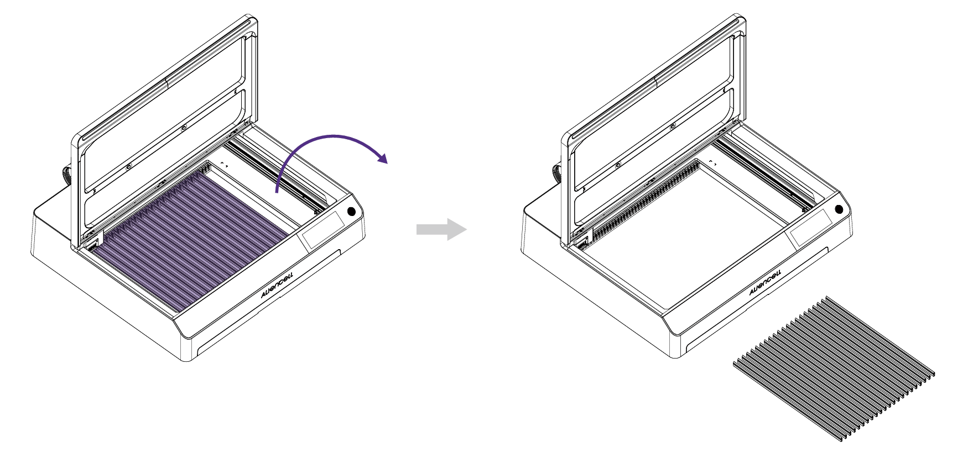
¶ 3.1 Remove the Cutting Slats
- Take out each Cutting Slat from the Base Plate one by one.
¶ 3.2 Place the Honeycomb Panel
- Place the honeycomb panel in the center of the working area.
- Ensure it is flat and stable, with no raised edges or wobbling.
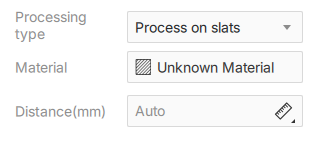
¶ 3.3 Software Setup
- Open the Aliencell Space software.
- In the job settings, select Flat Processing – Honeycomb Panel.
¶ 4. Recommended Use Cases
The honeycomb panel is recommended in the following situations:
- When cutting thin materials (such as wood, acrylic, or leather) to reduce backside burn marks.
- When enhanced ventilation and smoke extraction are required.
- When maintaining a flat surface is essential for consistent engraving quality.
- When processing lightweight materials — it is recommended to use Material Pins for better fixation.
¶ 5. Cleaning & Maintenance
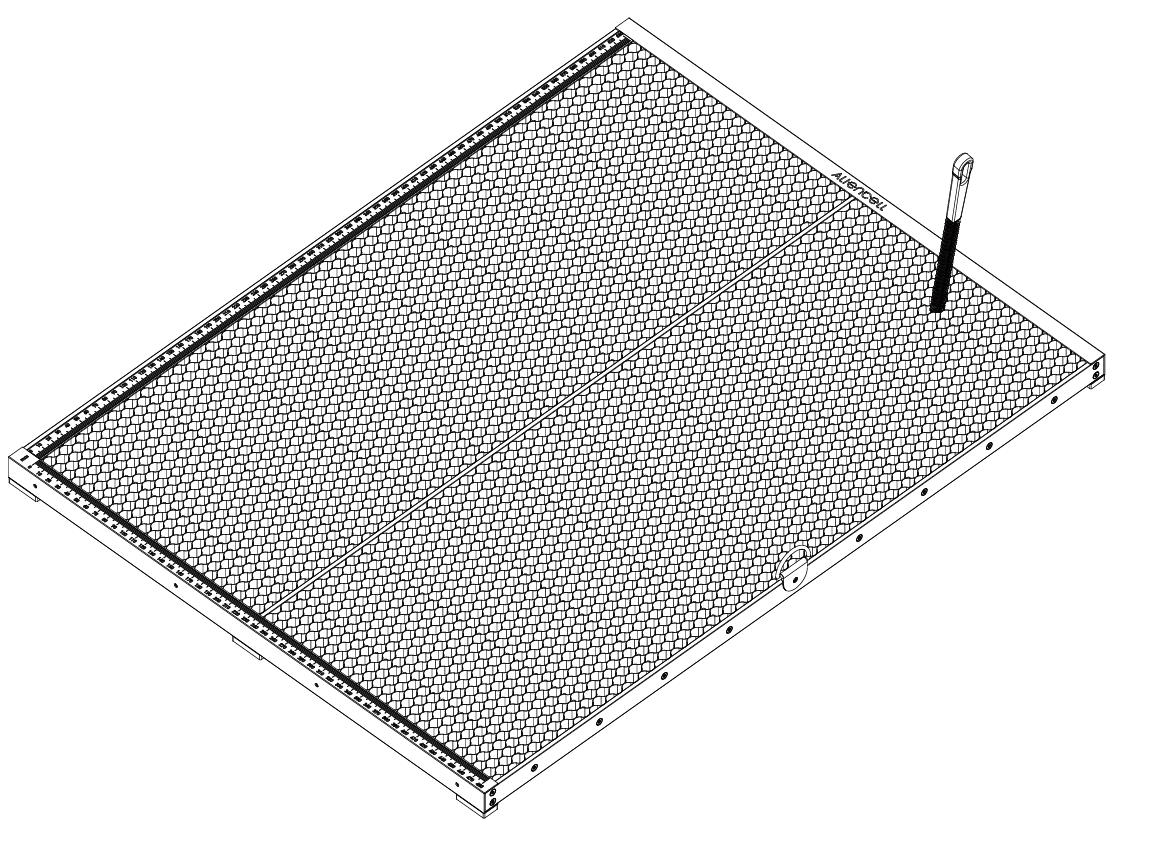
- After each job, clean the honeycomb holes with the provided brush.
- For stubborn residues, gently wipe the surface with a dry cloth or alcohol wipes.
- Keep the honeycomb panel dry to prevent rust or corrosion.