Outline generation converts the outer edge of a selected object into a new vector path. Use it to create cut lines, sticker borders, and backing shapes.
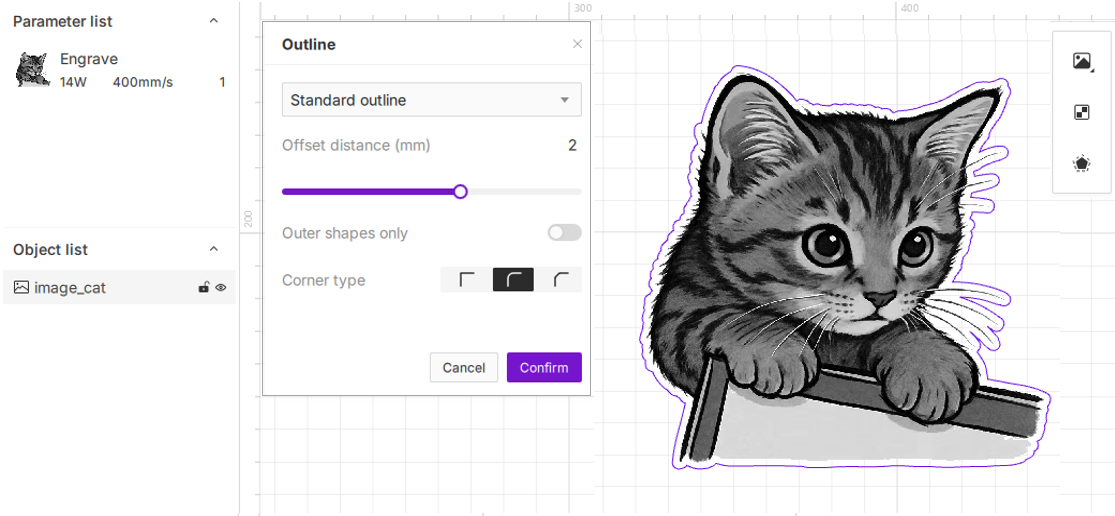
¶ 1. Supported Objects
Object Type |
How the Outline Is Generated | Example |
|---|---|---|
| Image | Generates an outline from the visible image edge. A transparent-background image gives a tighter result. | 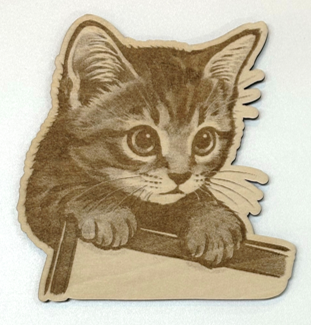 |
| Vector Graphic | Generates an outline from the vector path. Use it for accurate cut lines. | 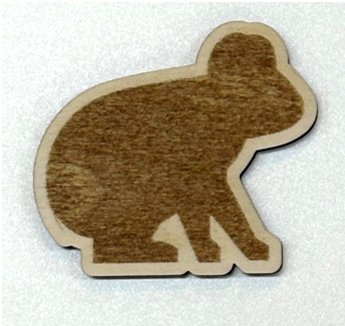 |
| Text | Generates an outline from the letter shapes. Use it for text stickers or backing plates. | 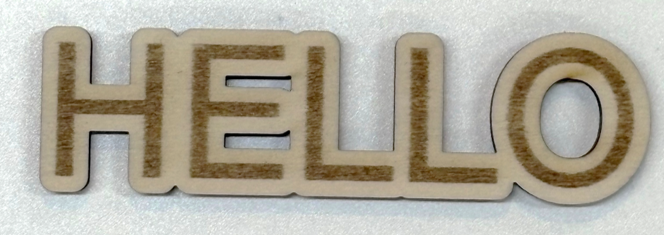 |
¶ 2. Standard Outline
Standard Outline follows the object edge closely. Use it when you need an accurate cut line.
¶ 2.1 Steps
- Select the object you want to outline.
- Click the Outline icon in the toolbar.
- Keep the mode set to Standard Outline.
- Set the outline size.
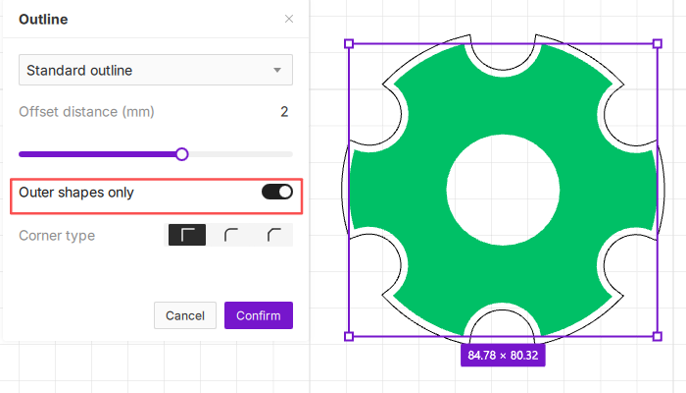
- Enable Outer shapes only if you only need the exterior outline.
- Click Confirm.
¶ 2.2 Parameter Comparison
The examples below use Standard Outline, Offset distance = 2 mm / 0.08 in as the baseline.
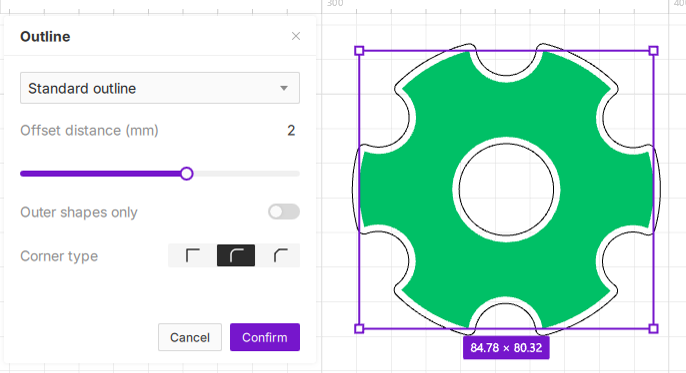
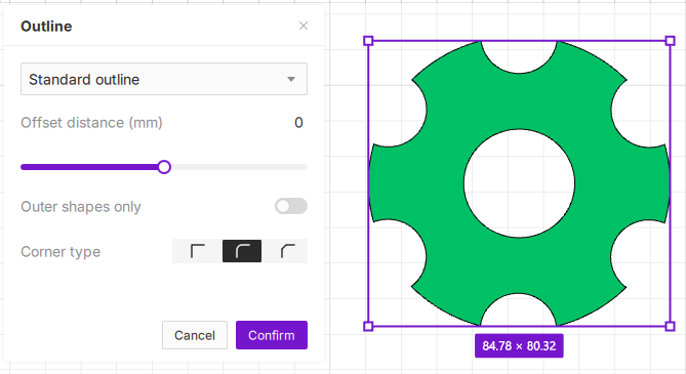
¶ 2.2.1 Outline Size
Control whether the outline expands outward or stays close to the object edge.
 |
 |
|---|---|
Generates a 2 mm / 0.08 in outward outline |
Follows the object edge |
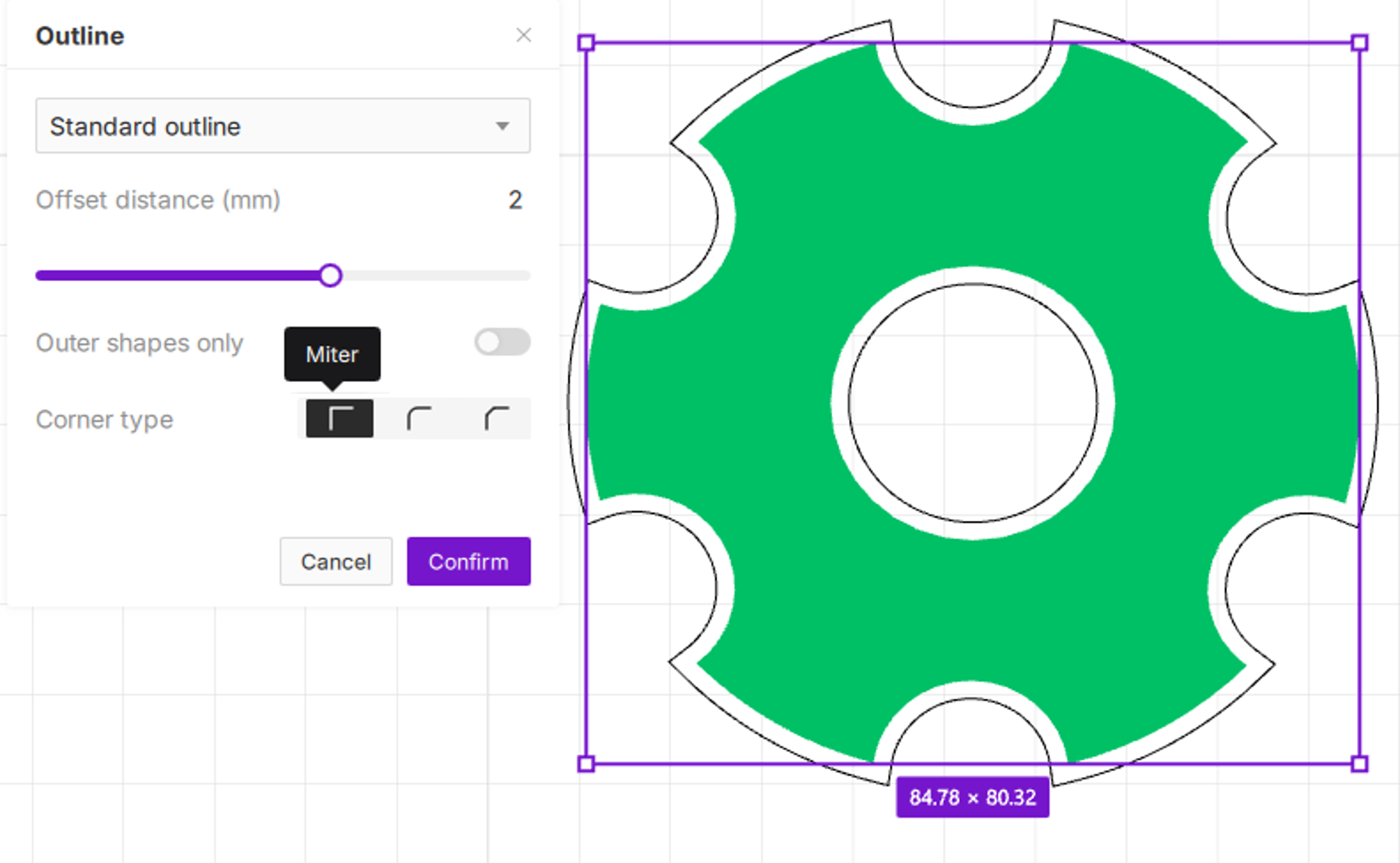
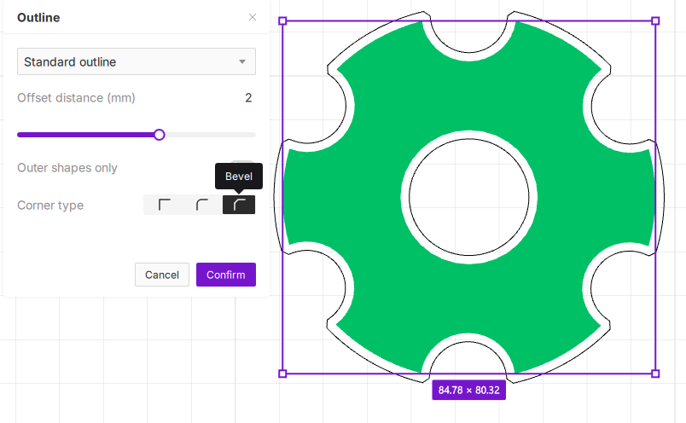
¶ 2.2.2 Corner Type
Choose the corner style based on the desired outline appearance.
 |
 |
|---|---|
Keeps sharp corners |
Cuts corners into beveled edges |
¶ 2.2.3 Outer Shapes Only
Keep only the exterior outline when you need a single outside cut path.
|
 |
|---|---|
Keeps related inner and outer outlines |
Keeps only the exterior outline |
¶ 3. Rubber Band Outline
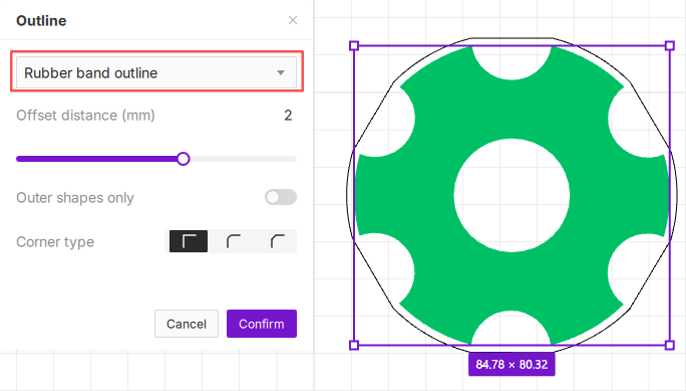
Rubber Band Outline creates one closed contour around the outermost boundary of the selected objects, similar to stretching an elastic band around them. It skips concave gaps between objects, making it useful for combining separated graphics, text, or decorative elements into one overall shape.
|
 |
|---|---|
Follows concave and convex object edges |
Wraps only the outermost boundary |
¶ 4. Mode Comparison
| Mode | Best For | Result |
|---|---|---|
| Standard Outline | Single graphics, text, sticker borders, and accurate cut lines. | Follows the actual object edge. |
| Rubber Band Outline | Multiple separated graphics, letter groups, and backing plates. | Wraps around the outermost boundary like an elastic band. |
Tip: Use Standard Outline when the contour should follow the artwork. Use Rubber Band Outline when multiple objects need one shared outside shape.
¶ 5. FAQ
| Issue | Solution |
|---|---|
| The outline becomes a rectangle. | The image may have a background. Use a transparent PNG or remove the background first. |
| The outline enters gaps between multiple objects. | Use Rubber Band Outline. |
| The outline is too wide or overlaps itself. | Reduce the outline size and generate it again. |
| The generated outline is not cutting. | Select the generated outline and set the processing mode to cutting. |
Important: Always preview the generated outline before sending the job to the machine.