¶ 1. What is Tab Generation?
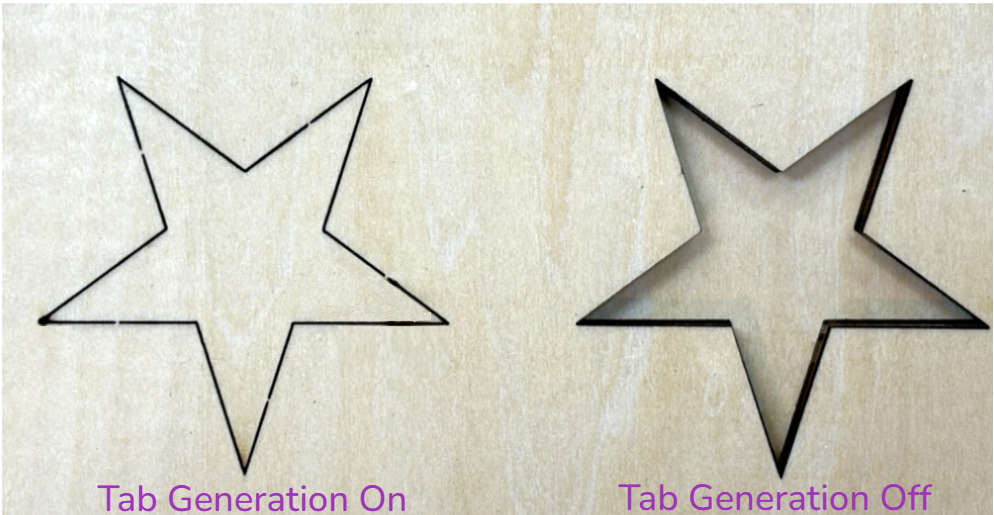
Tab Generation creates tiny uncut sections (called "tabs") at intervals along the cutting path. Tabs keep cut parts minimally connected to the surrounding material until processing is complete, preventing premature falling or shifting.
Tabs are especially valuable for complex contours, dense layouts, or batch cutting of small components.
¶ 2. How to Enable Tab Generation
- Ensure the operation type is set to Cut.
- Toggle the Advanced switch (in the top-right corner of the Parameters panel) to enable advanced options.
- Toggle the Tab generation switch.
- Select the appropriate Generation rules from the dropdown menu.
The updated Tab Generation feature supports three generation methods, each suited for different structural and control requirements.
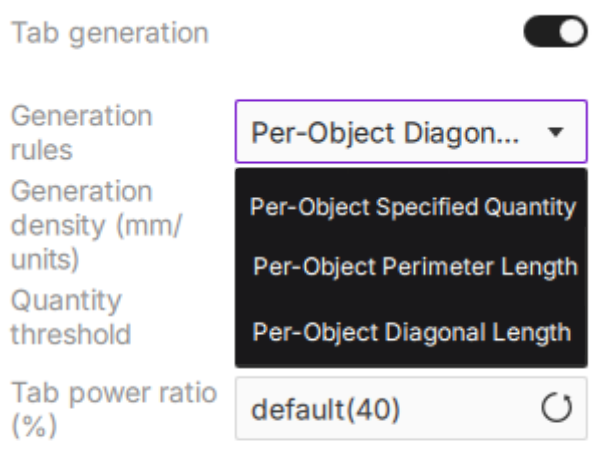
Note on "Per Object": A vector design may contain multiple closed elements (such as separate closed contours). All generation rules calculate based on closed elements as the basic unit—meaning tabs are generated independently for each closed contour, not uniformly across the entire vector design.
¶ 3. Three Generation Rules
¶ 3.1 Rule 1: Per-Object Specified Quantity
Directly specifies an identical number of tabs for each selected object. This mode is ideal for scenarios requiring explicit quantity control.
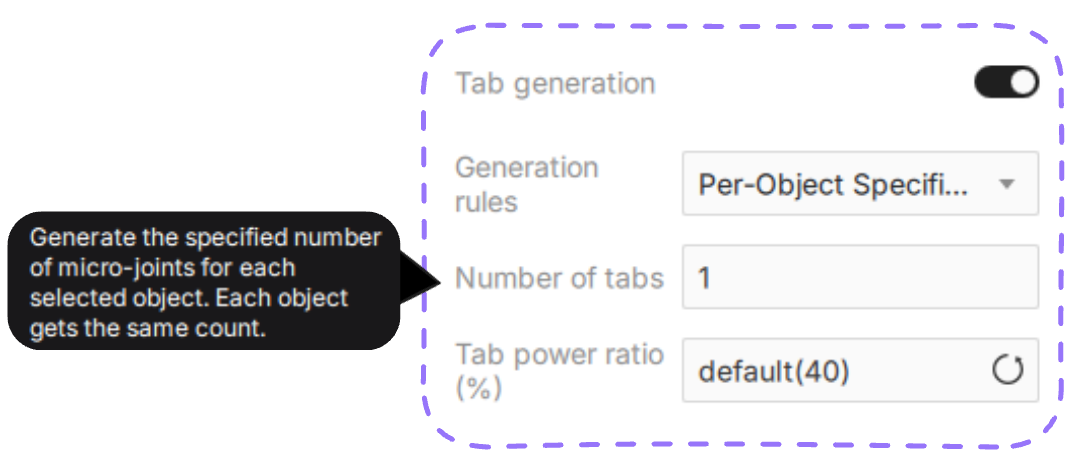
- Number of tabs: Enter the number of tabs to generate for each object.
- Each object receives the same number of tabs, with no automatic variation based on object size.
- Use case: Use this mode when all objects are similar in size, or when you need exactly the same number of tabs on every object.
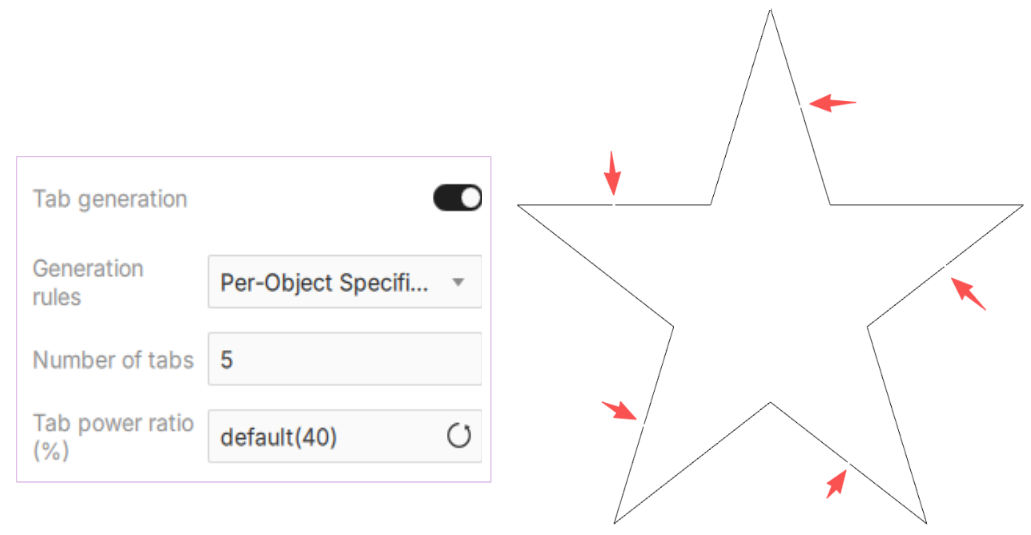
In the example above, the software generates exactly 5 evenly spaced tabs on the star-shaped object.
¶ 3.2 Rule 2: Per-Object Perimeter Length
Automatically calculates tab quantity based on each object's total cutting perimeter length (contour length). The software divides the total contour length by your target spacing value to determine the number of tabs. Longer contours typically receive more tabs.
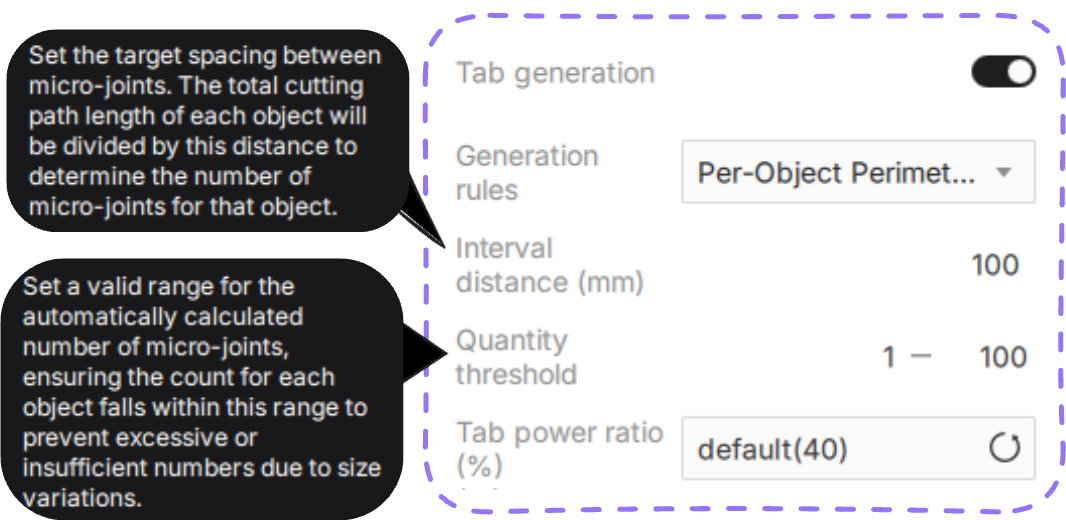
- Spacing (mm): Sets the target distance between adjacent tabs. Smaller values create denser tabs; larger values create sparser tabs. Default: 100, Range: 5–1000 integer.
- Tab count calculation: Number of tabs = Total cutting path length ÷ Spacing (rounded to nearest integer).
- Use case: Recommended for objects with complex shapes and varying edge lengths. This method focuses on the "total perimeter length," making it ideal for intricate contours with many edges.
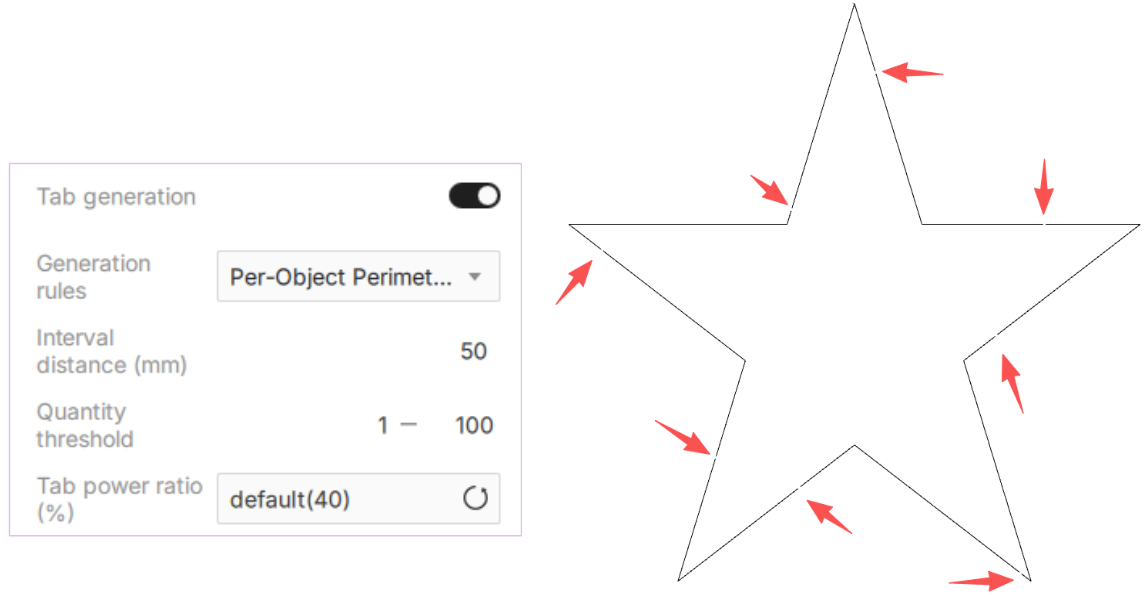
In the example above, the software automatically distributes tabs along the object's entire cutting contour based on a 50 mm target spacing.
¶ 3.3 Rule 3: Per-Object Diagonal Length
Automatically calculates tab quantity based on each object's bounding box diagonal length. Essentially, the software first considers the overall "footprint" of the object, then determines the number of tabs based on this size—larger objects receive more tabs; smaller objects receive fewer.
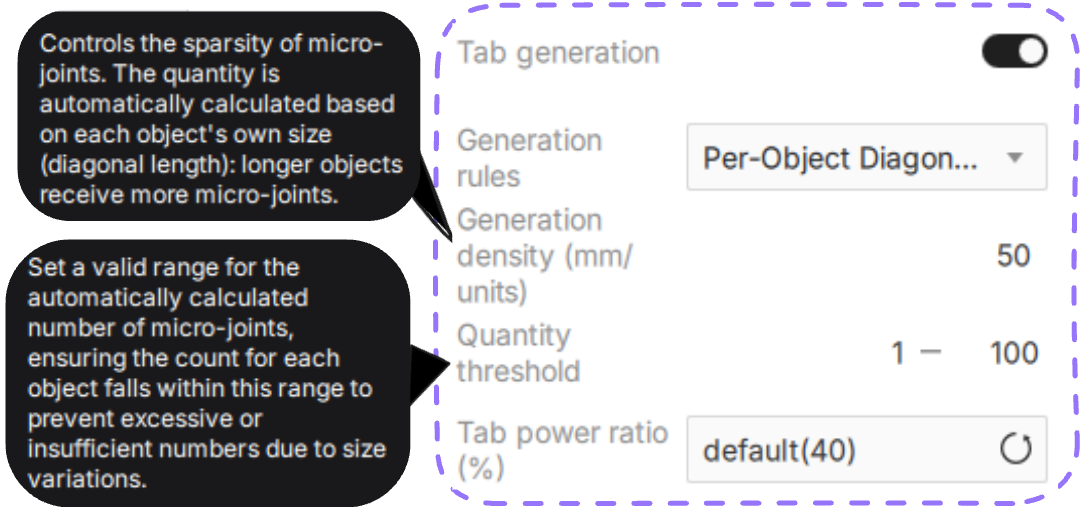
- Generation Density (mm per tab): Represents how much object size corresponds to one tab. Larger values create sparser, fewer tabs; smaller values create denser, more tabs.
- Tab count calculation: Number of tabs = Object diagonal length ÷ Generation density (rounded to nearest integer).
- Use case: Recommended for elongated or irregular shapes. This method uses diagonal length as a representative measure of object size, unaffected by shape complexity.
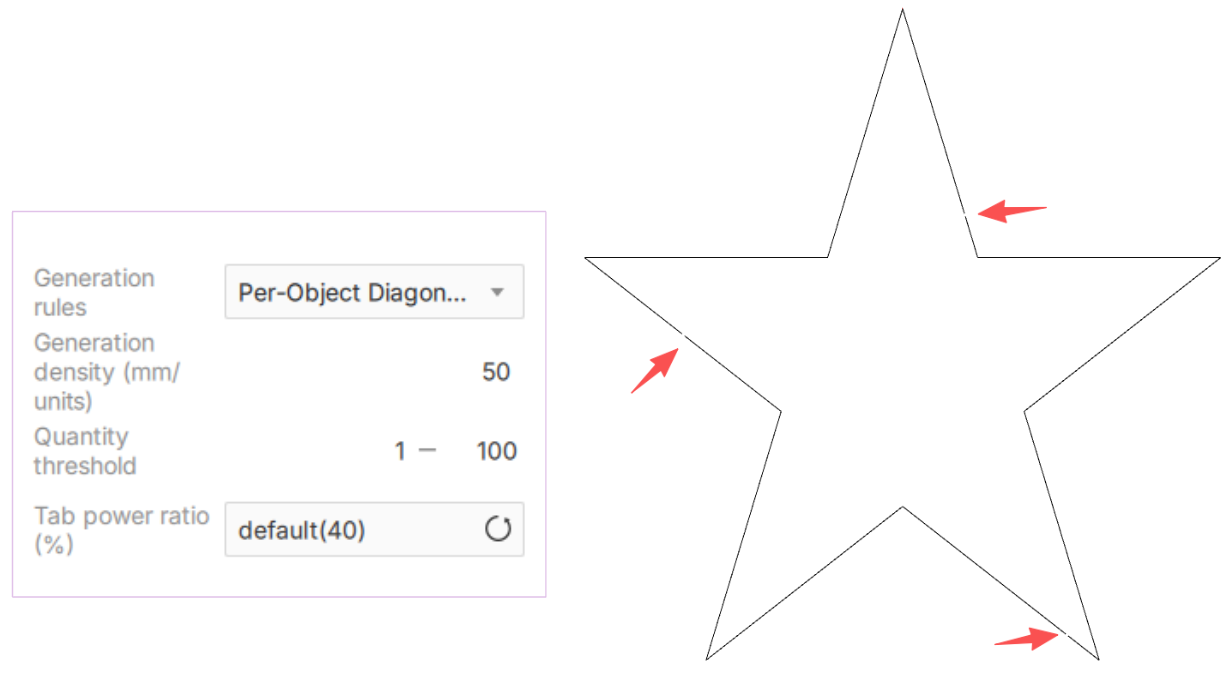
In the example above, the software automatically calculates tab quantity based on the object's overall size, using 50 mm per tab as the baseline. Think of it as: larger objects get proportionally more tabs; smaller objects get fewer.
¶ 4. Quantity Threshold
When using the automatic calculation modes (Per-Object Perimeter Length or Per-Object Diagonal Length), you can set upper and lower limits for the final result via the Quantity Threshold.
- Minimum: Prevents small objects from receiving too few tabs due to their size.
- Maximum: Prevents large objects from generating excessive tabs that would increase post-processing effort.
- Configurable range: 1–100.
The Quantity Threshold stabilizes automatic calculations, keeping tab quantities reasonable even with significant size variations across objects.
¶ 5. Tab Power Ratio (%)
The Tab power ratio controls the laser output power when passing over tab positions. The software displays a recommended value by default, though you can adjust manually or click ↺ to restore the recommended setting.
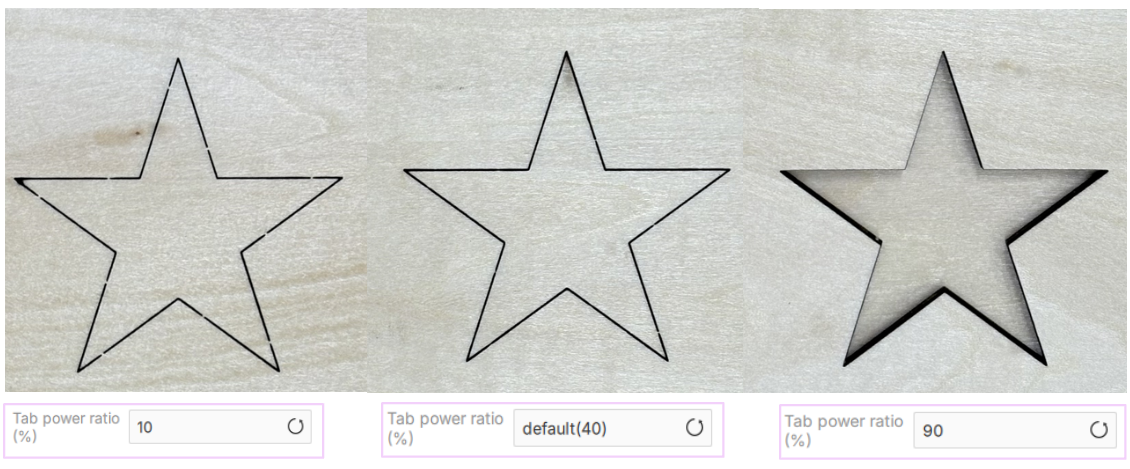
| Power Ratio | Effect |
|---|---|
| Lower | Creates wider, more robust connection points |
| Higher | Creates thinner, easily breakable connection points |
| Too High | May cut through the material entirely, preventing tab formation |
Tip: Start with the recommended value as a baseline, then fine-tune based on material thickness, material hardness, and post-processing difficulty.