A clipping mask uses one object as the visible boundary. Place the mask shape at the bottom and the content you want to crop above it. After you select both objects and choose Clipping mask, the upper content is clipped to the outline of the lower object. Anything outside the boundary will not be included in the engraving output.
Use Clipping mask to show an image, text, or vector pattern only inside a defined shape.
Use it to crop images, contain decorative patterns, create text-fill effects, and control the final visible engraving area.
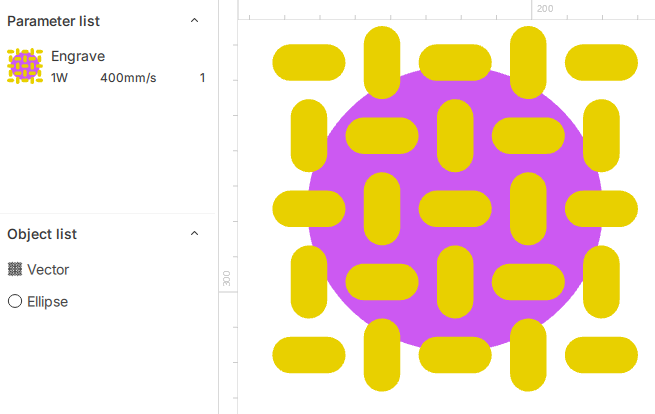 |
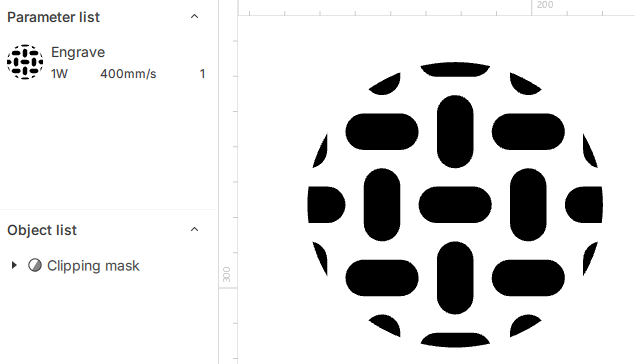 |
Before |
After |
¶ 1. Create a Mask
- Select the objects you want to mask.
- Right-click to open the menu.
- Click Clipping mask.
- The software creates a Mask Group.
- View or rename the Mask Group in the object list.
Tip: Press Ctrl+Shift+M to create a clipping mask. For shortcuts on other systems, see Keyboard Shortcuts.
¶ 2. How the Mask Area Is Decided
Place the shape you want to use as the final outline at the bottom.
Place the image, text, or pattern you want to show above it.
¶ 2.1 Image Content Mask
Place a circular vector path at the bottom as the mask boundary. Place the imported bitmap image above it. Only the image area inside the circle will be included in the laser engraving output.
- Draw the target shape, such as a circle, and place it at the bottom.
- Import the bitmap image above it, then adjust the position and scale to fit the mask area.
- Select both objects, then choose Clipping mask. Pixels outside the circle are clipped.
¶ 2.2 Text Vector Mask
For example, to show a cat image inside the word CAT, place the CAT text at the bottom and the cat image above it, then create the mask.
Tip: If the mask result is incorrect, check the layer order. The object used as the final outline must be at the bottom.
¶ 3. Supported Mask Objects
You can use these objects as the mask:
| Mask Object | Result |
|---|---|
| Text | Uses the text outline as the visible area. Good for text-fill effects. |
| Image | Uses the image outline as the visible area. |
| Vector | Uses the vector shape as the visible area. Good for circles, rectangles, custom outlines, or line graphics. |
Tip: When text or a vector object is used as the mask, the software adjusts the fill and stroke automatically. You can edit them later if needed.
¶ 4. Unmask
When you select one Mask Group, the right-click menu shows Unmask.
- Select the Mask Group.
- Right-click to open the menu.
- Click Unmask.
- The mask effect is removed, and the objects return to a normal group.
Tip: You can also select the mask object itself and choose Unmask.
¶ 5. FAQ
| Issue | What to Do |
|---|---|
| The mask does not show the area you expected. | Check the layer order. The bottommost selected object becomes the mask. |
| The mask object is not visible on the canvas. | This is normal. The mask object is hidden and marked with a special icon in the object list. |
| You want to rename the Mask Group. | Select the Mask Group in the object list and rename it. |
| Only the mask object remains, but nothing is visible. | The Mask Group still exists. Select it from the object list. |