The Settings panel allows you to customize the fundamental interface preferences, configure laser behavior, and manage file import rules for Aliencell Space.
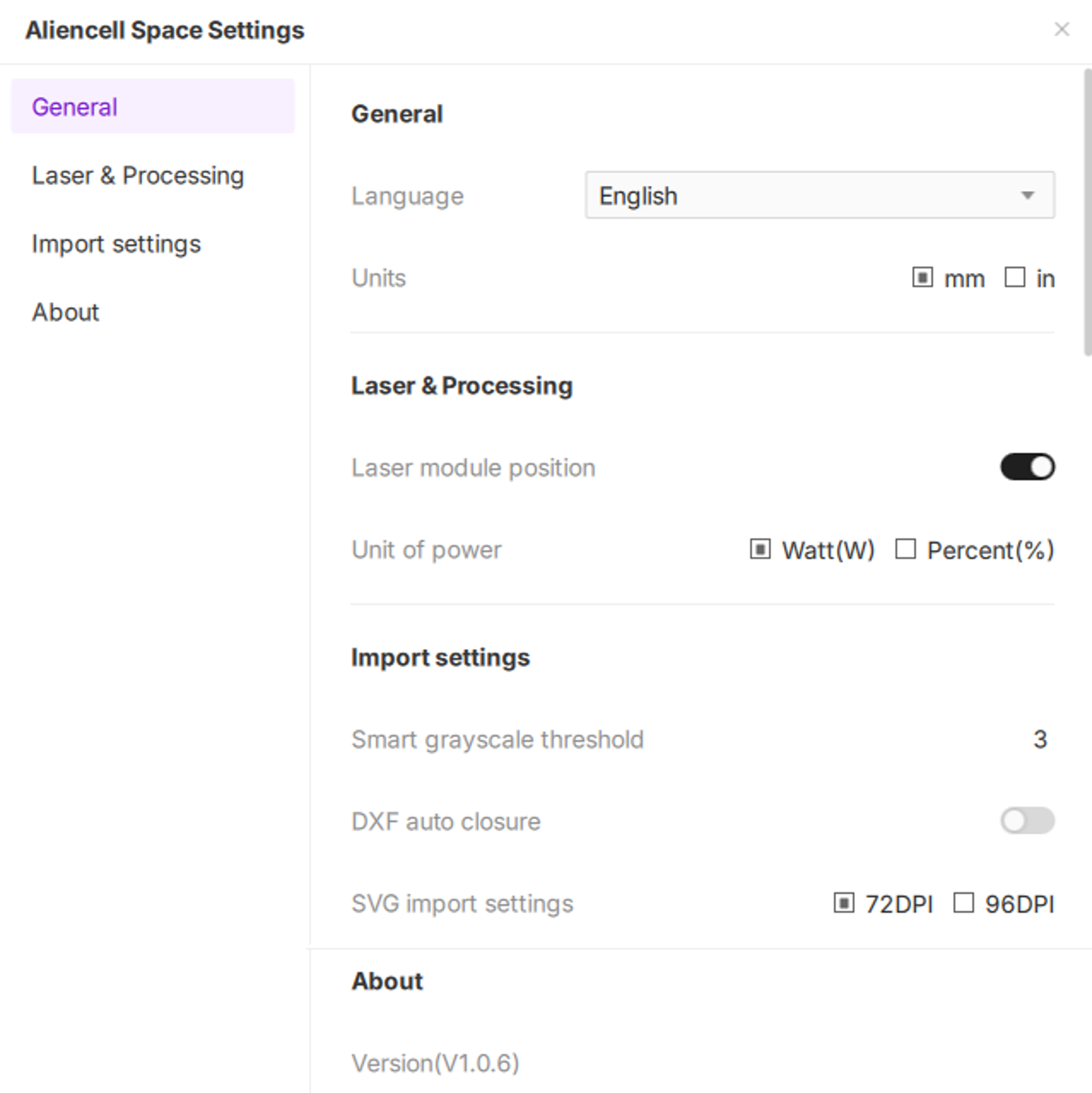
- To access these settings, click the Settings
 icon located in the top-right corner of the software.
¶ 1. General Settings
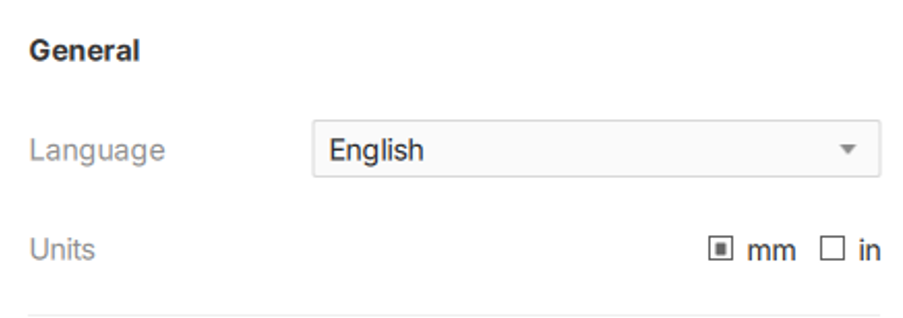
This tab controls the basic interface language and measurement standards.
¶ 1.1 Language
Select your preferred display language for the interface (e.g., English).
- Effect: The interface text updates immediately upon selection; no restart is required.
¶ 1.2 Units
Choose the standard measurement system for your workspace.
- Options:
- Millimeters (mm): Displayed with 2 decimal places precision (e.g., 10.55 mm). This is the default setting.
- Inches (in): Displayed with 3 decimal places precision (e.g., 0.415 in).
- Scope of Impact:
Changing the unit system will update the values for:- Object dimensions (Width/Height)
- X / Y Coordinates
- Canvas Rulers
- Background Grid
- Focus/Reference Height
Internal calculations and machine communication parameters not listed above will remain in Millimeters (mm) to ensure hardware compatibility.
¶ 1.3 Selection Mode
Configure the detection rules for selecting objects by dragging the mouse across the canvas.
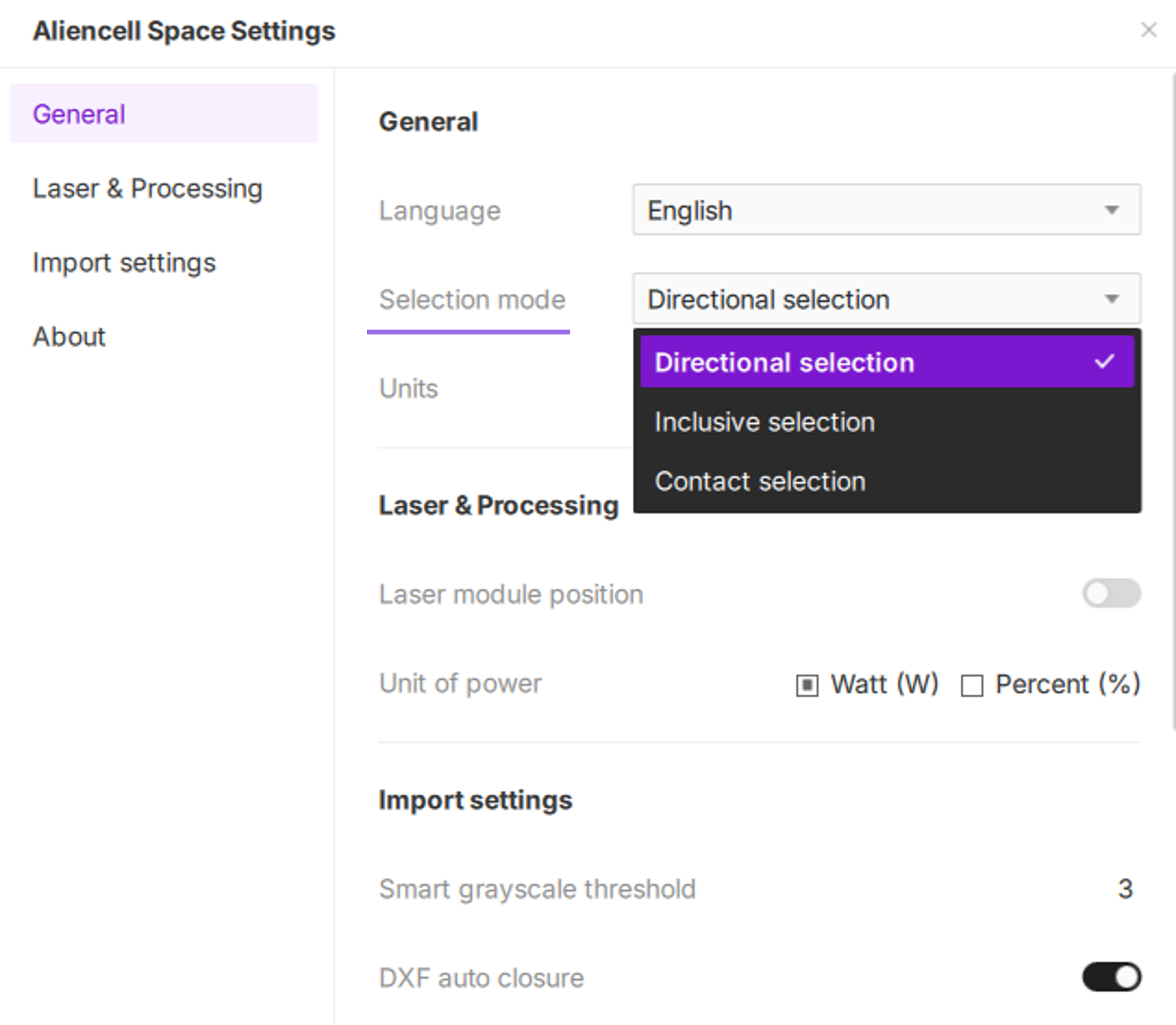
The software supports three marquee selection behaviors, each distinguished by specific visual feedback (box color) on the canvas:
¶ 1.3.1 Directional Selection
- Automatically toggles the selection mode based on the dragging direction.
- Key Features: Offers maximum flexibility for advanced users to switch selection strategies on the fly.
-
Drag Left-to-Right: Offers maximum flexibility for advanced workflows, making it easy to switch selection strategies on the fly.
-
Drag Right-to-Left: Activates Green Contact Selection. Objects are selected as soon as the marquee boundary touches or intersects them.
-
¶ 1.3.2 Inclusive Selection
- Locks the marquee to Red Inclusive Selection regardless of the dragging direction. Selection only occurs when the marquee fully encompasses the object.
- Key Features: Provides high precision; ideal for isolating specific small objects within dense or complex graphic groups.
¶ 1.3.3 Contact Selection
- Locks the marquee to Green Contact Selection regardless of the dragging direction. Any object intersecting the marquee boundary will be selected.
- Key Features: Optimized for speed. Requires no precise alignment; best for rapid bulk selection of scattered objects.
Interaction Tips:
- Red Dashed Marquee: Represents Inclusive Selection (requires full enclosure).
- Green Dashed Marquee: Represents Touch Selection (requires only boundary contact).
¶ 2. Laser & Processing
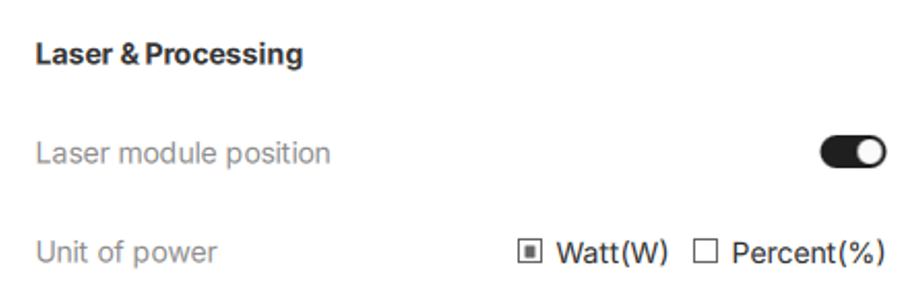
Configure how the software visualizes machine status and handles power values.
¶ 2.1 Laser Module Position
This feature synchronizes the physical location of the laser head with the software canvas.
- Switch ON: The software reads the real-time position of the machine’s Red Cross pointer. A crosshair icon will appear on the design canvas, moving in sync with the laser module. This helps you visually align your design with the material.
- Switch OFF: The crosshair position indicator is hidden.
¶ 2.2 Unit of Power
Select your preferred format for setting and viewing laser power.
- Watt (W):
- Displays the absolute power value (e.g., 10W or 20W).
- Best for: Situations where you need to know the exact energy output.
- Percent (%):
- Displays power as a percentage of the machine's maximum capability (e.g., 50% or 100%).
- Best for: Standardizing material libraries across machines with different power levels.
¶ 3. Import Settings
These settings control how vector files are processed when imported onto the canvas.
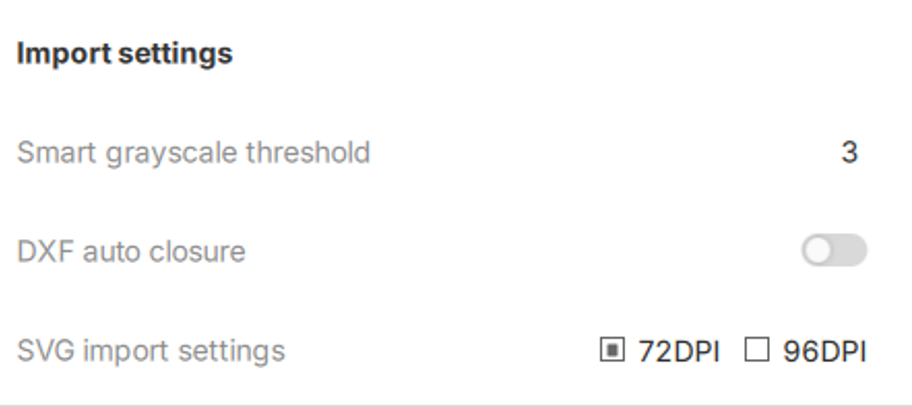
¶ 3.1 Smart Grayscale Threshold
This feature determines whether the original color layers of an imported SVG file should be converted into corresponding grayscale levels. If preserved, the software intelligently translates the original RGB values into varying shades of gray, perfectly maintaining the light and dark contrasts of your design. The default threshold is set to 8, but you can easily adjust this value based on the complexity of your artwork.
What is Smart Grayscale Conversion and why is it useful in laser engraving?
Purpose: Its primary function is to translate "colored vector graphics" into "light and dark instructions" that the laser module can understand.
Lasers cannot recognize colors; they only output different levels of power. When you import a colorful illustration (e.g., a leaf with dark green, light green, and yellow hues), the "Preserve Grayscale Differences" feature allows the software to automatically adjust the laser power based on the original brightness of those colors. Darker areas will trigger higher power (engraving deeper/darker), while lighter areas will use lower power (engraving lighter). This allows you to configure just one base processing parameter and achieve a photo-realistic, multi-layered 3D engraving in a single pass.
By adjusting this threshold, you are balancing engraving consistency against detail expression. The threshold value directly dictates how multi-color SVG files are handled upon import, as detailed below:
¶ Scenario 1: Number of Colors in File ≥ Threshold
When the imported SVG contains a number of colors equal to or greater than your set threshold, a pop-up window will appear, asking whether you want to preserve the grayscale differences of those colors.
- Example: If your threshold is set to 3, and you import an SVG file containing 5 different colors, the software will display the following prompt:
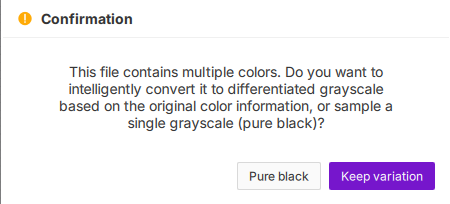
Your choice determines the final engraving result:
-
Pure black
- Effect: The software ignores color differences and converts the entire design into a solid black silhouette (Single Grayscale).
- Best For: Simple outlines, logos, text, and 2D markings where high contrast and uniform filling are required.
-
Keep variation
- Effect: Original colors are mapped to corresponding shades of gray based on their RGB brightness, preserving the details and layers of the image.
- Engraving Output: Even with a single power setting, the actual laser output will vary dynamically based on the shade of gray:
- Darker areas: Engraved deeper / stronger.
- Lighter areas: Engraved shallower / weaker.
¶ Scenario 2: Color Count < Threshold
When the number of unique colors in the SVG is lower than the threshold, the software automatically converts the design to Single Grayscale without showing a pop-up. The design will be imported as a solid black silhouette.
- Example: Importing a simple file with only 2 colors (when the threshold is set to 3) will skip the pop-up and import immediately. This ensures a fast and stable workflow for simple graphics.
Summary: The Smart Grayscale Threshold is designed to intelligently balance between stable engraving (single grayscale) and artistic detail (differential grayscale) during SVG imports.
¶ 3.2 DXF Auto Closure
This feature repairs open paths in DXF files caused by precision errors, ensuring contours are closed properly for successful cutting and filling.
When enabled, the software analyzes DXF files upon import to:
- Automatically detect microscopic gaps between endpoints.
- Intelligently connect them if the gap is within the defined Closure Tolerance.
Configuration Range:
- Default Tolerance: 0.1 mm
- Adjustable Range: 0.01 mm – 2.00 mm
- Precision: Supports up to 2 decimal places.
If you enter a value outside the supported range, the system will automatically adjust it to the nearest valid limit.
Example of Tolerance Logic:
If you set the closure tolerance to 0.01 mm:
- Gap > 0.01 mm: The software ignores it. The shape remains open and cannot be filled.
- Gap < 0.01 mm: The software automatically closes the gap, creating a closed loop that can be successfully filled.
¶ Why Use DXF Auto Closure?
DXF files originating from CAD software often contain tiny gaps between line segments (e.g., 0.01 mm), even if the shape looks closed visually.
In laser processing, paths that are not perfectly closed cannot be identified as solid shapes, leading to:
- Fill Failure: The laser traces the outline but doesn't fill the inside.
- Incomplete Cuts: Small sections may not be cut through.
- Path Errors: Erratic machine movement.
Enabling DXF Auto Closure ensures these micro-gaps are sealed upon import, significantly improving the success rate and stability of your jobs.
¶ 4. About
Check for software updates and view version details.
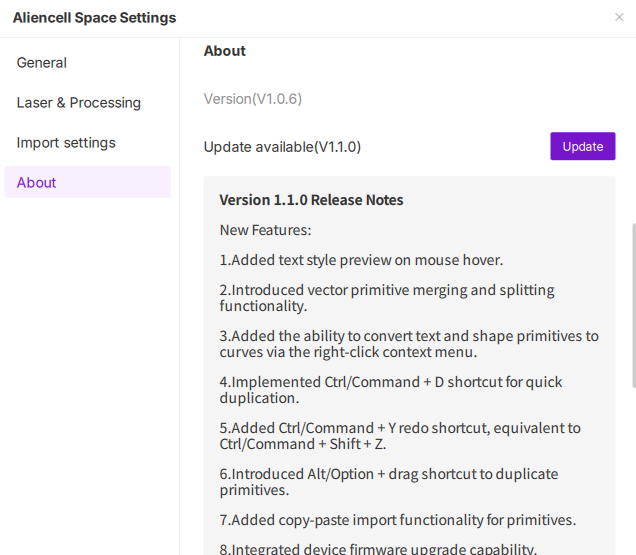
¶ 4.1 Current Version
Displays the version number of the software currently installed (e.g., V1.0.6).
¶ 4.2 Update Available
When connected to the internet, the software automatically checks for updates.
- Status Display:
- If you are up to date, it only shows the current version.
- If a new version is found (e.g., V1.1.0), the full update log will be displayed.
- Release Notes: The text box lists the New Features and bug fixes included in the update.
- Action: Click the Update button. The system will open your default web browser to begin downloading the installer.
Note on Browser Security Warnings:
During the download, your browser (e.g., Chrome or Edge) may display a warning stating: "AliencellSpace...exe might harm your device."This is a standard security check for executable files. Please proceed with confidence:
Please click Keep (or "Keep anyway") to allow the download.
Once downloaded, run the installer directly. The new version will automatically overwrite the previous version—you do not need to uninstall the old version manually.