¶ 1. What Is Outline Generation?
The Outline feature creates clean, editable boundary lines for images, vector graphics, or text. These outlines can be used for cutting, engraving, or further design adjustments.
Aliencell Space offers two outline modes to support different design needs: Standard Outline and Rubber Band Outline.
¶ 2. Supported Objects & How They Behave
This tool works with bitmaps, vector graphics, and text objects. Depending on the object type, the outline logic differs:
¶ Bitmap Images
-
Regular images (non-transparent background):
The outline follows the rectangular boundaries of the image. -
Transparent PNGs or images with removed backgrounds:
If the image has transparency, or if you've processed it with the Magic Wand, the outline will tightly follow the visible shape.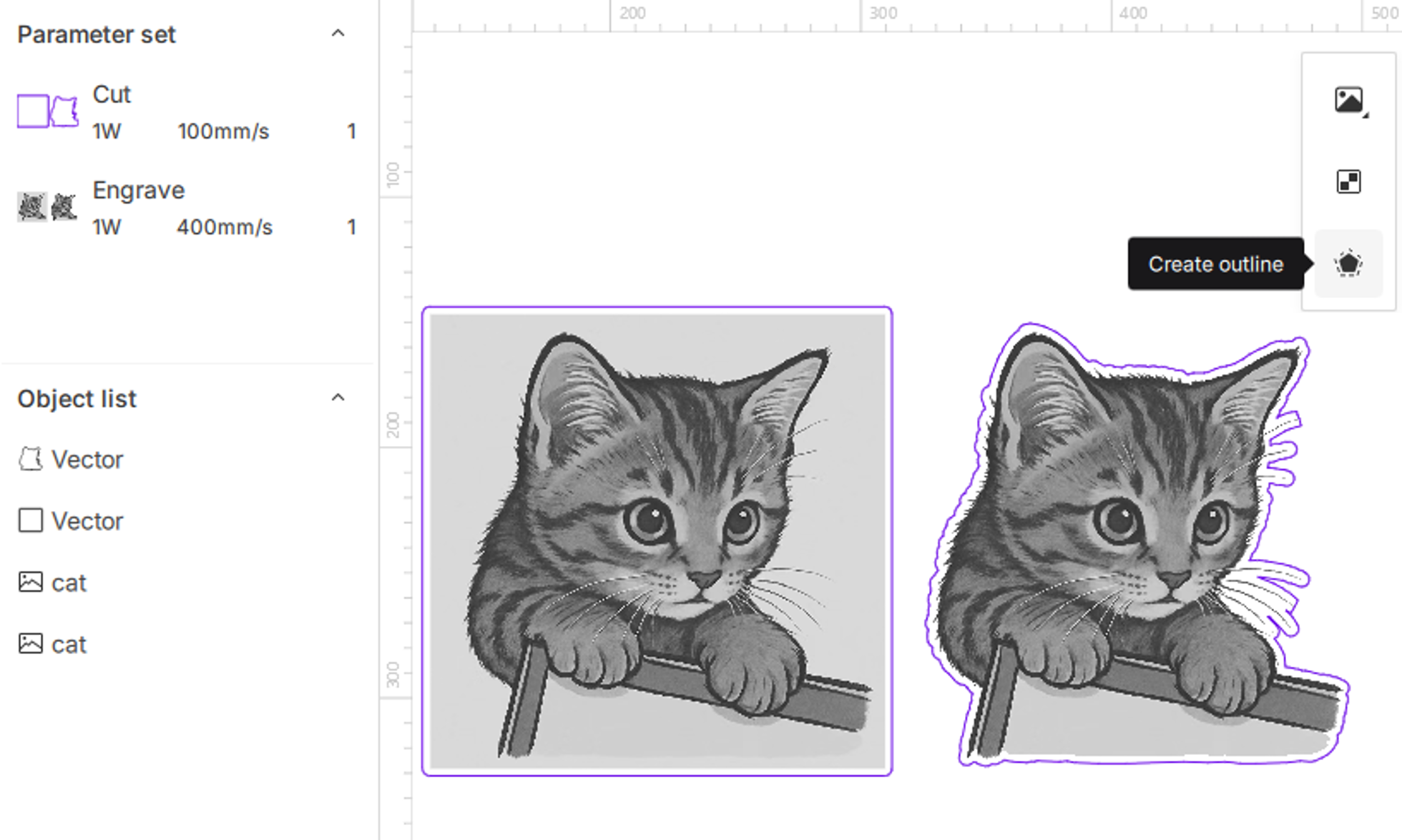
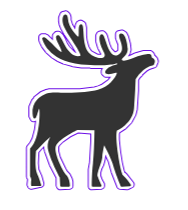
¶ Vector Graphics
The outline follows the actual vector paths precisely.
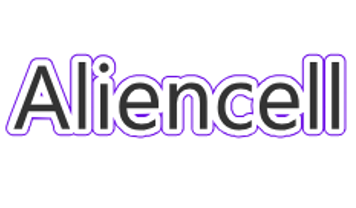
¶ Text Objects
The outline wraps around each character’s shape, making it suitable for engraving or cutting.
¶ 3. Standard Outline
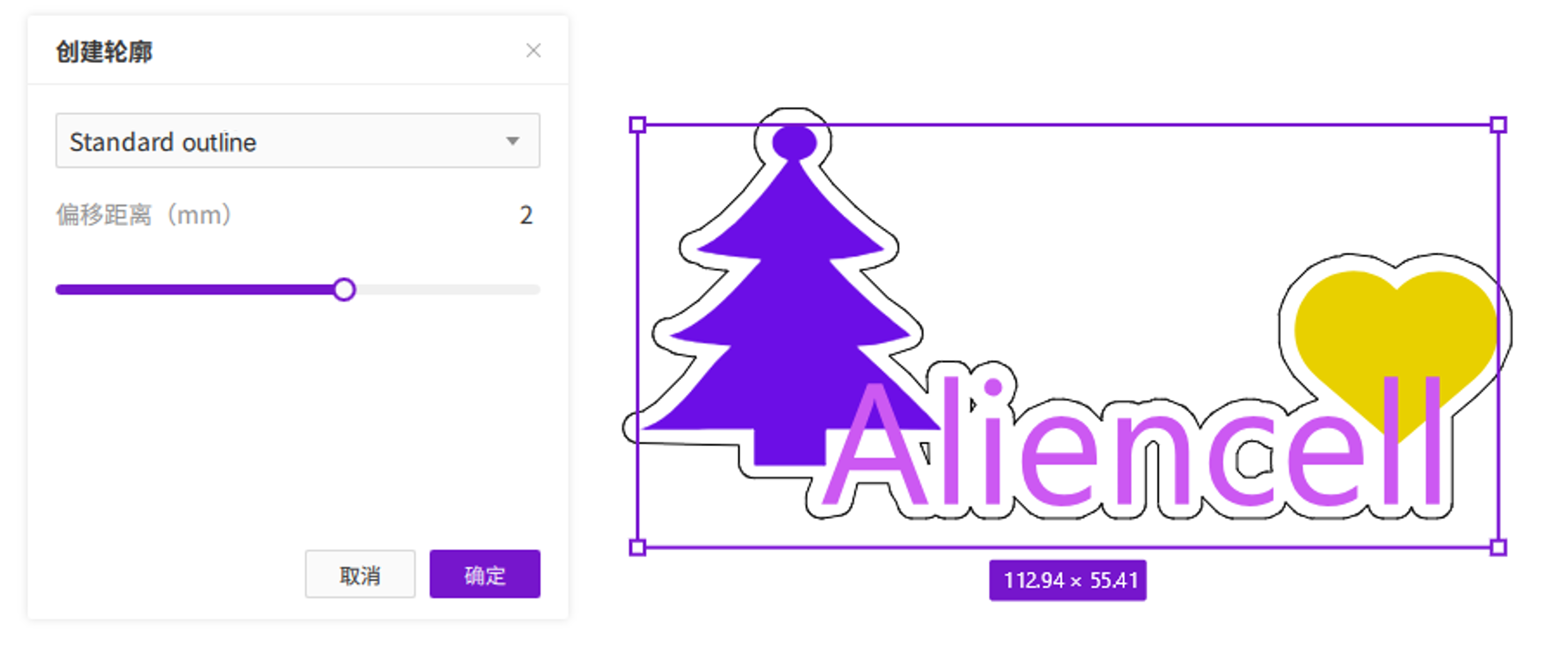
Standard Outline is the default mode. The software traces the real edges of the selected object(s) with precision.
¶ 3.1 How It Works
- Single object:
The outline closely matches the object’s true boundary. - Multiple objects:
Each object receives its own outline.
Important: If outlines overlap, the software automatically merges them into one continuous contour and removes inner overlapping lines.
¶ How to Use
Click the  icon. The software automatically selects Standard Outline.
Click Confirm to generate the outline as a new vector object.
¶ 3.2 Parameter Settings
Before generating, you can adjust the offset distance between the object and its outline.
- Range: –10 mm to +10 mm (values beyond this range will auto-correct)
- Positive values (+2 mm default): Expands outward; larger numbers produce a wider outline.
- Negative values: Shrinks inward; smaller numbers pull the outline closer to the inside.
¶ 4. Rubber Band Outline
Rubber Band Outline wraps one or more objects together as if stretched by an elastic band, creating a smooth, fully enclosed exterior shape.
¶ 4.1 How It Works
- Main purpose:
Ideal for grouping scattered objects (such as letters or decorative elements) into one unified backing or base. - Effect description:
The software skips concave areas and connects the outermost corners directly—similar to how a rubber band would stretch around the shape.
¶ How to Use
Click the outline icon
Open the dropdown next to Standard Outline, select Rubber Band Outline, and click Confirm.
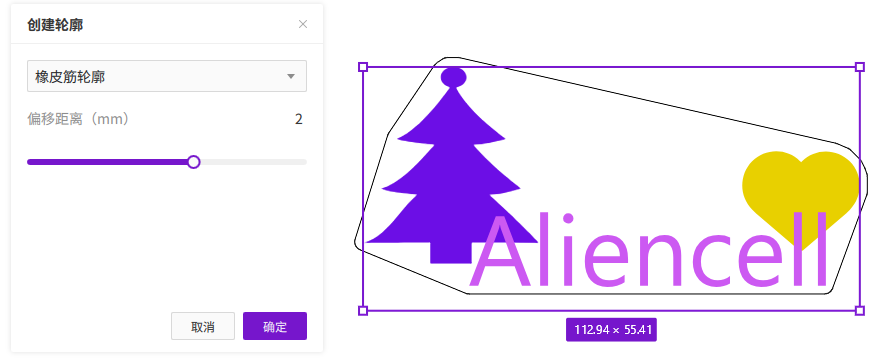
For a single convex object, Rubber Band and Standard Outline may look identical.
The difference becomes clear when multiple objects are selected.
¶ 4.2 Parameter Settings
You can adjust the offset distance before generating the outline.
- Range: –10 mm to +10 mm
(values outside this range auto-correct)- Positive values (+2 mm default): Expands the outline outward.
- Negative values: Pulls the outline inward.