¶ 1. Smart Grayscale Conversion
In laser processing, the laser module cannot recognize "colors"; it only understands "grayscale" (levels of brightness). When you import a colored vector file (SVG), Aliencell Space must determine how to handle these colors. Take this highly colorful tiger SVG graphic as an example:
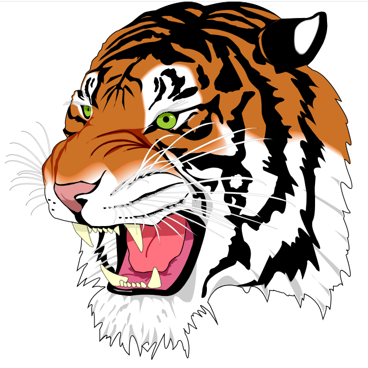
- Perfectly Preserves Light & Dark Details: While other software often crudely converts colored vector graphics into flat, solid black silhouettes, Aliencell Space precisely translates them into graphics with rich grayscale variations based on their original RGB values, preserving layered light-and-dark detail when engraved.
- No Color Parsing Limits: Other software usually imposes strict limits on the number of colors in an imported SVG (excess colors are forced to merge or are lost completely). In contrast, Aliencell Space fully loads and parses every color detail in your design, ensuring no design intent is lost.
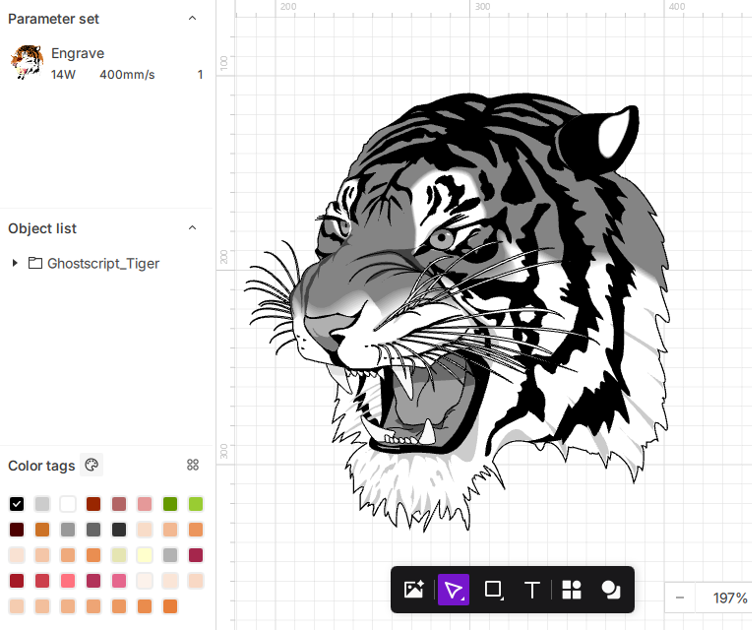 |
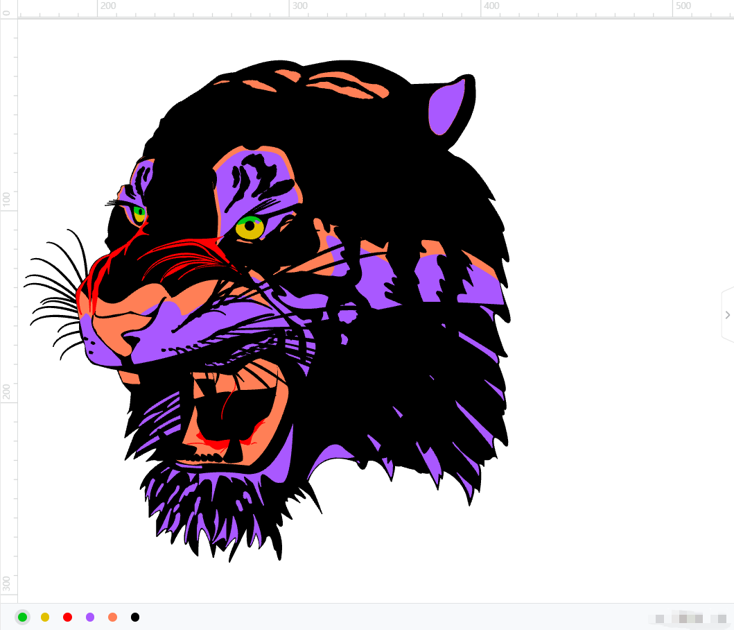 |
|---|---|
| Imported into Aliencell Space | Imported into Other Software |
- We performed an engraving test using the exact same single processing parameter (Power: 14W, Speed: 100mm/s) in both software programs. Here are the results:
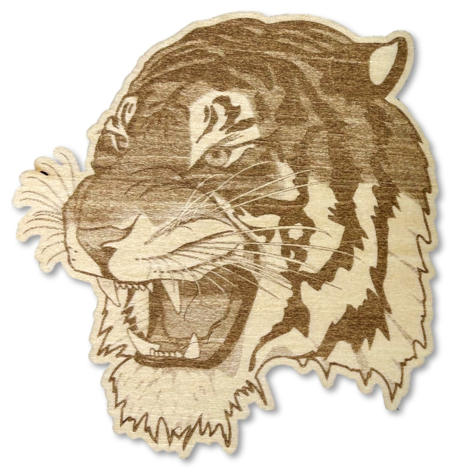 |
 |
|---|---|
| Aliencell Space Result | Other Software Result |
What is Smart Grayscale Conversion and why is it useful in laser engraving?
-
Purpose: Its core function is to translate "colored vector graphics" into "light and dark instructions" that the laser can understand.
-
Lasers only differentiate between high and low power; they do not see color. When you import a highly colorful illustration (e.g., a leaf with dark green, light green, and yellow hues), the "Preserve Differences" option automatically adjusts the laser power based on the original brightness of those colors. Darker areas will trigger higher power (engraving deeper/darker), while lighter areas will use lower power (engraving lighter). This allows you to configure just one base processing parameter to achieve photo-realistic light-and-dark detail in a vector engraving in a single pass.
-
Smart Grayscale Conversion focuses on "detail expression within a single engraving task." Dozens of colors are merged under the same processing layer/Color Tag. The machine performs a single engraving action, but during the process, the software internally micro-adjusts the power via "grayscale mapping" to present visible light-and-dark layering.
¶ 2. Setting the Smart Grayscale Conversion Threshold
In the software settings, you can customize the color judgment threshold.
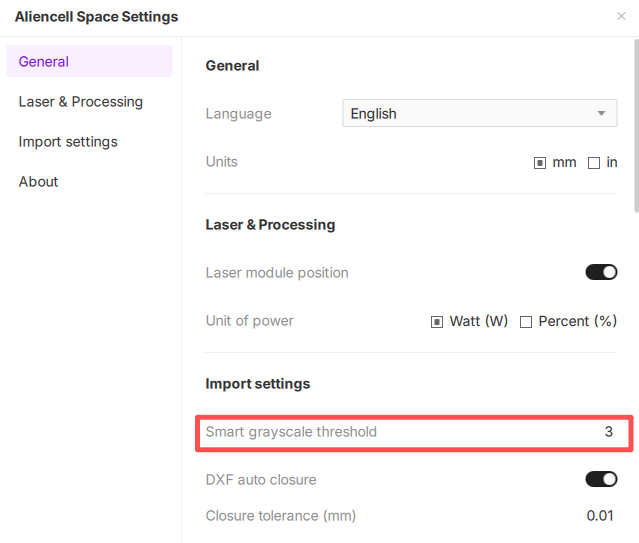
The default color threshold is set to 8 (which can be modified in settings). When you import an SVG file, the software automatically counts the number of colors in it and triggers one of two different processing workflows:
¶ Scenario 1: Number of Colors ≥ Threshold (Complex Graphics)
When the imported SVG contains a high number of colors (meeting or exceeding the threshold), the software assumes you have imported an illustration or complex vector typography. It will pop up a prompt window asking you to choose a conversion method:
(Example: Assuming the threshold is set to 3, and you import an SVG with 5 colors)
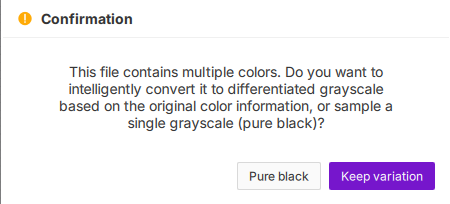
At this point, your choice will determine the final engraving result:
-
Option A: Solid Black
- Effect: Ignores original color differences and merges the entire graphic into a single solid black block (uniform grayscale value of 0).
- Use Case: Ideal for flat 2D markings, logos, silhouettes, or plain text. Choose this when you need high contrast and absolutely uniform filling, without internal details.
-
Option B: Preserve Differences
- Effect: The software maps the original RGB values into varying shades of gray, perfectly preserving the light and dark layers of the original design.
- Engraving Result: This is an advanced laser engraving technique. Even if you only set one uniform engraving parameter (e.g., 30% power), the machine will automatically micro-adjust the laser during processing based on the internal grayscale:
- Darker color areas: Higher laser output, engraved deeper/darker.
- Lighter color areas: Weaker laser output, engraved lighter.
- Use Case: Multi-layer illustrations, vector portraits, or complex graphics with shadow/gradient effects.
¶ Scenario 2: Number of Colors < Threshold (Simple Graphics)
When the imported SVG has very few colors (below the threshold), the software assumes you are importing simple layout elements (e.g., dual-color icons, simple line boxes).
- Effect: To avoid interrupting your workflow, the software will not display a pop-up prompt. Instead, it automatically defaults to converting the graphic into Solid Black (single grayscale).
- Advantage: When handling a large number of simple design assets, this provides an incredibly fast, uninterrupted import experience, ensuring stable and consistent engraving results.
(Example: Importing a layer with only 2 colors; the system skips the pop-up and directly generates a solid black fill.)
¶ Smart Grayscale vs. Color Tags
When importing colored SVGs, it is easy to confuse "Grayscale Engraving" with "Color Tag Layering." They serve completely different purposes in Aliencell Space:
| Feature | Core Purpose | Mechanism | Processing Result |
|---|---|---|---|
| Smart Grayscale Conversion | Expresses detail levels within a single processing pass. | Treats multiple colors as a single object, controlling laser darkness/depth via light/dark mapping. | Executes 1 task. Creates different light-and-dark levels within the same engraving job. |
| Color Tags | Differentiates separate processing actions. | Assigns lines of different colors to distinct "Color Tags" at the bottom left. | Executes N tasks. For example: The red layer is dedicated exclusively to cutting (penetrating), while the blue layer is dedicated to engraving. |