¶ Aliencell E1 Beginner's Guide
Make your first laser project from scratch — a phone stand
⏱ Estimated time: 20–30 minutes | 🖨 Model: Aliencell E1
- The basics: bitmap vs vector images
- Base plate mode vs honeycomb panel
- Material thickness range & E1 specifications
- Machine setup & assembly
- Smoke extraction: air purifier / natural ventilation
- Download the software and open the project file
- Set processing parameters (engraving / cutting)
- Place the honeycomb panel and material
- Positioning: absolute vs relative
- Focusing: Auto mode recommended
- Starting the job & safety notes
- Advanced: E1 Riser Stands & Rotary Chuck (curved-surface engraving)
¶ 1. The basics: bitmap vs vector images
Before you start, get familiar with the two most common image types — they directly affect your results:
| Bitmap | Vector | |
|---|---|---|
| How it is made | Built from individual pixels, like a photo | Built from mathematical paths (lines and curves) |
| When zoomed in | Becomes blurry and pixelated | Stays sharp at any size, lossless scaling |
| Common formats | JPG, PNG, BMP | SVG, DXF |
| Best for | Engraving photos and pictures | Cutting text, logos and outlines |
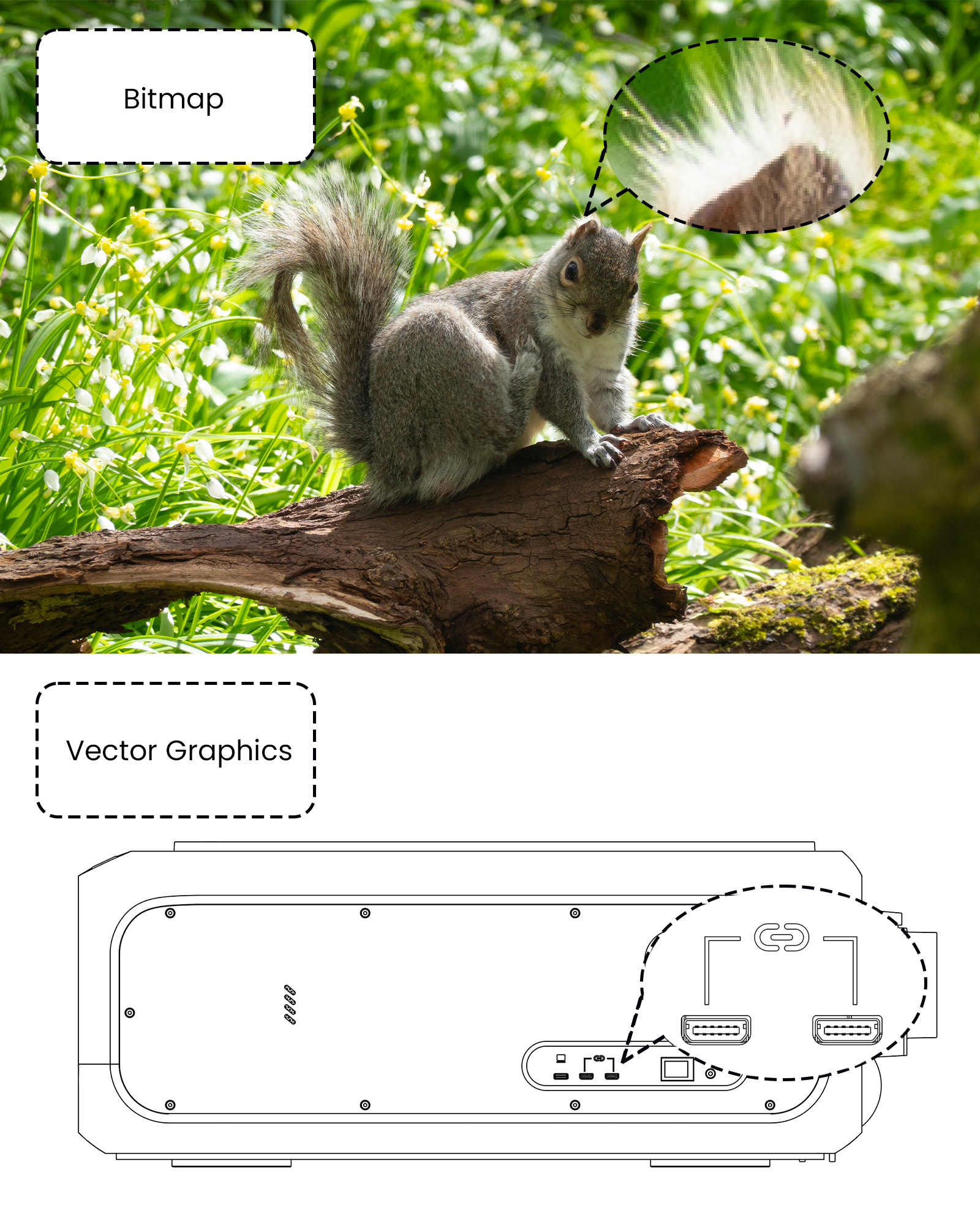
Figure 1: Bitmap vs vector when zoomed in
¶ 2. Base plate mode vs honeycomb panel
When the E1 is processing, there are two ways to support the material from below, each suited to a different job type:
| Support method | Recommended for | Why |
|---|---|---|
| Base plate mode (material rests directly on the machine base plate) | Mainly engraving | Engraving only affects the material surface and the laser does not cut through, so the flat base plate provides stable support. |
| Honeycomb panel | Mainly cutting | The panel elevates the material so the laser does not burn the back when cutting through; it also aids smoke extraction and reduces charred edges. |
¶ 3. Material thickness range & E1 specifications
Depending on the working mode, the material thicknesses the E1 can process are:
| Material thickness | Working mode | Supported operations |
|---|---|---|
| 0.1 – 25 mm | Base plate mode | Cutting and engraving |
| 0.1 – 11 mm | Honeycomb panel mode | Cutting and engraving; effectively reduces back-surface burning |
| > 25 mm | Riser stands mode | Engraving only, for working on the surface of larger / taller objects |
¶ Aliencell E1 Laser Engraver — Full Specifications
| Category | Item | Specification |
|---|---|---|
| Laser | Supported laser power | Compatible with 10W / 20W / IR 3W |
| Laser wavelength | 450 nm typical (blue light, Hess/OSRAM sources) / 1064 nm typical (infrared light) | |
| Laser type | Blue light / infrared light | |
| Modulation type | CW (continuous wave) / infrared (pulsed) | |
| Weak blue auxiliary positioning light | Yes (10W, 20W) | |
| Crosshair laser positioning | Yes (IR 3W) | |
| Spot size | 10W Diode: 0.03 × 0.03 mm 20W Diode: 0.1 × 0.15 mm 3W IR: 0.05 × 0.05 mm | |
| Performance | Max. working speed | 600 mm/s |
| Max. acceleration | 20,000 mm/s² | |
| Max. work area | 304.8 × 304.8 mm (12" × 12") | |
| Max. cutting thickness | 25 mm | |
| Motion control | X-axis limit detection | Dual-point detection on both sides |
| Y-axis home point | Dual-point detection on both sides | |
| XY motion control | Max. working speed 600 mm/s, max. acceleration 20,000 mm/s² | |
| Z-axis control | Lifts to the highest home point; rotary chuck motion control | |
| R-axis control | Supported via dedicated R-axis port | |
| Interaction & controls | Main power switch | Yes |
| Start / pause button | Yes | |
| Emergency stop button | Yes | |
| Breathing indicator light | Yes | |
| LED lighting | Automatic adjustment | |
| Buzzer | Status alerts | |
| Connectivity & ports | Wi-Fi | 2.4 GHz Wi-Fi, local network connection (LAN communication only; no internet required) |
| Mini-B | ×2 (accessory ports) | |
| USB-A | ×1 (PC connection) | |
| Fire suppression air-line port | ×1 | |
| Power port | ×1 | |
| Rotary chuck port | Built-in ×1 | |
| Detection & safety | Lid detection (Hall) | Open / close detection with automatic lighting adjustment |
| Front cover detection (Hall) | Open / close detection with automatic lighting adjustment | |
| Flame detection | AI camera automatic recognition | |
| Structural design | Laser heat dissipation | Laser heat sink with integrated diode package |
| External exhaust fan | PIN plug-in, bidirectional mounting | |
| Smart control | Exhaust fan adjustment | Automatically adjusts extraction strength to the engraving / cutting task, power and material |
| Air pump load adjustment | Automatically adjusts air pump output to processing needs | |
| Vibration suppression | Initiated from the host software to suppress processing vibration and improve precision | |
| Focus modes | Auto focus / manual focus | |
| Certifications | Global certifications | FDA, FCC ID, FCC SDOC, IC ID, RCM, SAA, UKCA, CE, EN60825, RoHS, EAC, TELCE, PSE |
| Physical specs | Machine weight | ≤ 14 kg (30.86 lbs) |
| Dimensions | 500 × 522.5 × 217 mm (19.69" × 20.57" × 8.54") | |
| Input voltage | 100-240V~ 50/60Hz 3.0A | |
| Output voltage | DC 24V ⎓ 7.5A 180W |
Note: the smart-control features above are generally operated from within the Aliencell Space software.
¶ 4. Machine setup & assembly
¶ 1Install the laser module
Bring the laser module close to the mounting position and let the magnets snap it into place, then plug in the laser module cable. Confirm the magnetic mount is secure and the cable is fully inserted.
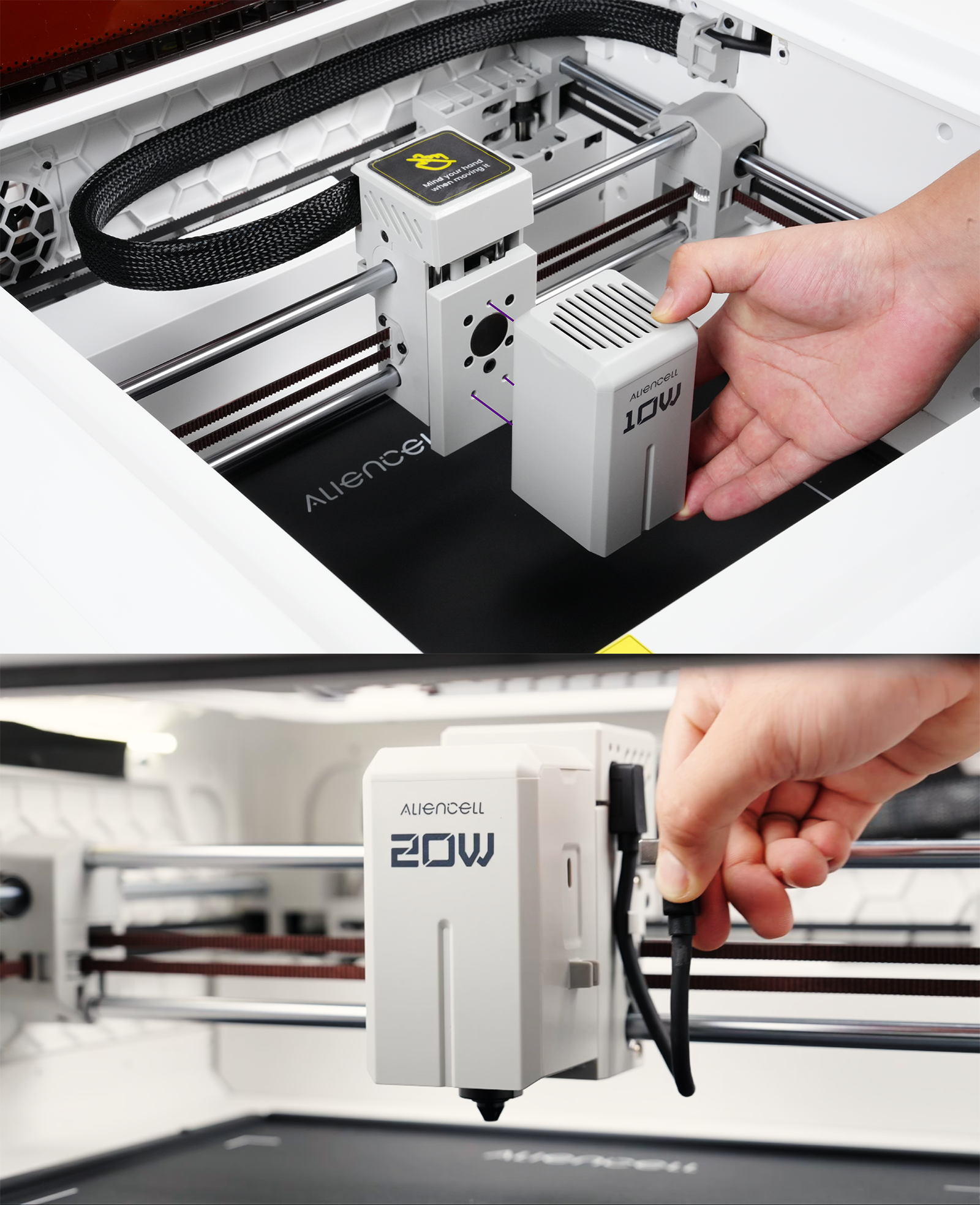
Figure 2: Installing the laser module
¶ 2Install the exhaust hose
Align the exhaust hose with the exhaust fan outlet at the rear of the machine and push it firmly onto the connector. Confirm the connection is tight and the hose is not kinked or blocked.
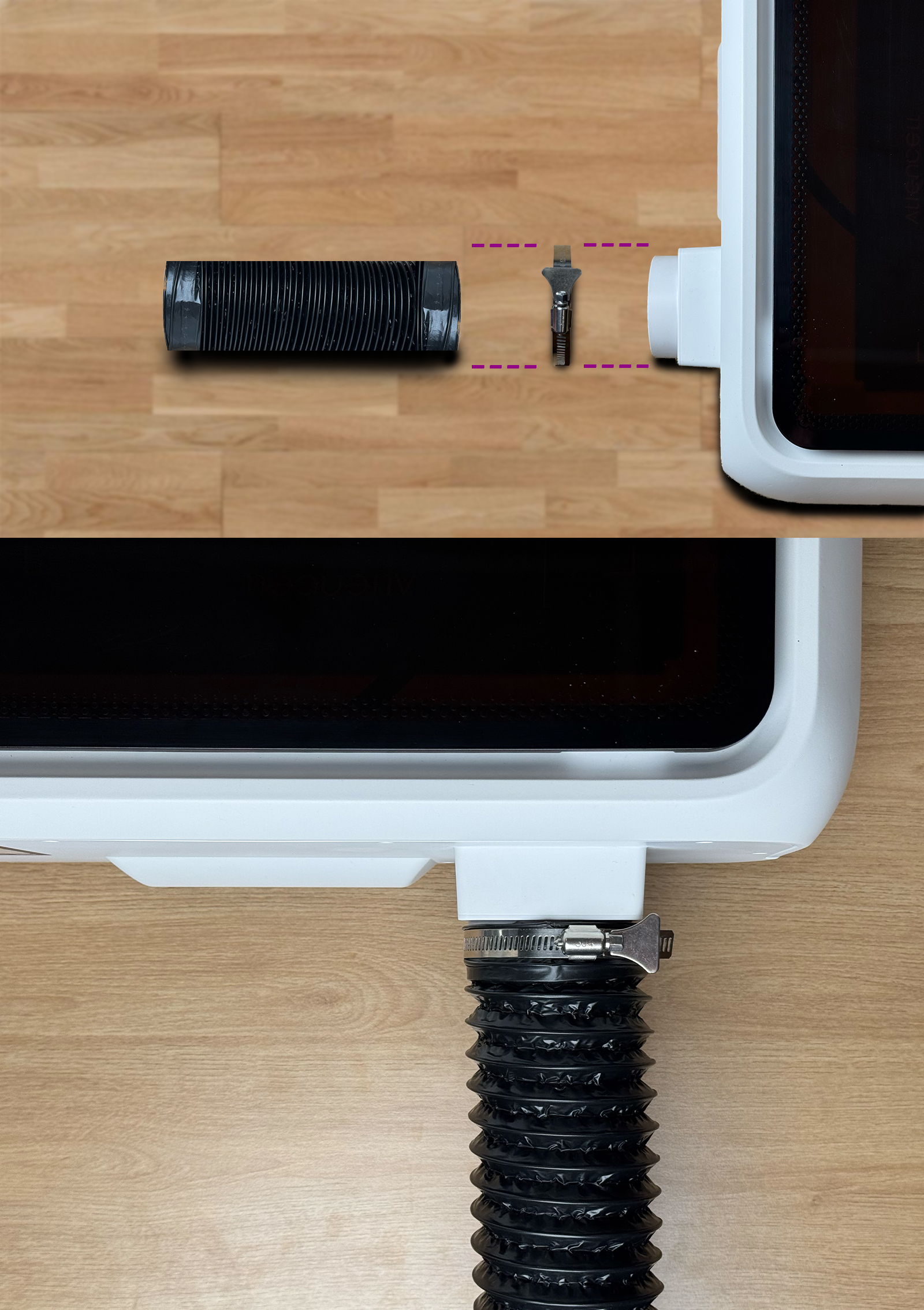
Figure 3: Installing the exhaust hose
¶ 3Connect power and turn on the machine
Connect the power adapter to the machine's power port. Release the emergency stop button and turn on the machine's main power switch — the breathing indicator light will come on to show the machine is powered.
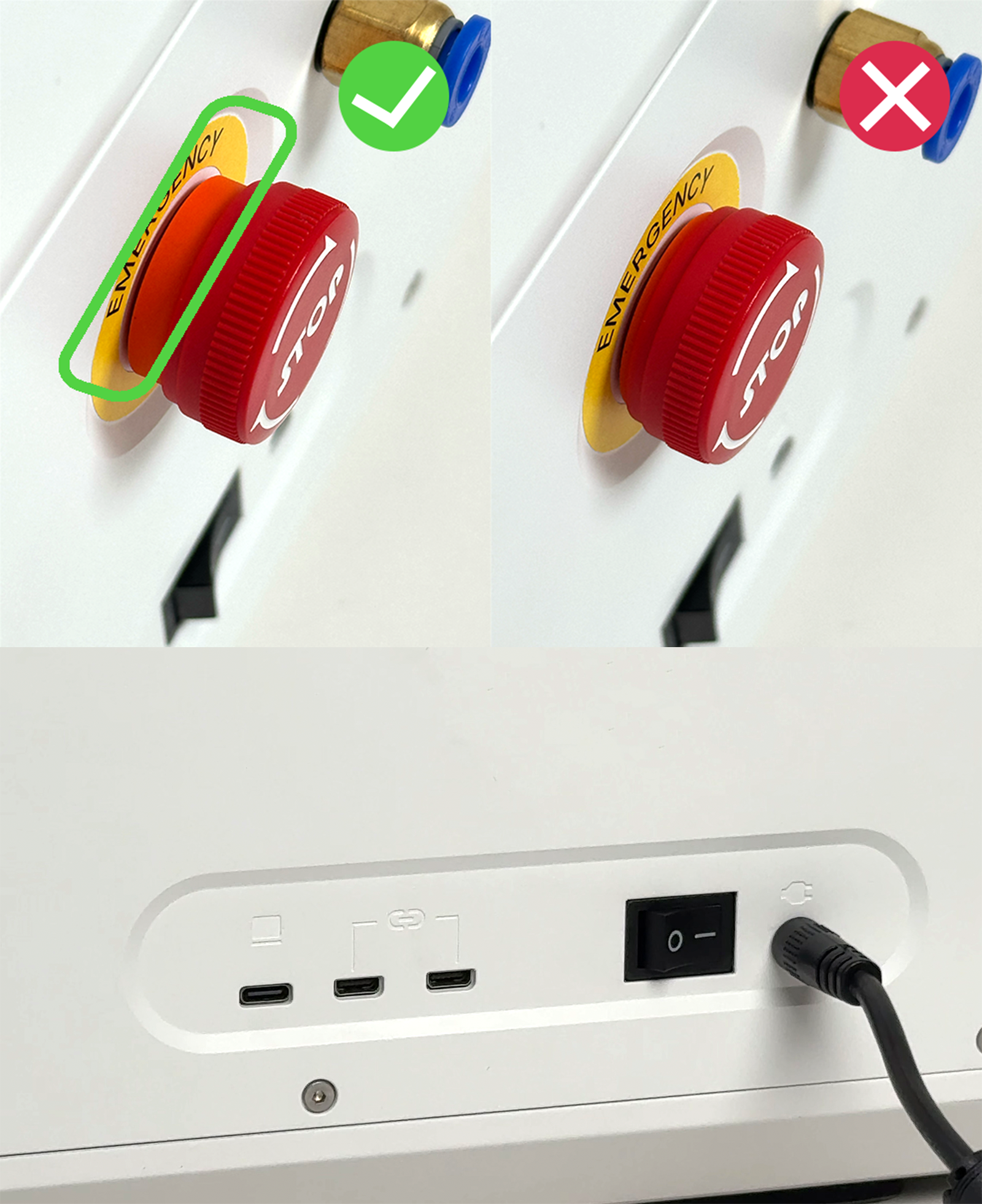
Figure 4: Connecting power and turning on the machine
¶ 5. Smoke extraction: choose by whether you have an air purifier
¶ Option A: With an air purifier
- Connect the other end of the exhaust hose to the air purifier's air inlet, making sure the connection is sealed.
- Plug in and turn on the purifier.
- The default automatic setting is sufficient for everyday engraving / cutting.
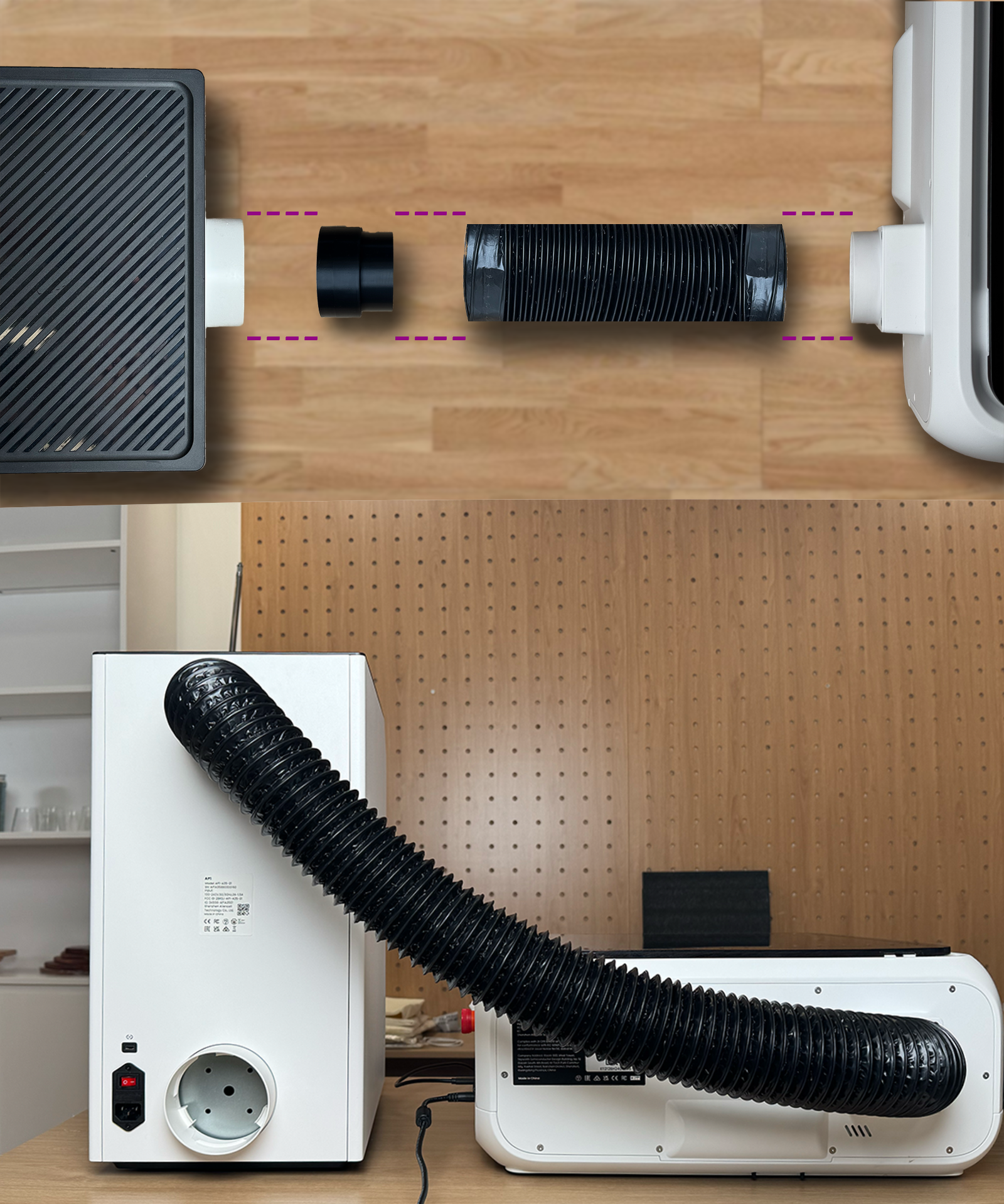
Figure 5: Connecting the air purifier
¶ Option B: Without an air purifier
Route the exhaust hose outlet to a ventilated area (such as a window or exhaust vent) so smoke is discharged directly outside, and keep the room well ventilated.
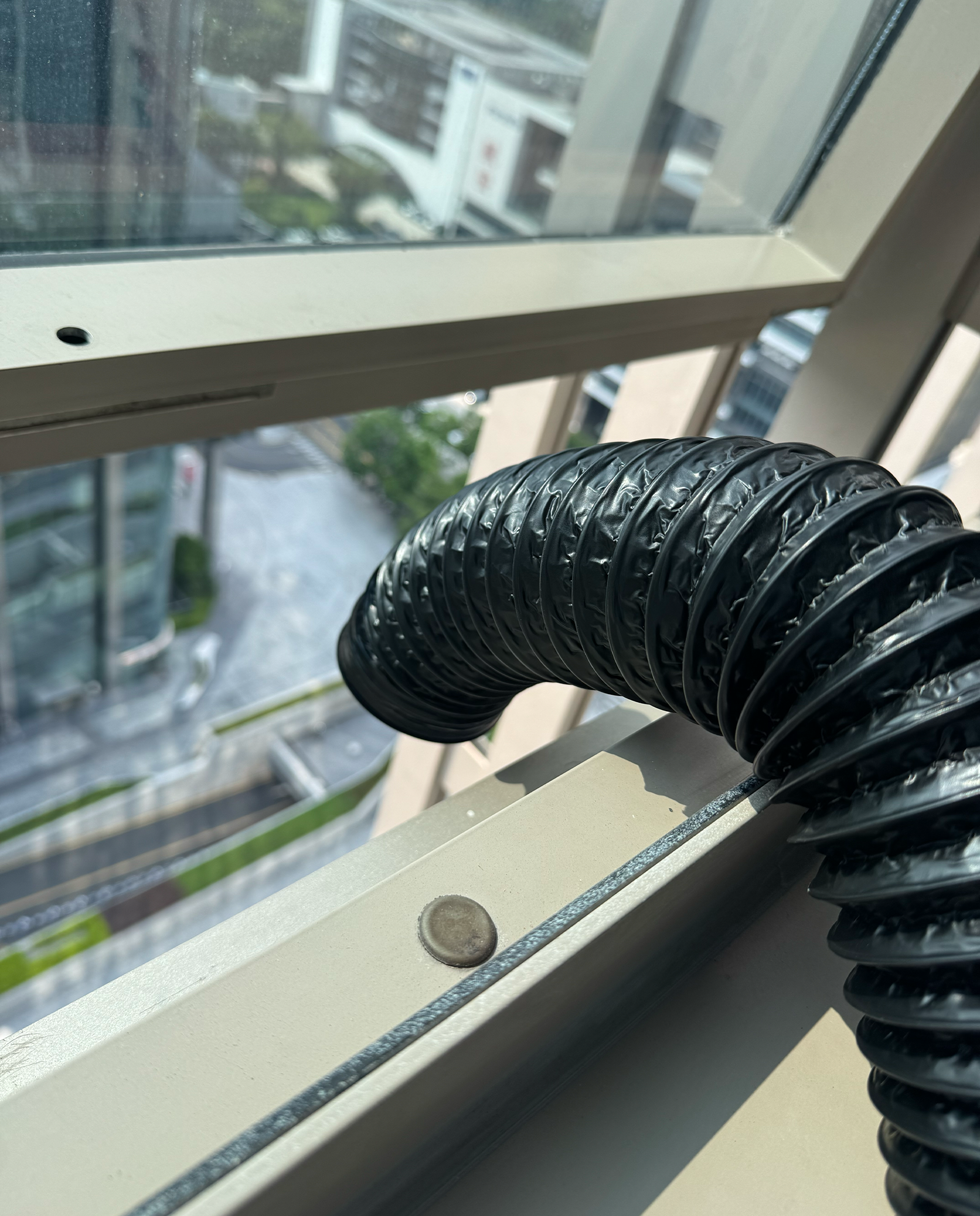
Figure 6: Routing the exhaust hose without a purifier
¶ 6. Download the software and open the project file
The material pack included with the machine contains a 3 mm basswood board, which we'll use for this project.
Please download the following two files first:
The project-file download link is a placeholder and will be added later.
¶ 1Install Aliencell Space first
Install the software first — just follow the installation wizard.
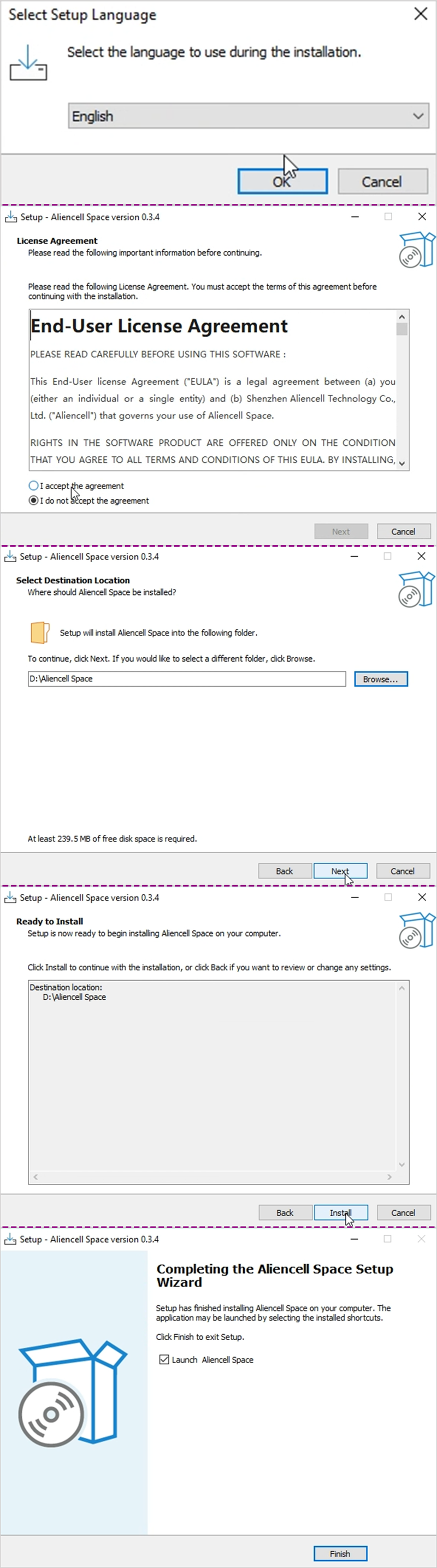
Figure 7: Installing Aliencell Space
¶ 2Open the project file
After the software is installed, double-click the project file, or drag and drop it directly into the Aliencell Space window to open it.
¶ What's in the project file?
The drawing contains two processing projects, left and right; once finished, the two pieces slot together into a phone stand. The outer outlines of both projects are cuts. The difference:
- Left: mainly engraving — the inner patterns / text are engraved, and the patterned piece is then cut out along its outline;
- Right: mainly cutting — the stand piece is cut out along its outline.
In the image below, the white areas are the parts that remain (colors are for reference only).
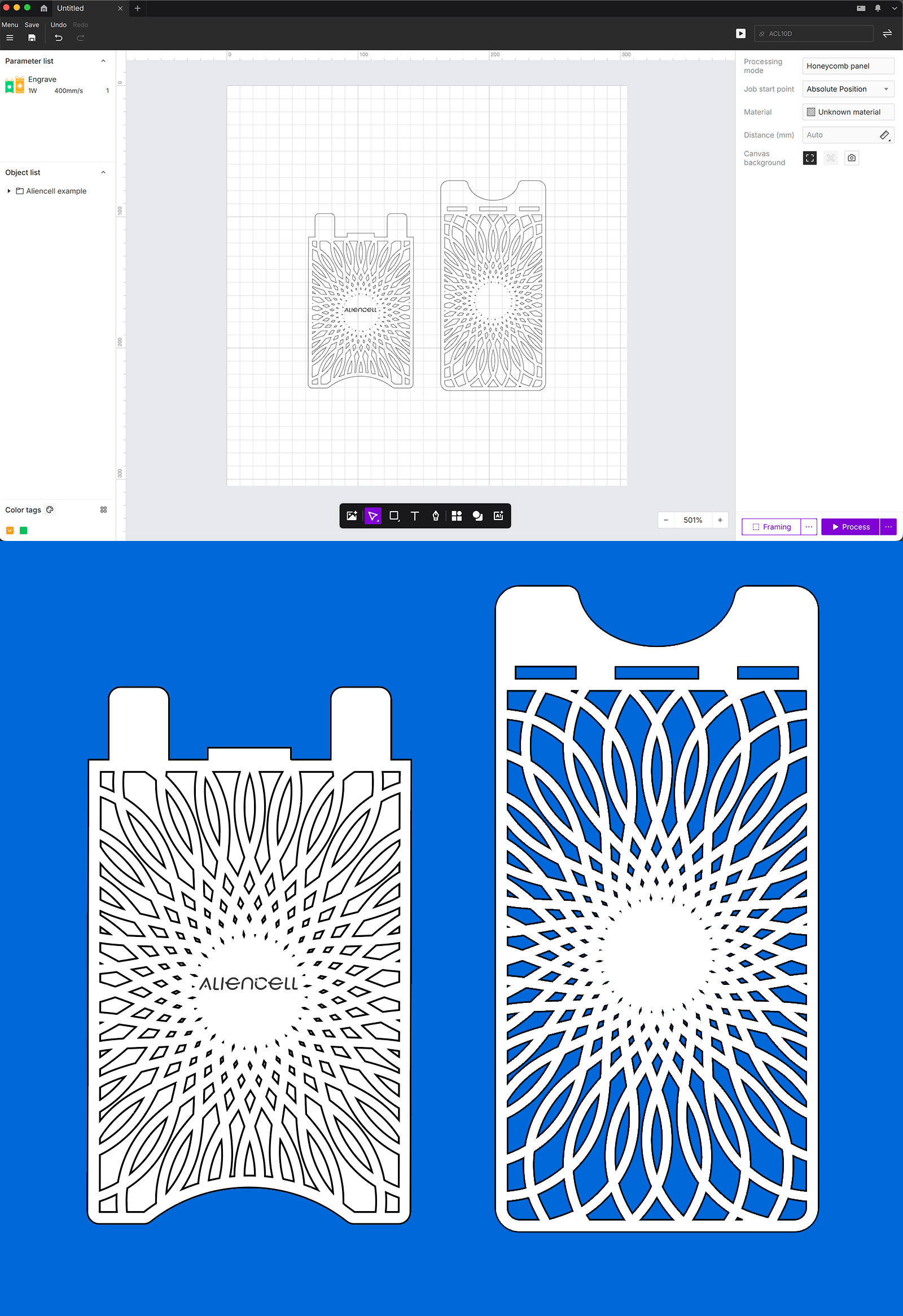
Figure 9: Project file and finished-piece preview
¶ 7. Set processing parameters (engraving / cutting separately)
The parameters in the project file are all unset. You need to configure the engraving and cutting parameters separately in the Design Parameters panel on the left side of the software.
¶ 1Open the Design Parameters panel on the left
After selecting the corresponding project, set its parameters in the left panel. Engraving and cutting must be configured separately.
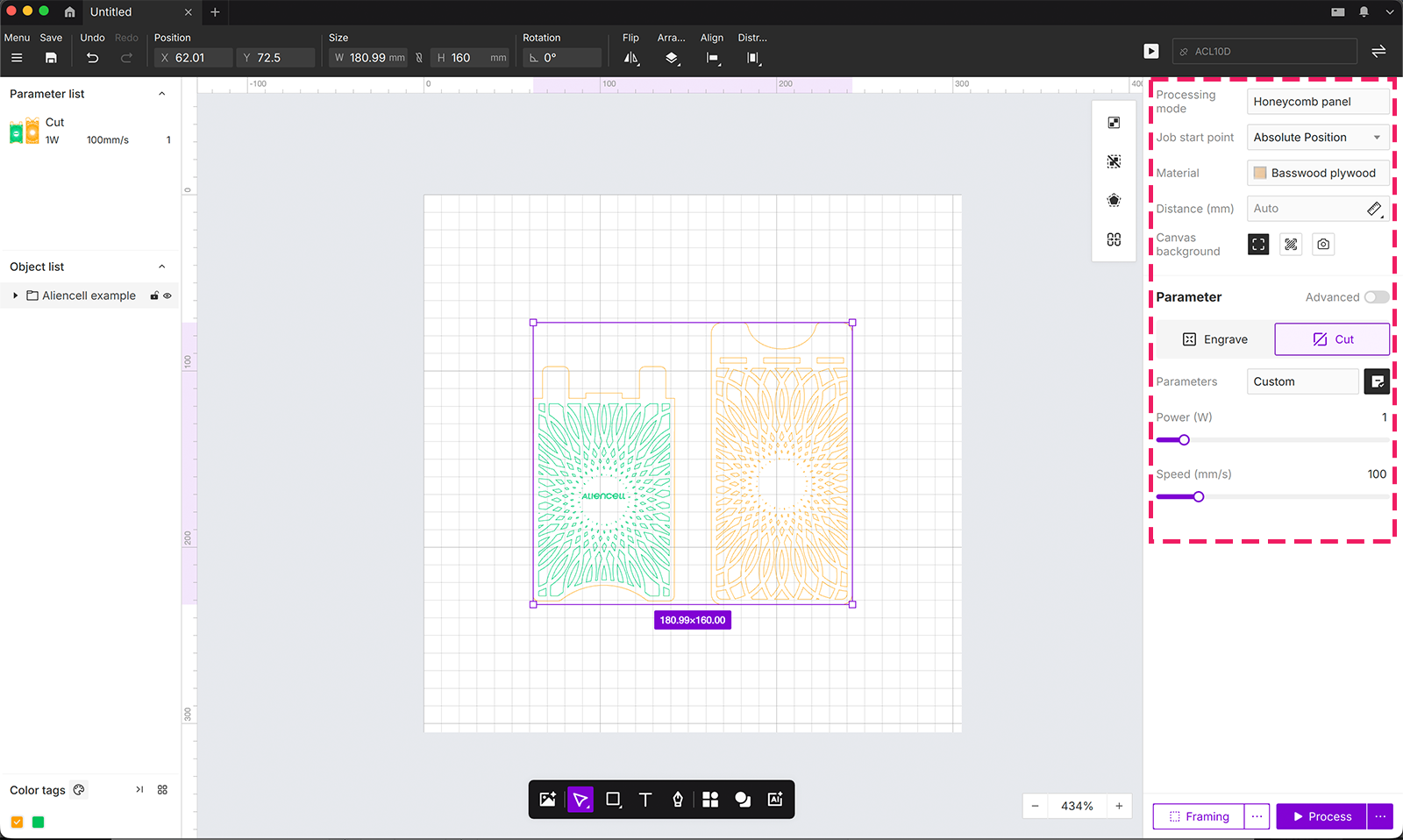
Figure 10: Design Parameters panel
¶ Reference parameters for 3 mm basswood
| Job type | Power | Speed | Passes | Acceptance criteria |
|---|---|---|---|---|
| Engraving | 8 W | 300 mm/s | 1 | Clear surface, no charring |
| Cutting | 10 W | 7 mm/s | 1 | Cuts through the material with clean edges |
* Reference parameters for a 3 mm basswood board. Boards vary between batches; if it doesn't cut through in one pass, increase the number of passes. Always verify with an actual test first.
¶ 8. Place the honeycomb panel and material
This job includes cutting, so the honeycomb panel is required:
- Lay the honeycomb panel flat inside the machine, within the work area;
- Lay the 3 mm basswood board flat on top of the panel, as level as possible, with no warping or lifting.
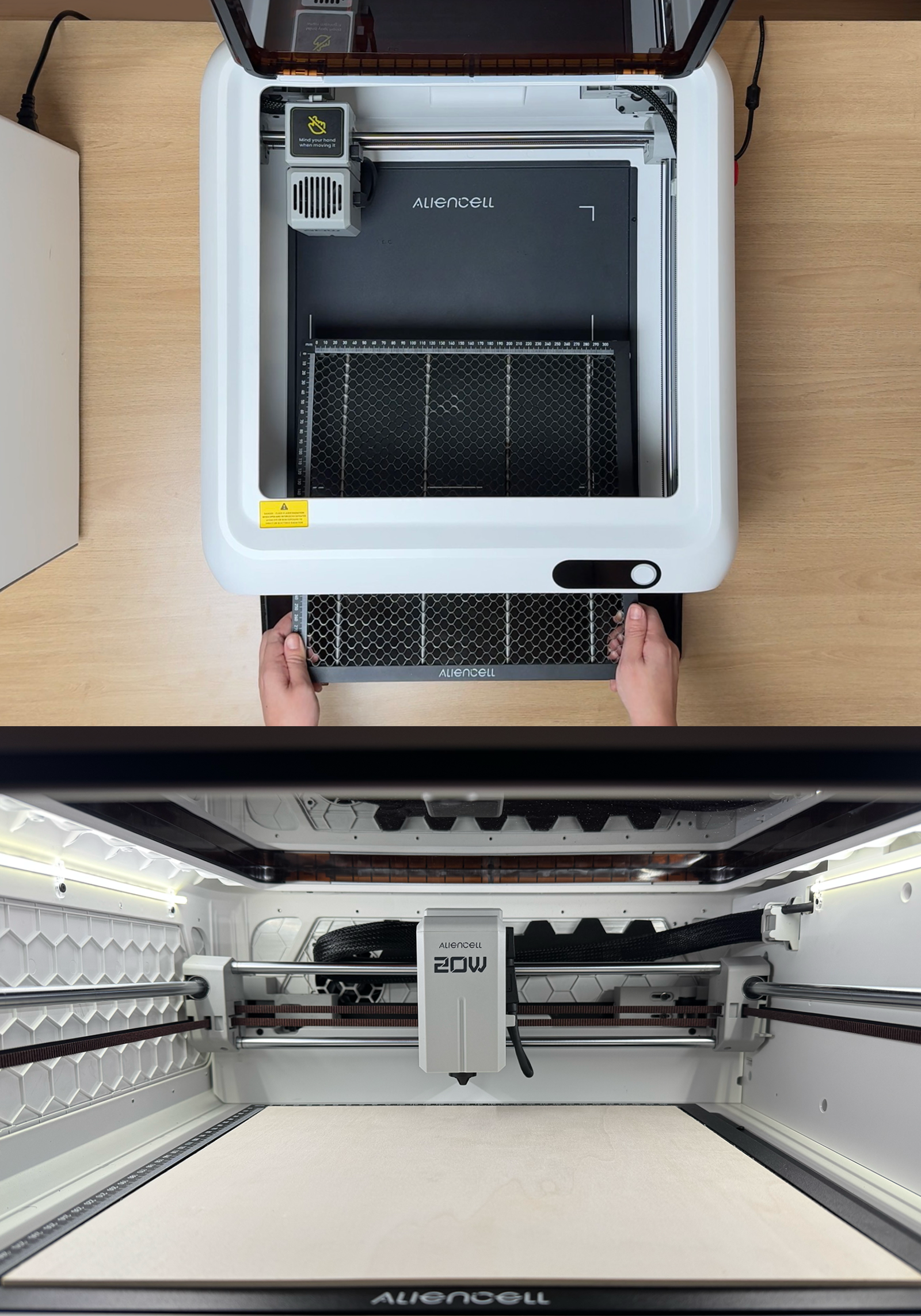
Figure 11: Placing the honeycomb panel and basswood board
¶ 9. Positioning: absolute vs relative
At Job Origin in the upper-right corner of the software interface, you can switch between two material-positioning modes:
| Absolute coordinates (absolute positioning) | Current laser position (relative positioning) | |
|---|---|---|
| Reference point | The machine's fixed origin is the coordinate reference | The laser head's current position is the coordinate reference |
| Advantages | Precise and repeatable; consistent positioning for repeat jobs and leftover stock; ideal for precise placement | Intuitive and flexible; just move the laser head by hand to the target point on the material; ideal for quick jobs |
| Best for | Precisely matching positions on the material; batch / repeat jobs | Quick one-off pieces; positions already aligned manually with the laser head |
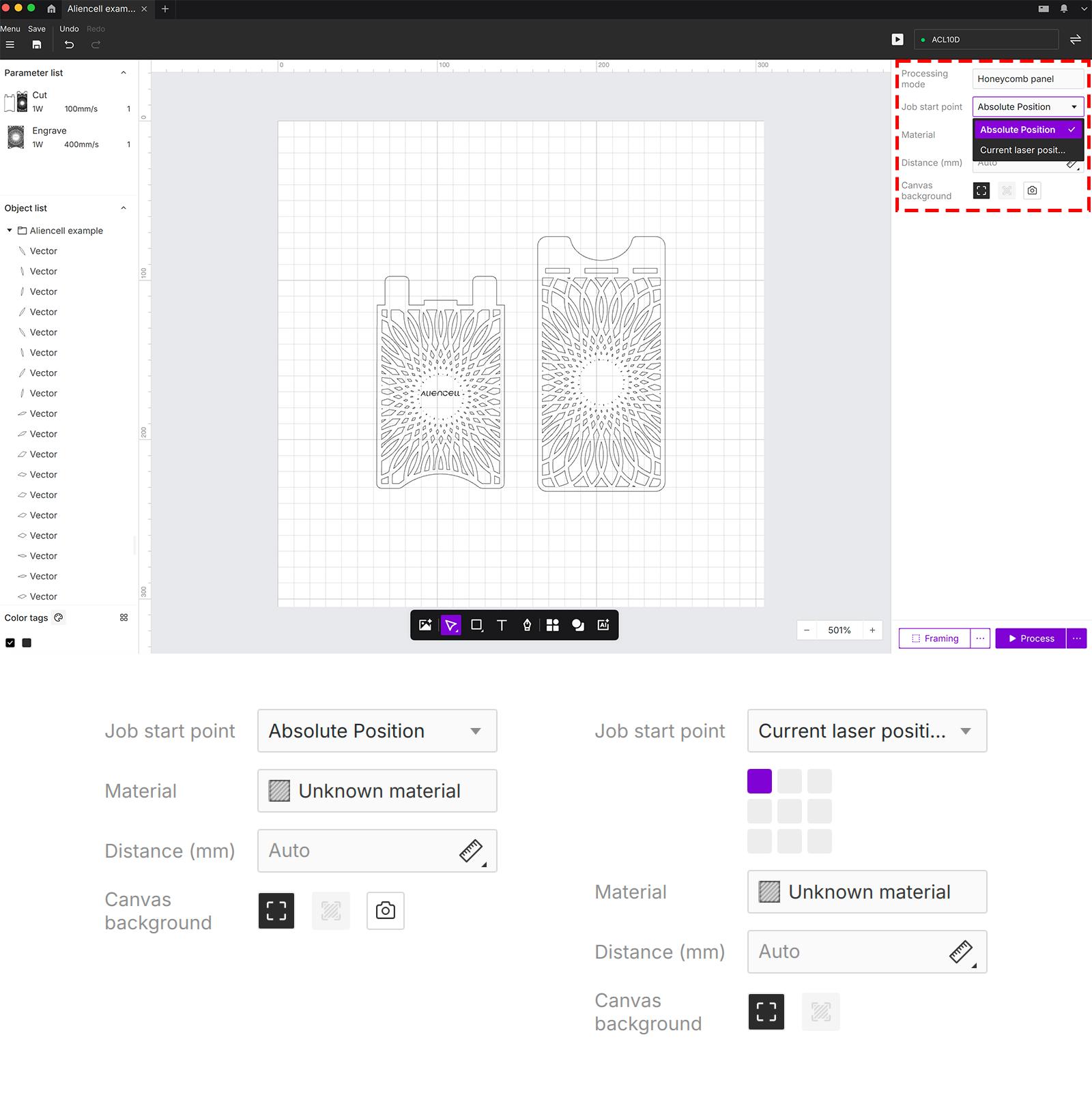
Figure 12: Positioning mode switch
¶ Two pre-job helper functions: Framing and Snapshot
Before starting the actual job, use these two functions for a final check:
| Function | What it does | When to use |
|---|---|---|
| Framing | The laser lights up, but at an extremely low, harmless power level; the laser head traces the outline rectangle of the design to preview the actual processing area, confirming the design sits fully on the material and the position is correct. | Every time, after positioning and before starting the actual job. |
| Snapshot | The built-in camera takes a live photo of the work area; the photo appears in the software as the canvas background, and you can drag and align the design directly on it — what you see is what you get. | When you need precise alignment with the material's actual position: take a Snapshot first, then arrange the design. |
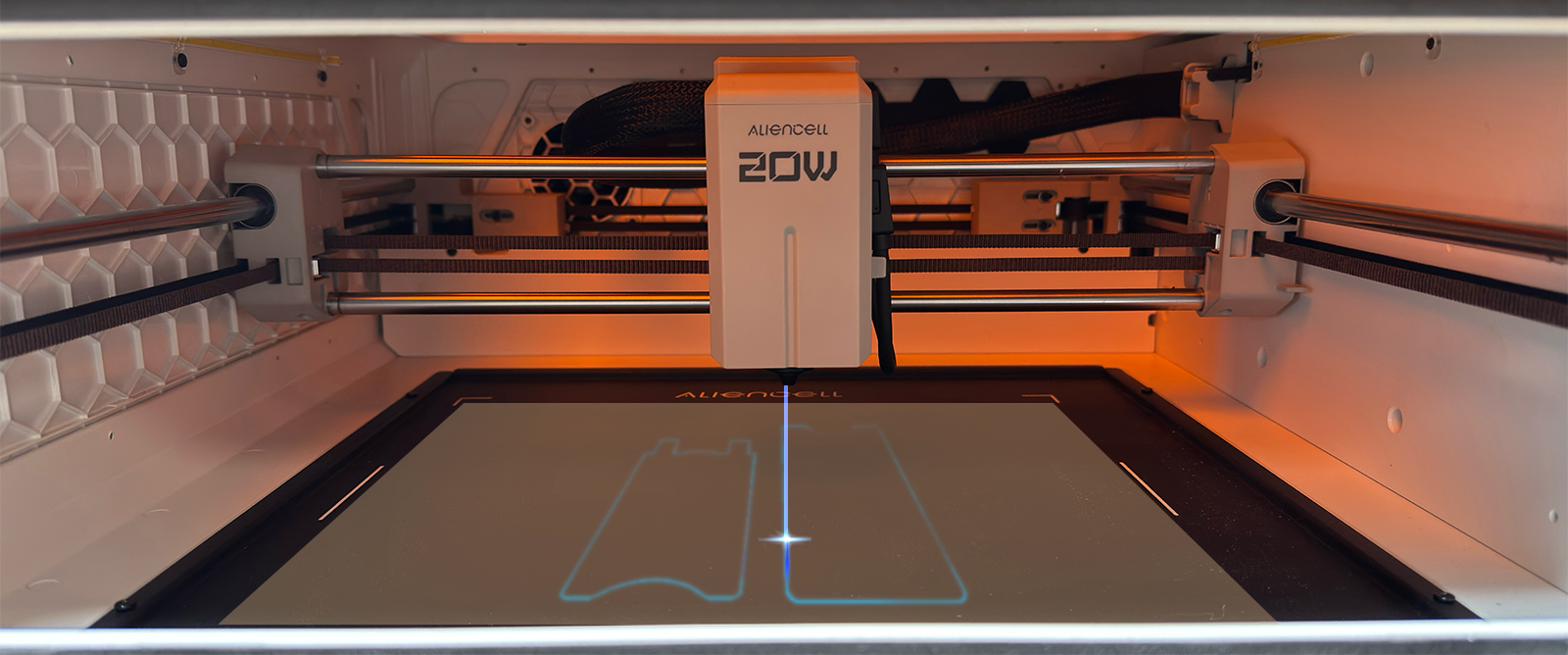
Figure 12-1: Framing previews the actual processing area
¶ 10. Focusing: Auto mode recommended
Focusing places the laser's focal point exactly on the material surface, which directly affects engraving and cutting quality. Unless you have a specific need, Auto focus mode is recommended — the device focuses automatically, with no manual measurement required.
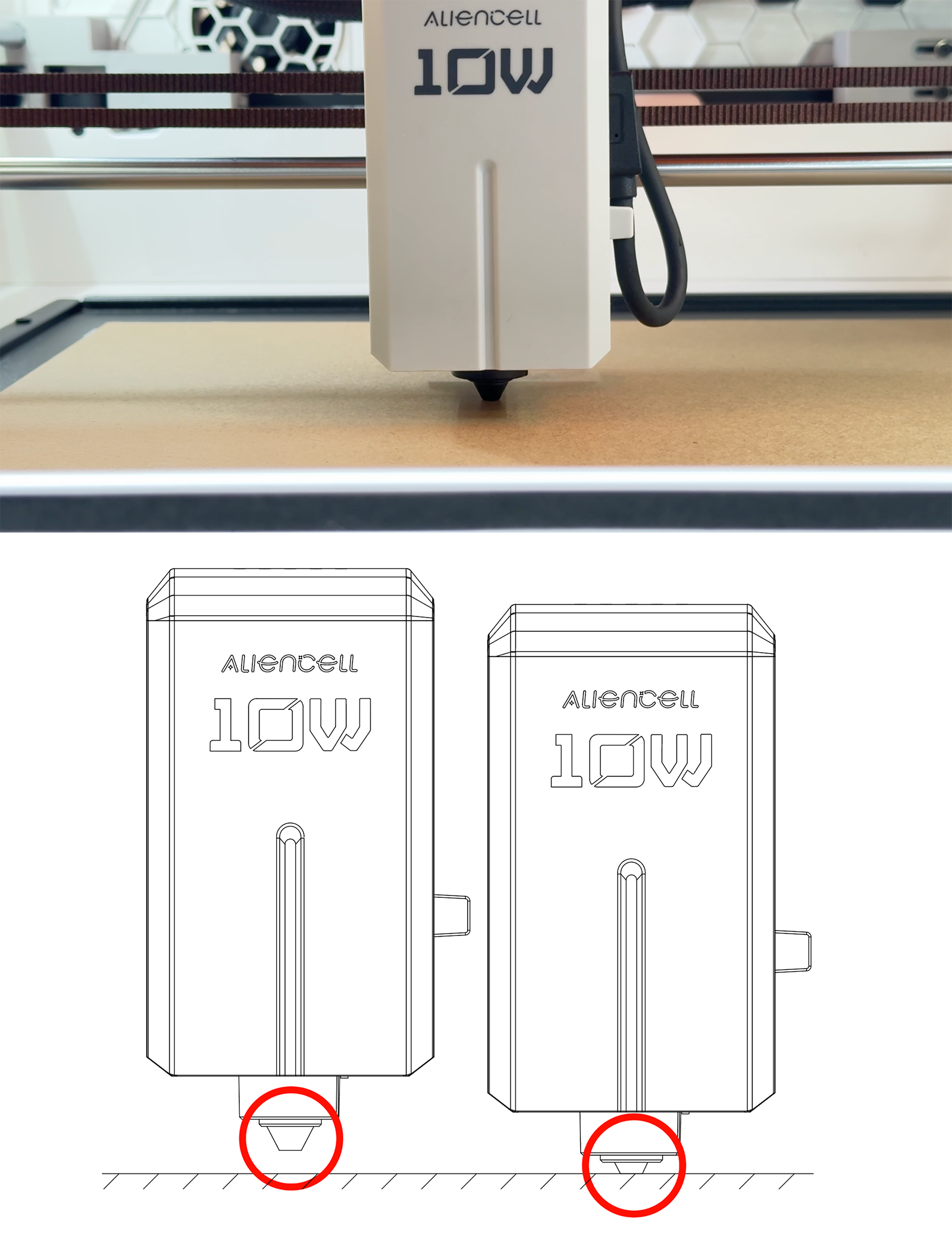
Figure 13: Selecting Auto focus mode
¶ 11. Starting the job & safety notes
¶ 1Close the covers
After confirming the material is in place, close the top lid and the front cover, making sure both are fully shut.
¶ 2Start the job from the software
Click Start Job in the Aliencell Space software.
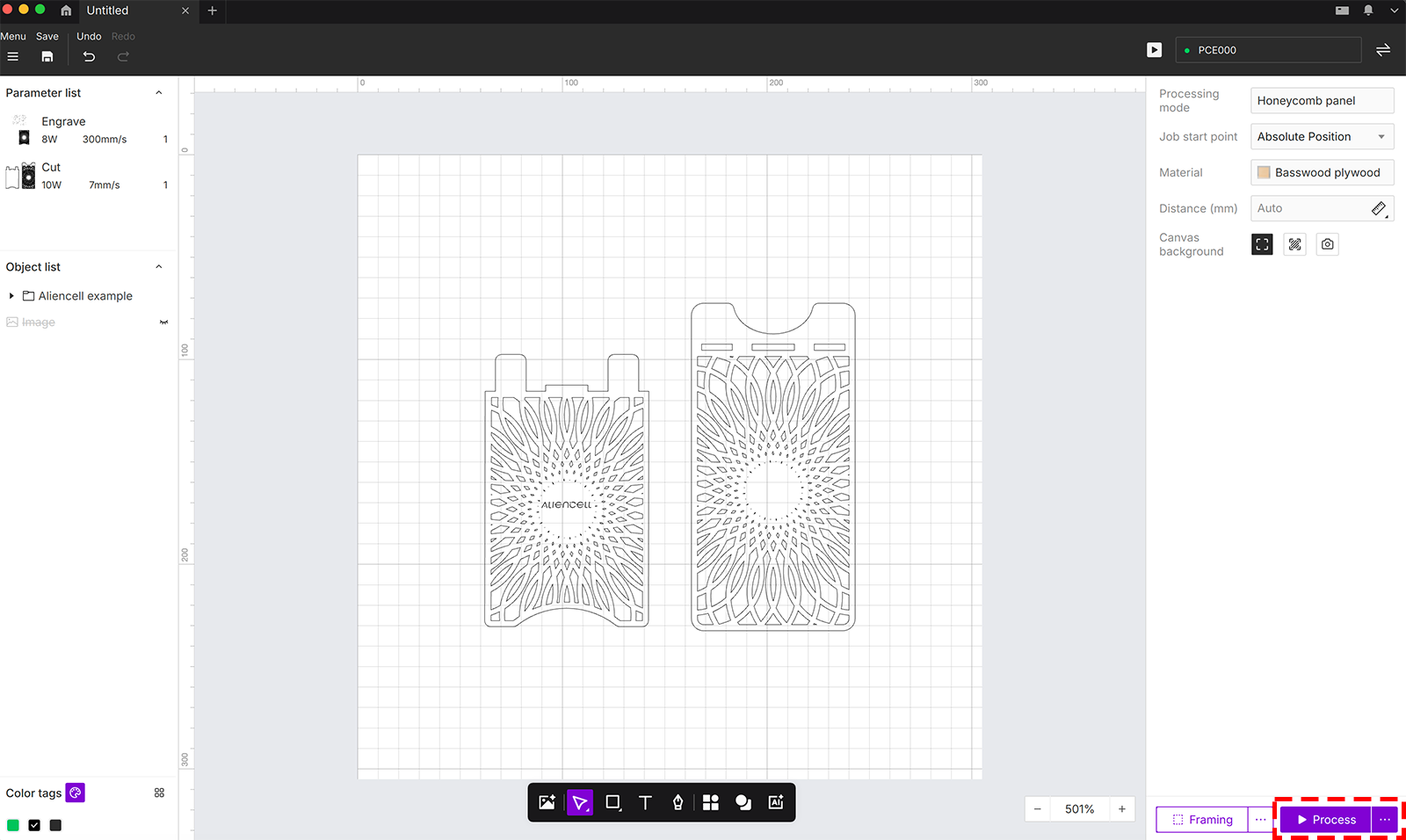
Figure 14: Starting the job in the software
¶ 3Confirm start on the machine
Then press the interaction button on the machine (the controller) to confirm, and the device starts processing.
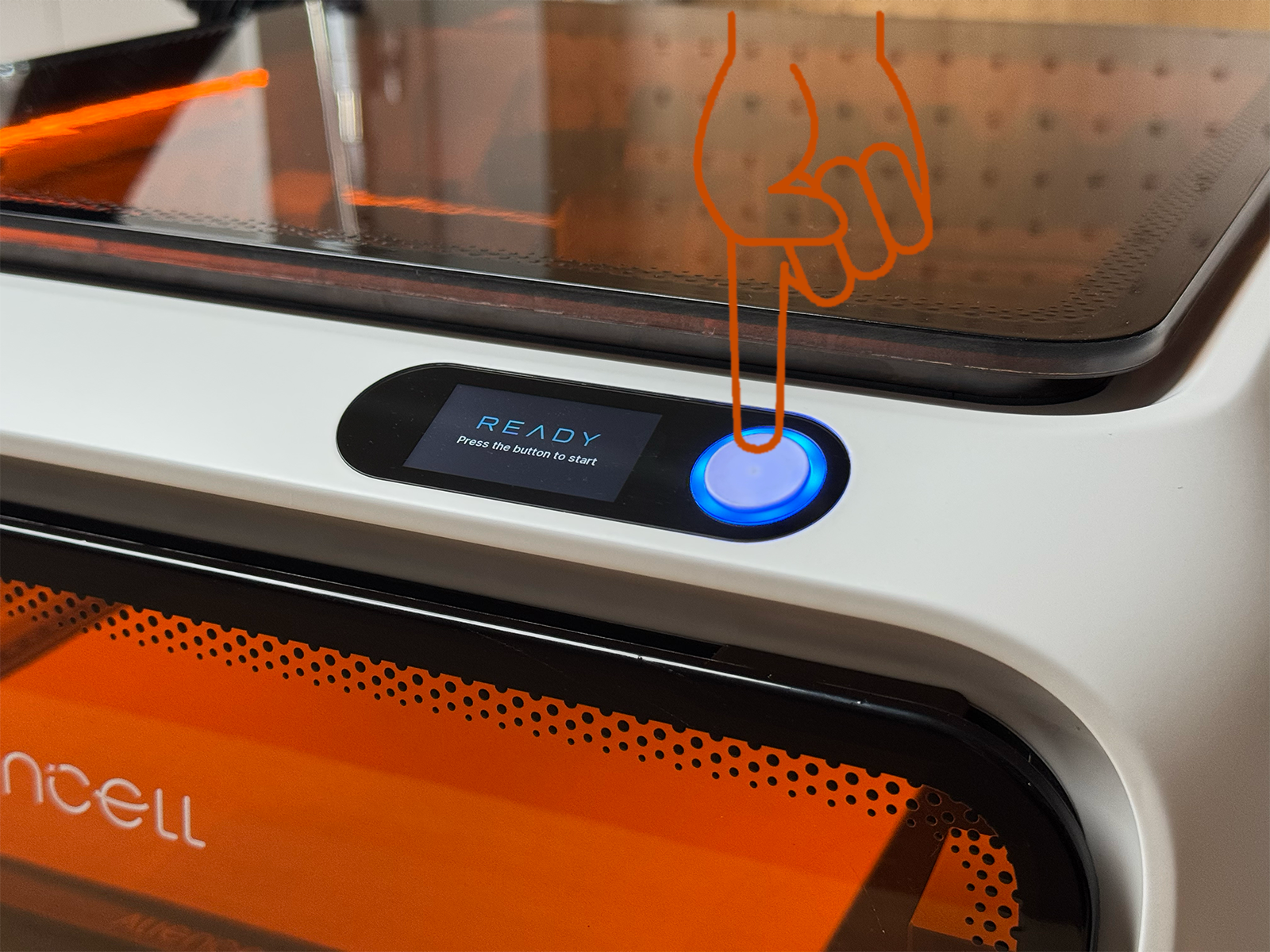
Figure 15: Confirming with the machine interaction button
🚫 Never open the top lid or front cover while a job is in progress
The laser is active during processing, and opening a cover is a safety risk. The device also has an interlock — opening a cover interrupts the job.
If you need to intervene mid-job, click Pause Job in the software and wait until the device has fully stopped. In an emergency, press the emergency stop button immediately.
🎉 Job complete
Once the device has stopped and the laser head has returned home, take out the two pieces and assemble them — you've made your first E1 project: a phone stand.
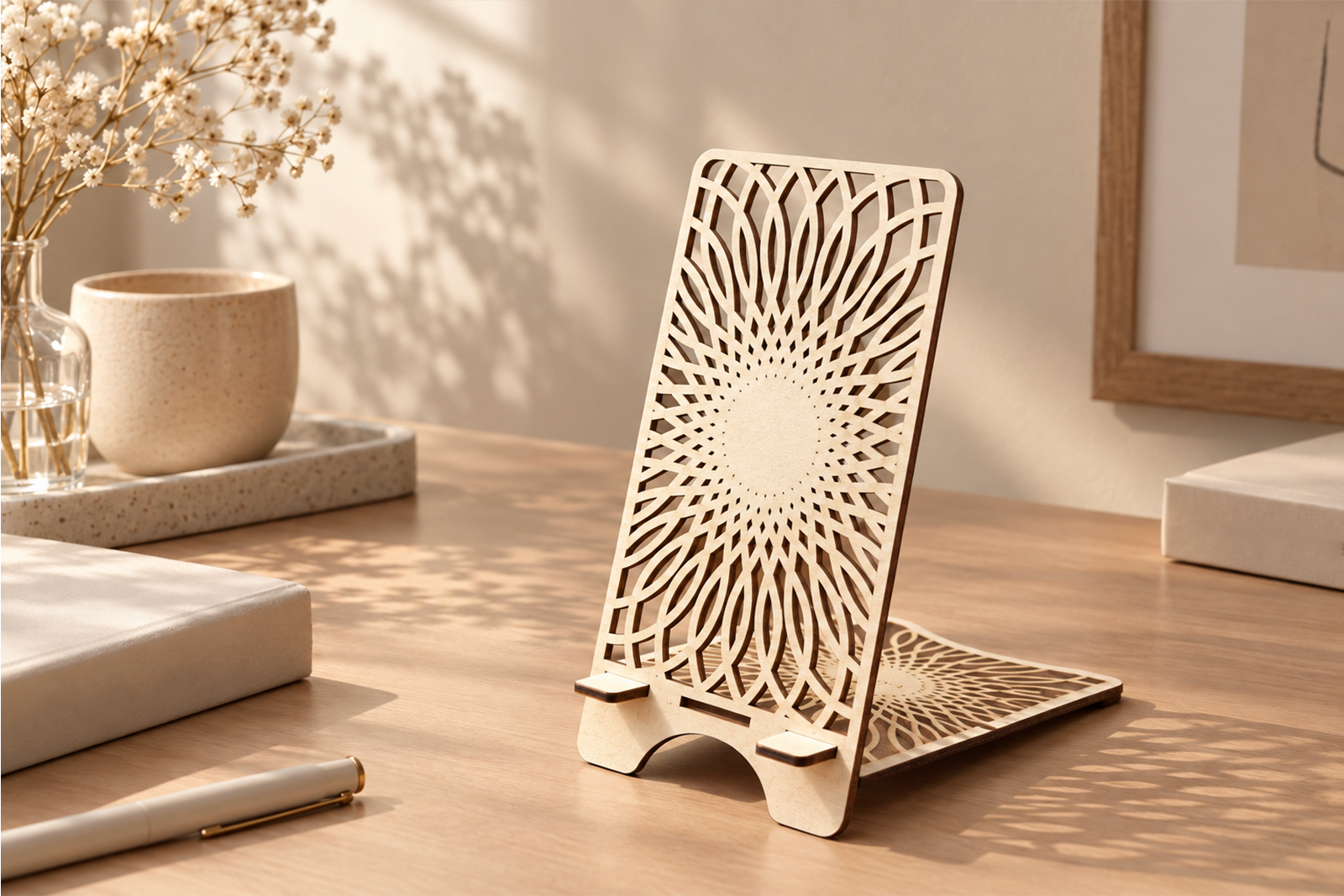
Figure 17: Finished phone stand
¶ 12. Advanced: E1 Riser Stands & Rotary Chuck (curved-surface engraving)
If you want to wrap-engrave cylindrical objects such as cups, wine bottles, tumblers and pen barrels, you need two accessories: the E1 Riser Stands (which elevate the machine to free up space) and the Rotary Chuck (which rotates the workpiece in sync).
¶ 12.1 Installing the E1 Riser Stands
- Remove the base plate fixing screws first: use the H2 hex key to unscrew the base plate fixing screws from the bottom of the machine. Keep the removed screws safe — you'll need them when restoring the machine;
- Twist-connect 3 posts together to form one complete riser column;
- There are 4 corners on the bottom of the machine — place one assembled column (3 posts) at each corner;
- All four corners need 12 posts in total. Once all are installed, lower the machine gently back into position.
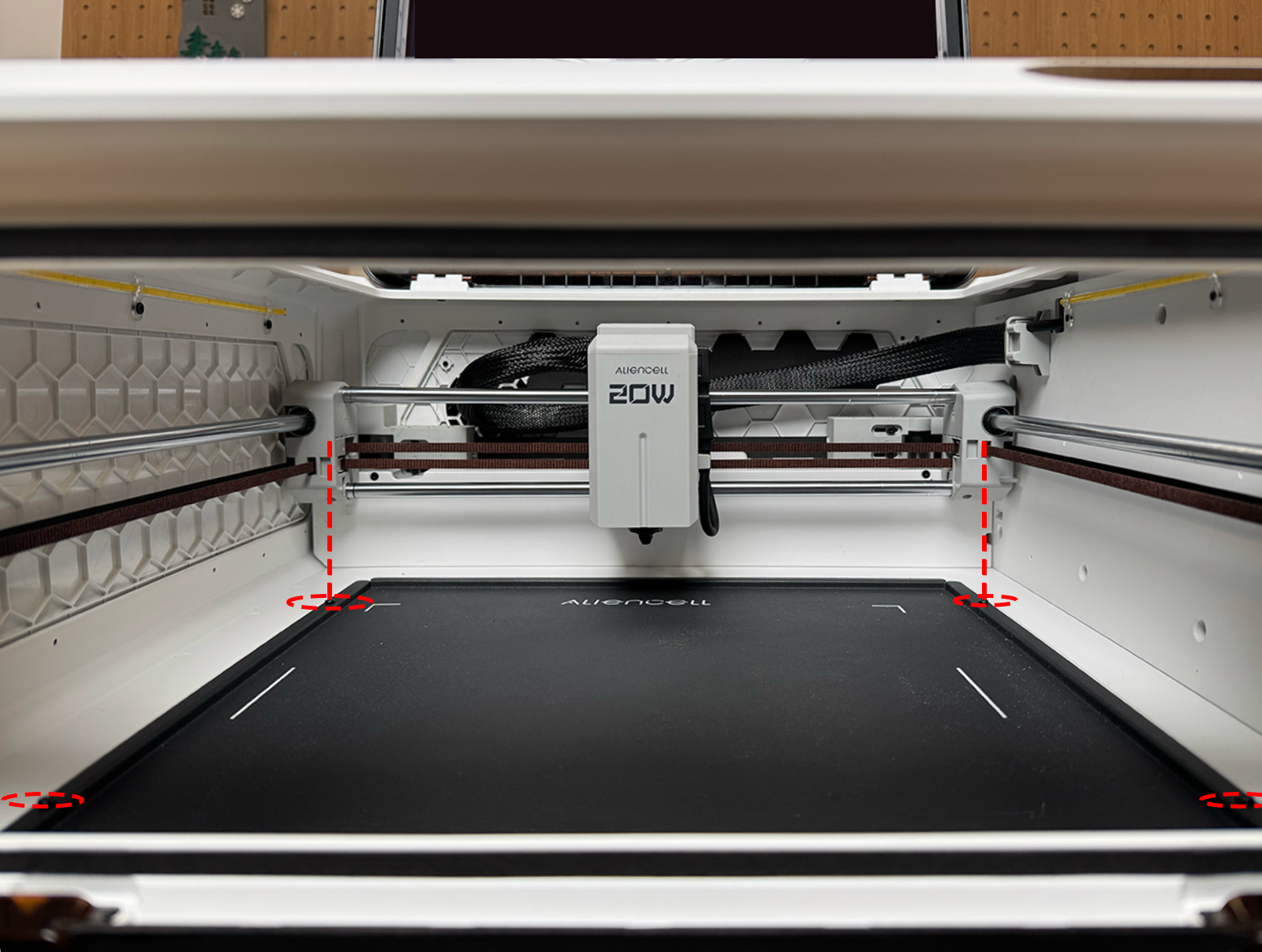
Figure 18: Three posts twist-connect into one column
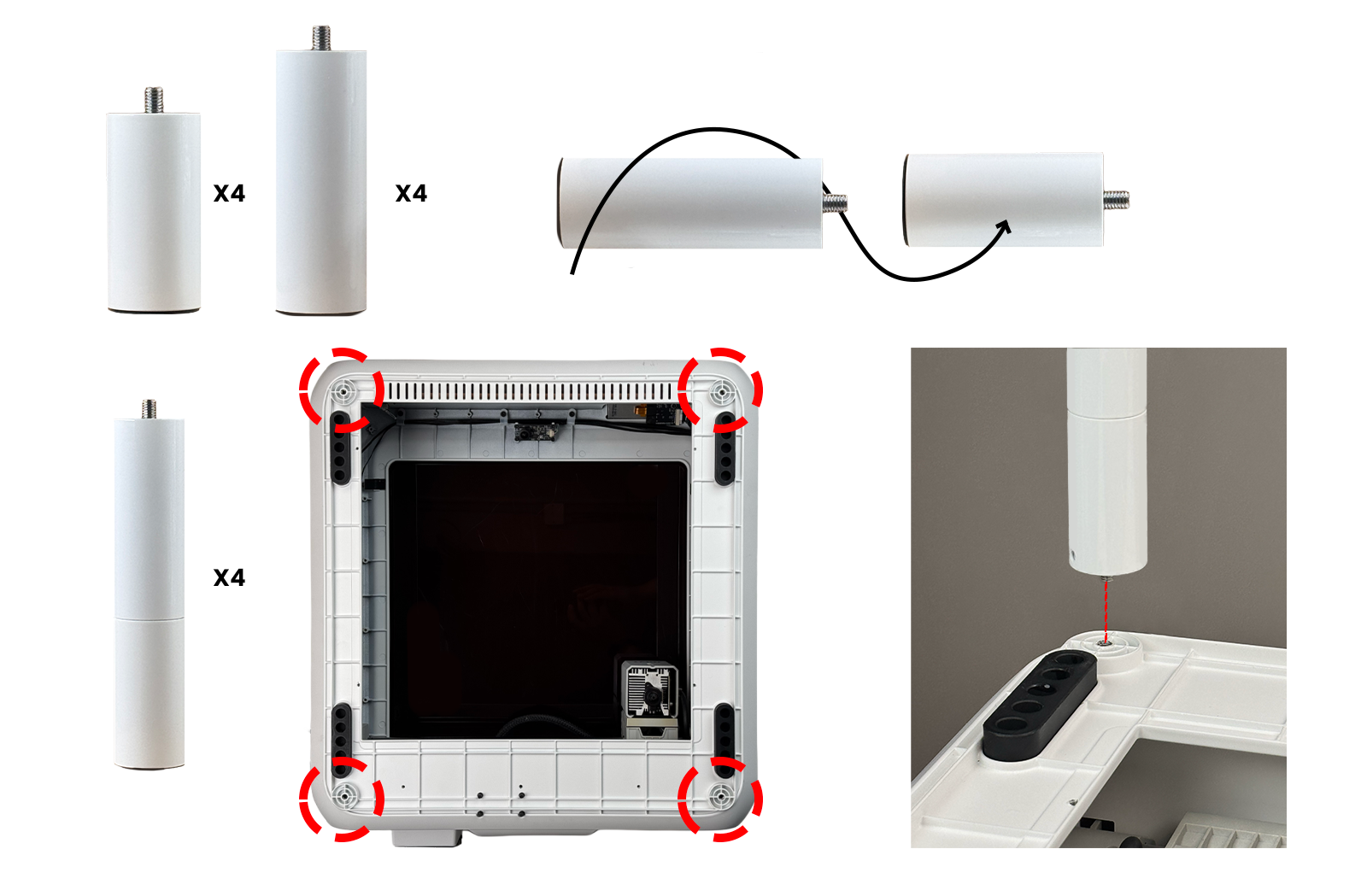
Figure 19: Installed at four corners, 12 posts in total
🚨 Important safety notice: with the riser stands installed, this is a Class 4 laser operation
With the riser stands installed, the machine is elevated and the processing space is open. The setup must therefore be treated as a Class 4 laser product, and you must:
- Wear laser safety goggles matched to the laser wavelength at all times — everyone present must wear them;
- Never look directly at the laser source, and do not stare at reflected or scattered light from the processing point;
- Move reflective objects away from the work area, and keep unauthorized people (especially children) and pets away;
- Stay with the machine for the entire job, and keep smoke extraction / purification running;
- If anything abnormal occurs, press the emergency stop button immediately.
¶ 12.2 Assembling the Rotary Chuck
The rotary chuck consists mainly of a main drive unit (which rotates the workpiece) and a tailstock support assembly. It grips and rotates cylindrical workpieces in sync.
- Assemble the rotary chuck components according to the assembly instructions;
- Grip the workpiece (such as a cup) in the chuck, tightening gradually and gently. The workpiece should not wobble and should rotate in sync with the chuck — over-tightening can crack glass and other fragile items;
- Place the assembled rotary chuck flat inside the machine's work area. Confirm it sits level and stable, with enough clearance between the laser head and the workpiece / chuck jaws to prevent collisions.
Figure 20: Assembling the rotary chuck and mounting a workpiece (click to play)
¶ 12.3 Connecting the cable to the machine
- Turn off the machine power before plugging in the cable;
- Using the cable supplied with the rotary chuck, connect one end to the rotary chuck and the other to the machine's rotary chuck port (built-in ×1);
- Confirm the connector is fully inserted and route the cable away from rotating parts and the processing path so it cannot be caught.
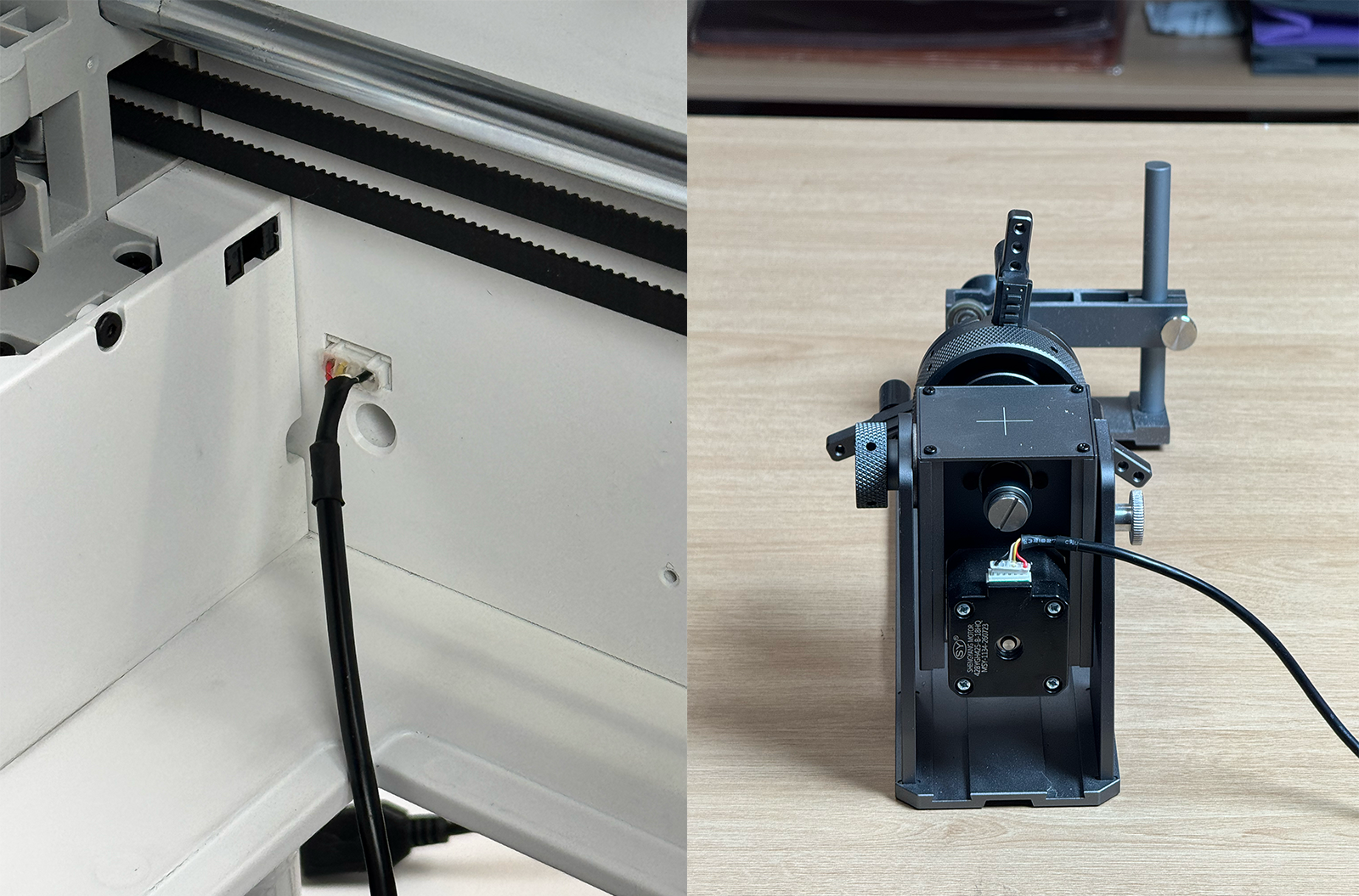
Figure 22: Rotary chuck cable connection (port position subject to the actual product)
¶ 12.4 Software setup and starting the file
The software workflow is essentially the same as the flat-material workflow above — the only difference is enabling rotary mode first:
- Open / drag in the rotary project file (same procedure as Chapter 6);
- Enable rotary (rotary machining) mode in the software and select the matching rotary chuck type for your accessory; (note: the exact entry and options are subject to the actual software interface — please add a screenshot)
- Set the processing parameters in Design Parameters on the left (as in Chapter 7 — engraving and cutting separately; run a material test for new materials);
- Positioning: both absolute / relative positioning are supported (as in Chapter 9);
- Focusing: Auto focus is still recommended unless you have a specific need (as in Chapter 10);
- We recommend running Framing / a low-speed dry run first to confirm the laser head never touches the highest point of the workpiece or the chuck jaws;
- Click Start Job in the software, then confirm by pressing the interaction button on the machine (as in Chapter 11).
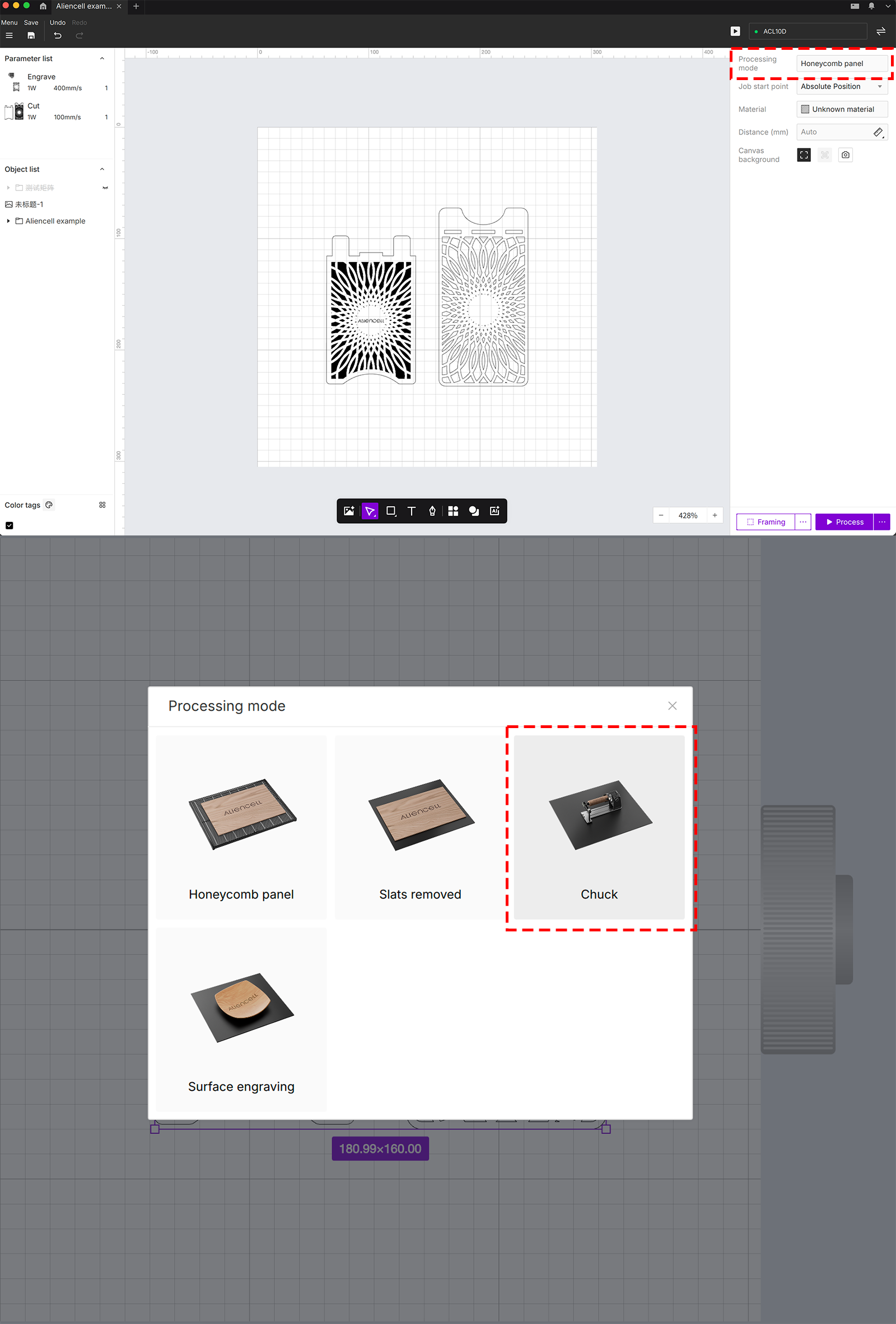
Figure 23: Enabling rotary mode in Aliencell Space
⚠️ Rotary processing safety points
- Put on safety goggles before starting (with the riser stands, this is a Class 4 laser operation);
- Before starting, confirm hands, hair and sleeves are clear of rotating parts;
- During processing, never touch the rotating workpiece and do not look directly at the laser source;
- When engraving fragile items such as glass cups, pause / E-stop immediately if you notice abnormal noise or deformation;
- After the job, confirm the workpiece has fully stopped rotating before loosening the jaws and removing it.
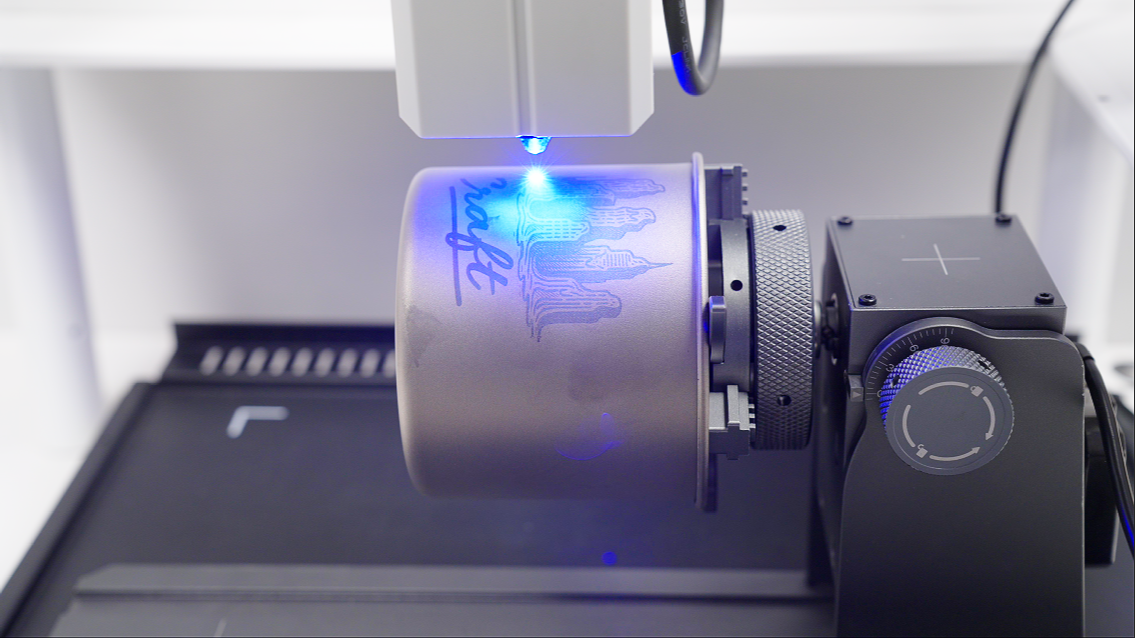
Figure 24: Rotary processing scene and finished result
📌 This guide applies to the Aliencell E1 with Aliencell Space. If any content differs from the actual device / software interface, the physical product and the latest software version prevail.
Last updated: October 2026