¶ 1. Disclaimer
- Aliencell X1 can be controlled with third-party software LightBurn.
- Download and install the official version of LightBurn only.
- Before running any job, make sure the machine is properly connected. Unofficial or unstable software may cause unexpected disconnection and may damage the machine. Aliencell is not responsible for issues caused by improper software use.
Although Aliencell X1 is compatible with LightBurn, we recommend using Aliencell Space, our official control software. Aliencell Space is deeply integrated with X1 hardware and provides a smoother, more complete workflow, including features and optimizations that are not available in third-party software.
¶ 2. Install and Prepare LightBurn
¶ 2.1 Download and Install LightBurn
- Go to the official LightBurn download page and select the installer for your operating system:
👉 Download the official LightBurn installer - After the download is complete, follow the system prompts to install LightBurn.
Before using Aliencell X1, install the official version of LightBurn.
LightBurn provides a 30-day free trial. Always use the official version to ensure stable communication and machine safety.
For best compatibility, use LightBurn version 2.0.00 or later.
¶ 2.2 LightBurn Official Tutorials
To get familiar with LightBurn, refer to the official documentation and video tutorials:
¶ 2.3 Prepare the LightBurn Configuration File
Aliencell X1 supports 20W / 40W / 60W laser modules. Download the LightBurn configuration file that matches the laser module installed on your machine:
The following configuration files apply to firmware version 1.0.74 or later.
Select the configuration file that matches your installed laser module. Using the wrong file may cause incompatible parameters and affect processing results. Before using this LightBurn configuration file, update the machine firmware to version 1.0.74 or later.
¶ 3. Connect LightBurn to the Machine
¶ 3.1 Power On the Machine
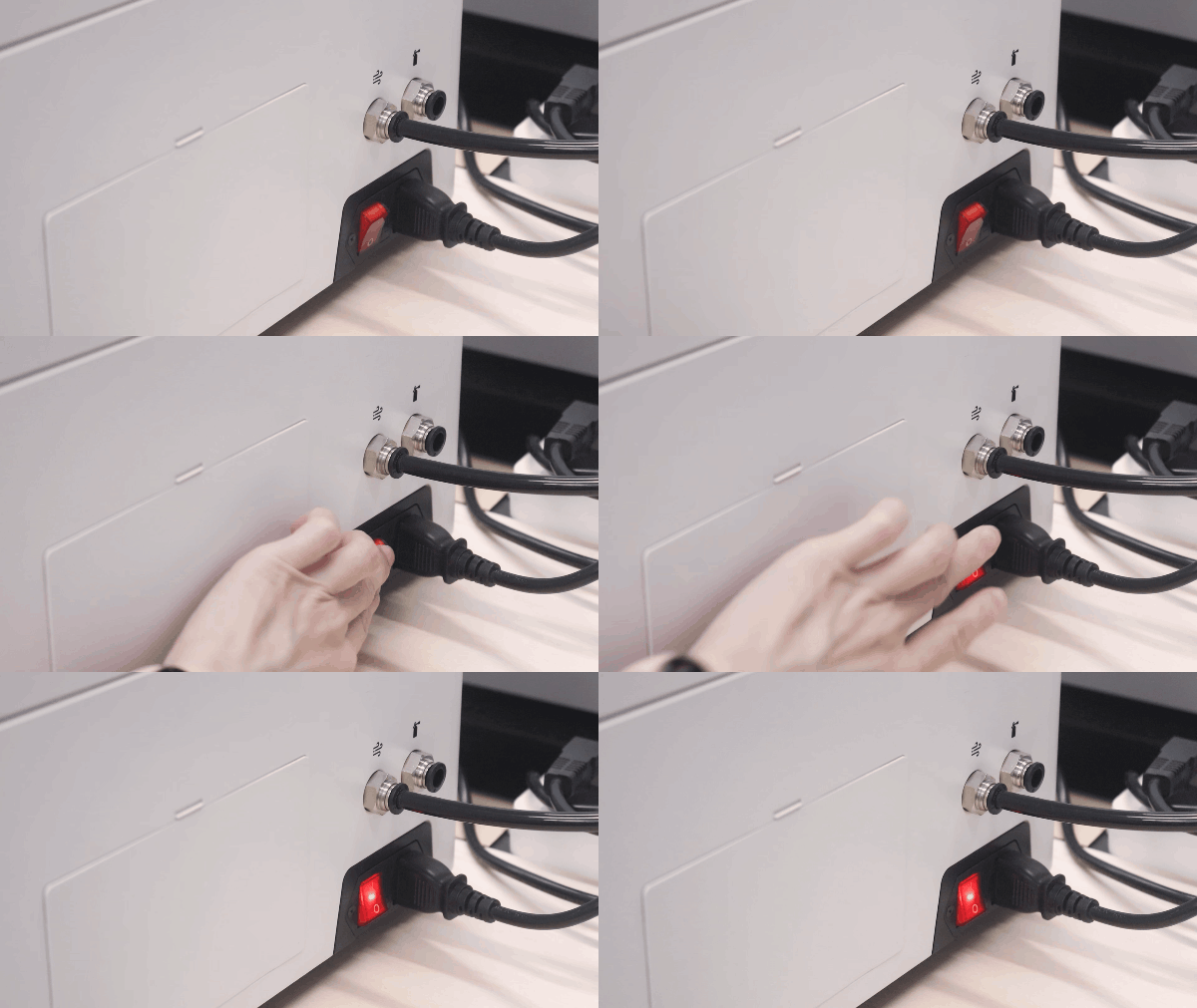 |
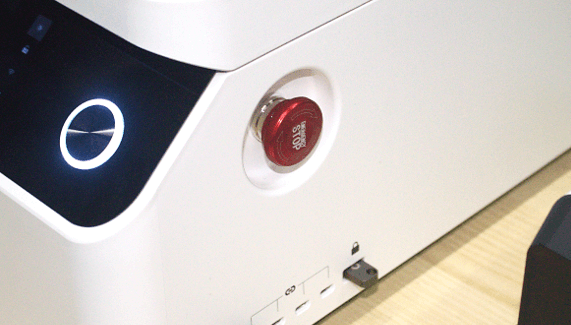 |
Turn on the machine power switch |
Check that the U-Key is inserted into the correct port, and make sure the emergency stop button is released |
¶ 3.2 Import the Configuration File
- Launch LightBurn. In the menu bar, select Devices, then click Import.
- Locate and select the downloaded configuration file, then click Open.
- After the import is complete, Aliencell X1 will appear in the device list.
¶ 3.3 Connect the Machine Port
After importing the configuration file, connect Aliencell X1 to LightBurn.
- Connect one end of the USB-C cable to the control port on Aliencell X1, and connect the other end to a USB port on your computer.
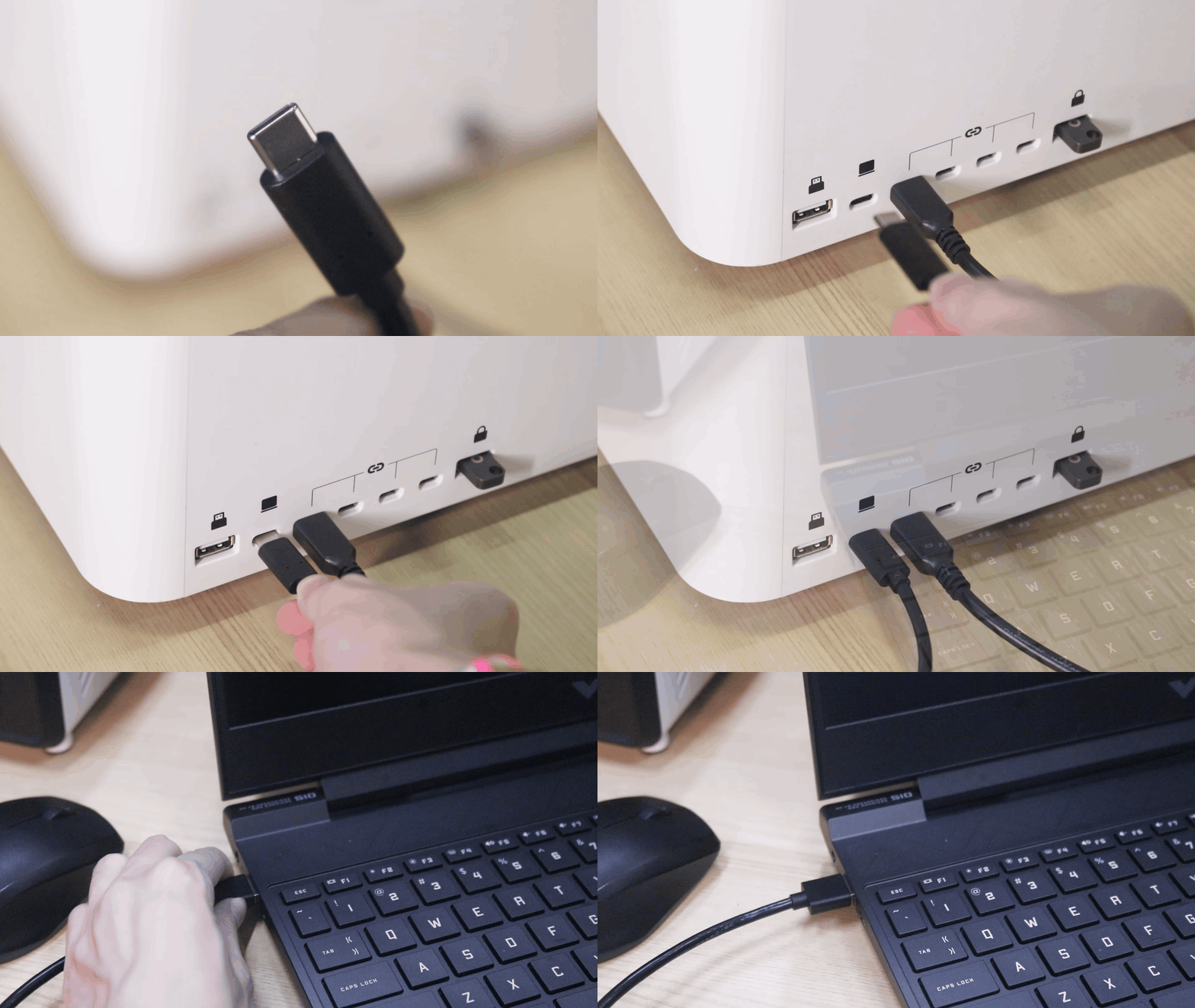
- In LightBurn, select the correct COM port for the machine. When the connection is successful, the status bar in the lower-left corner will show Ready.
- Click Console. If LightBurn returns ok, the machine is connected successfully.
If the status shows Disconnected, check that the USB cable is fully inserted and confirm that the driver is installed correctly.
After the connection is complete, you can use LightBurn to control Aliencell X1 and run laser jobs.
¶ 3.4 Control Laser Head Movement in LightBurn
After the machine is connected, use LightBurn to move the laser head, home the machine, return to the job origin, or adjust the laser head position.
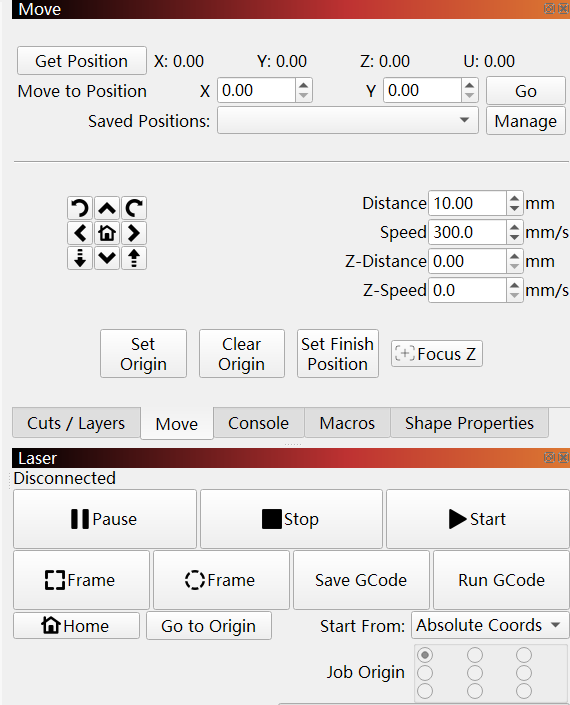
¶ 3.4.1 Home
Home returns the machine to its mechanical zero point and helps the machine confirm its coordinate position.
- In the right-side panel of LightBurn, click Move to open the movement controls.
- Click Home. The machine will run the homing sequence, and the laser head will move to the mechanical zero position.
Warning: After each job, click Home to return the laser module to the mechanical zero position before running the next frame preview or job. Due to compatibility differences between LightBurn and X1, running Frame or Start repeatedly may trigger an out-of-bounds warning.
- Wait until homing is complete before focusing, running a frame preview, or starting a job.
¶ 3.4.2 Go to Origin
Go to Origin returns the laser head to the current job origin. Home and Go to Origin may move the laser head to different positions. Select the correct function based on your operation. For details about origin settings, refer to the LightBurn official documentation.
- In the right-side panel of LightBurn, click Laser and locate Go to Origin.
- Click Go to Origin. The laser head will return to the origin position set for the current job.
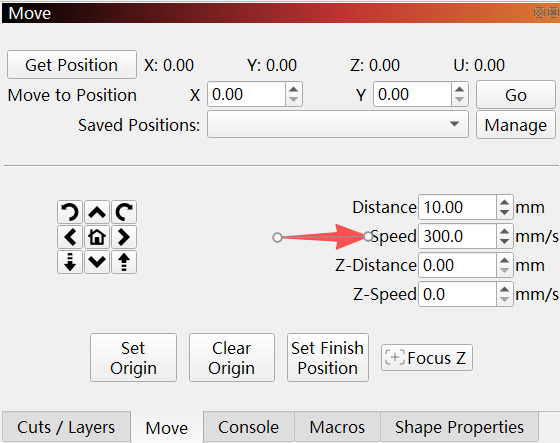
¶ 3.4.3 Set the Frame Preview Speed
-
In the right-side panel of LightBurn, click Move to open the movement controls.
-
Locate the Speed parameter and set the laser head movement speed as needed.
-
After setting the speed, click Frame. The laser head will move at the selected speed to preview the processing area.
¶ 4. Complete a Simple Engraving Job in LightBurn
This example engraves a simple text object. You can design your own artwork or import an existing project for processing with Aliencell X1.
¶ 4.1 Place the Material
Place the engraving material, such as a wood board, in the center of the work area. Close the enclosure.
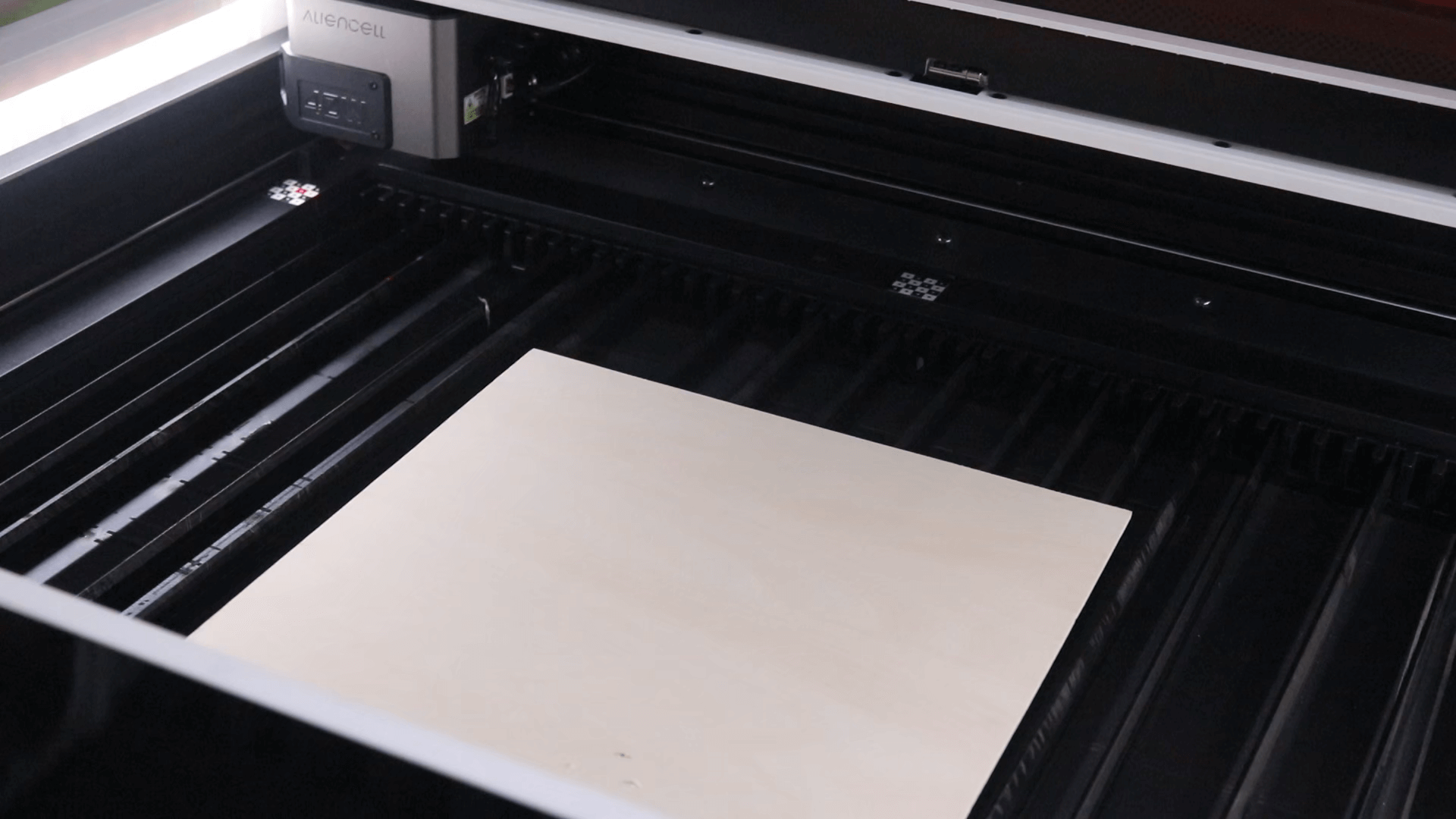
If the material is thin or lightweight, secure it with material clamps.
¶ 4.2 Auto Focus
- Move the laser module above the material surface.
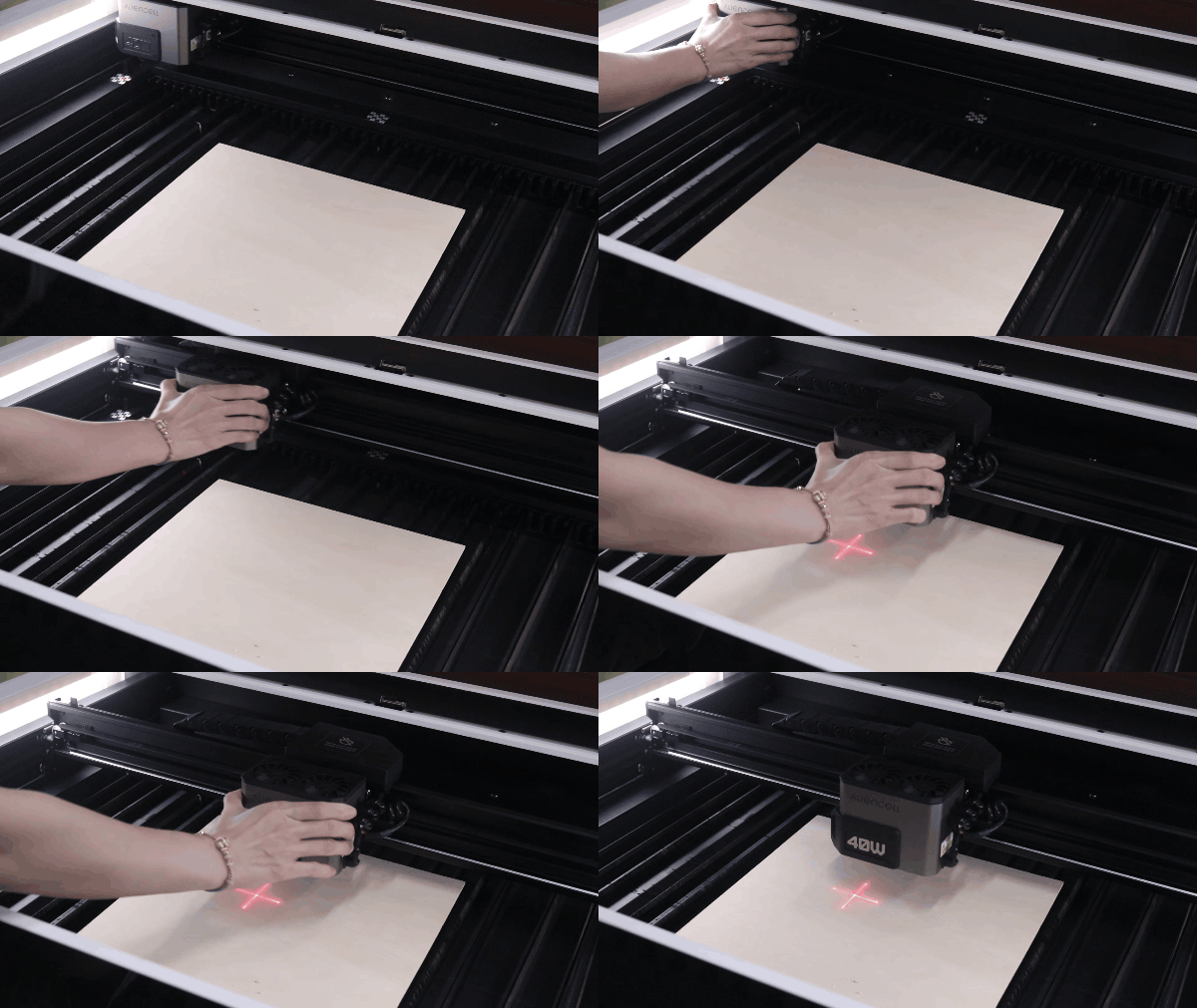
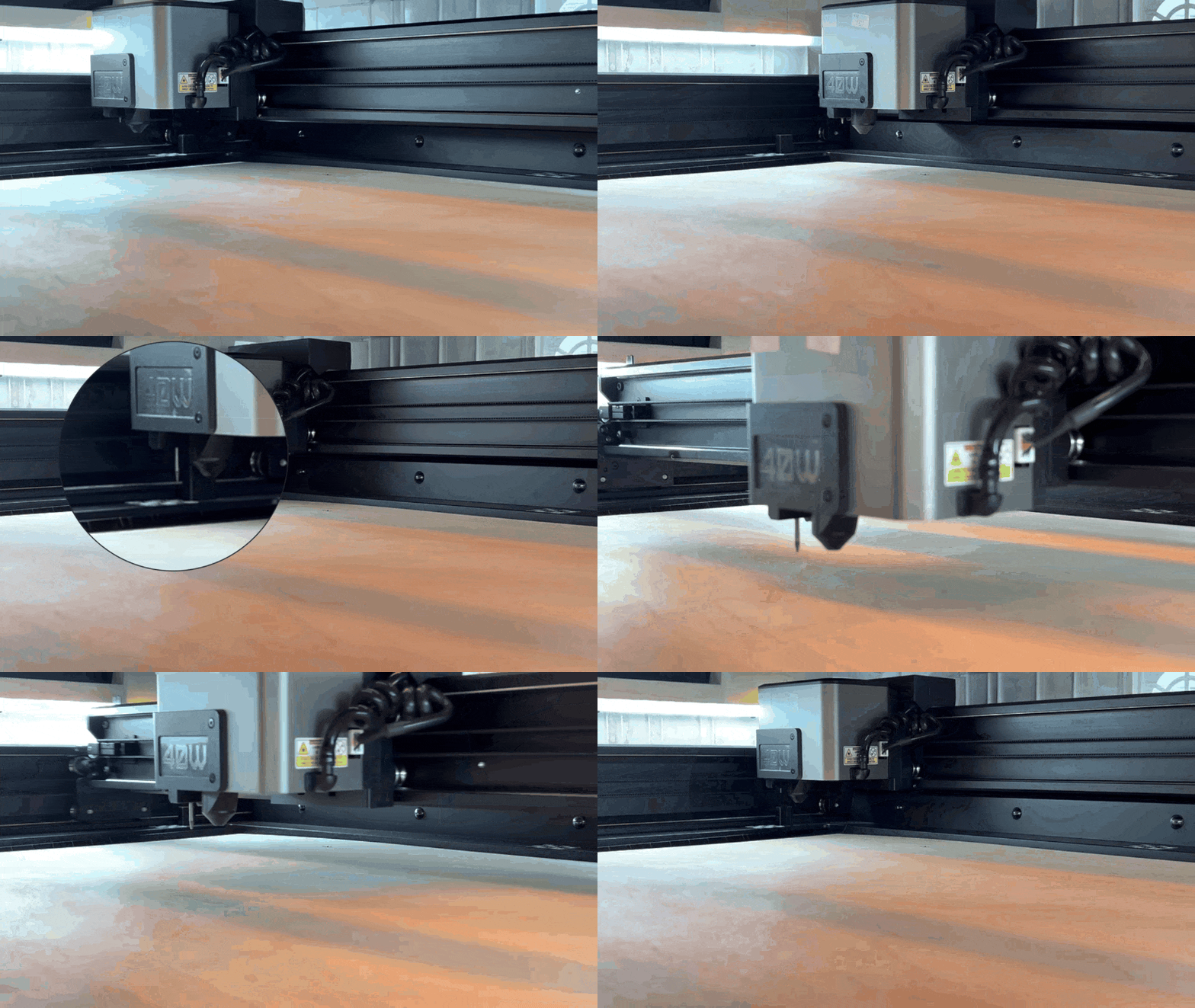
- In LightBurn, click Move, then click Focus Z. The machine will run the auto-focus sequence.
- Auto-focus sequence: the probe extends first, and the laser head moves to the focus point above the material. The Z-axis then lowers until the probe contacts the material surface and measures the distance from the laser module to the material. After measurement is complete, the laser head returns to the origin and the probe retracts.
¶ 4.3 Design the Artwork
¶ 4.3.1 Enter Text
- Select the Text Tool (A) from the left toolbar.
- Click on the workspace and enter
HELLO. - Drag the text or adjust its size and position from the property bar.
¶ 4.3.2 Set the Processing Layer
- LightBurn automatically assigns the text to a color layer, such as the black layer.
- In the Cuts / Layers panel on the right, double-click the layer to open the layer settings.
- Set the layer parameters based on the material and processing method:
- Mode: Select Line for line engraving or Fill for fill engraving.
- Speed: Set the processing speed.
- Power: Set the laser power percentage.
- Air: Enable air assist.
- Click OK to save the settings.
Line vs. Fill
Line: Used for vector outlines, cutting, or line engraving. Usually used with one or more passes.Fill: Used for raster engraving. The laser scans line by line, commonly used for photos or large filled areas.
Warning: In LightBurn, turning on Air enables the air pump's Auto mode. Once the job starts, the air pump will turn on automatically with a fixed airflow for both cutting and engraving. If Air is off, manually turn on the air pump before starting the job.
¶ 4.3.3 Preview the Frame
- Click Frame to verify that the engraving area matches the material position.
¶ 4.3.4 Start Engraving
Warning: Always close the machine cover before starting a job.
- Click Start. LightBurn will send the file to the machine. After the transfer is complete, the machine will begin engraving the text
HELLO.
¶ 5. FAQs for Using LightBurn
¶ What is the maximum processing area of X1 in LightBurn?
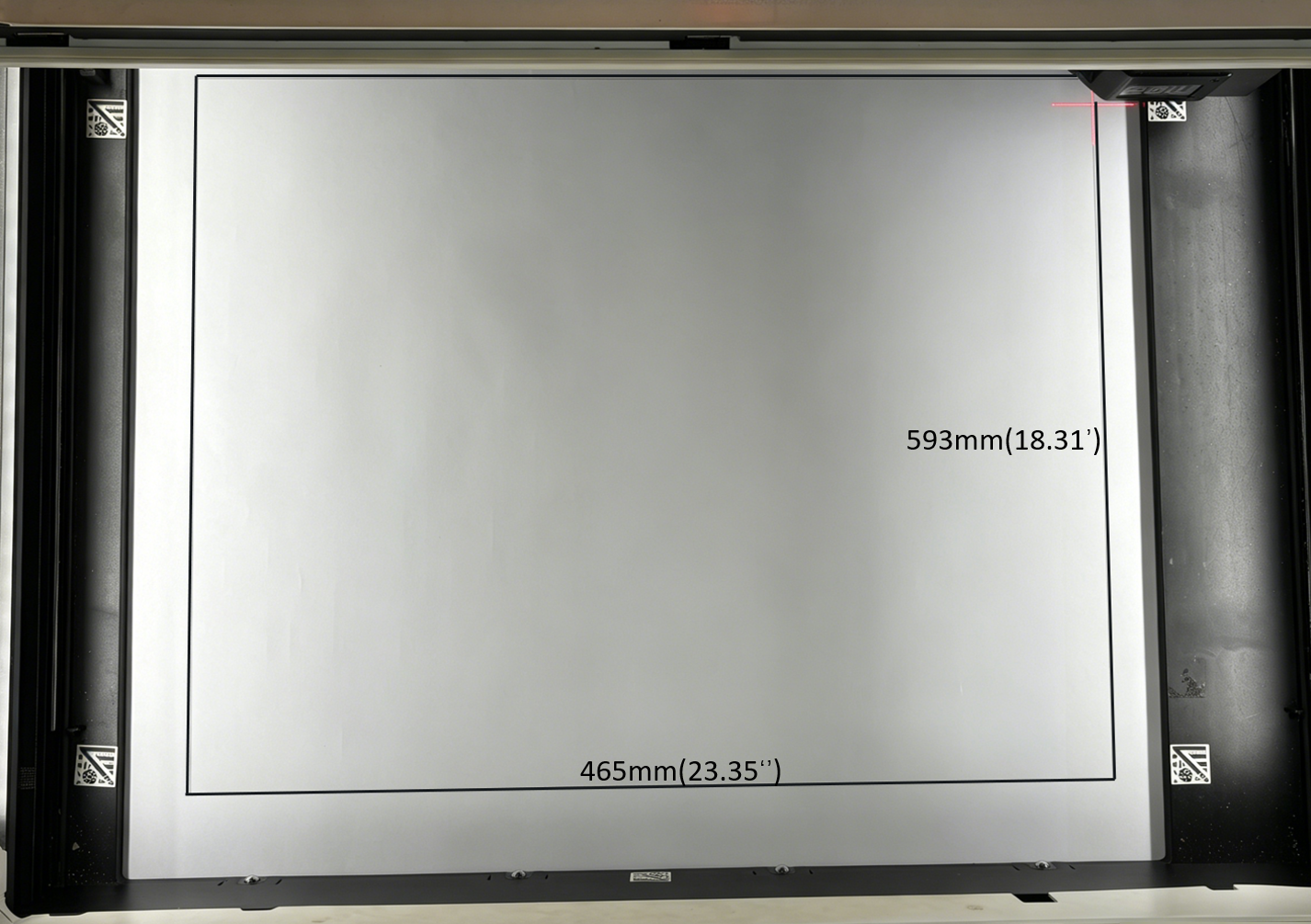
When using Aliencell X1 in LightBurn, the maximum processing area is 593 mm × 465 mm (23.35 in × 18.31 in).
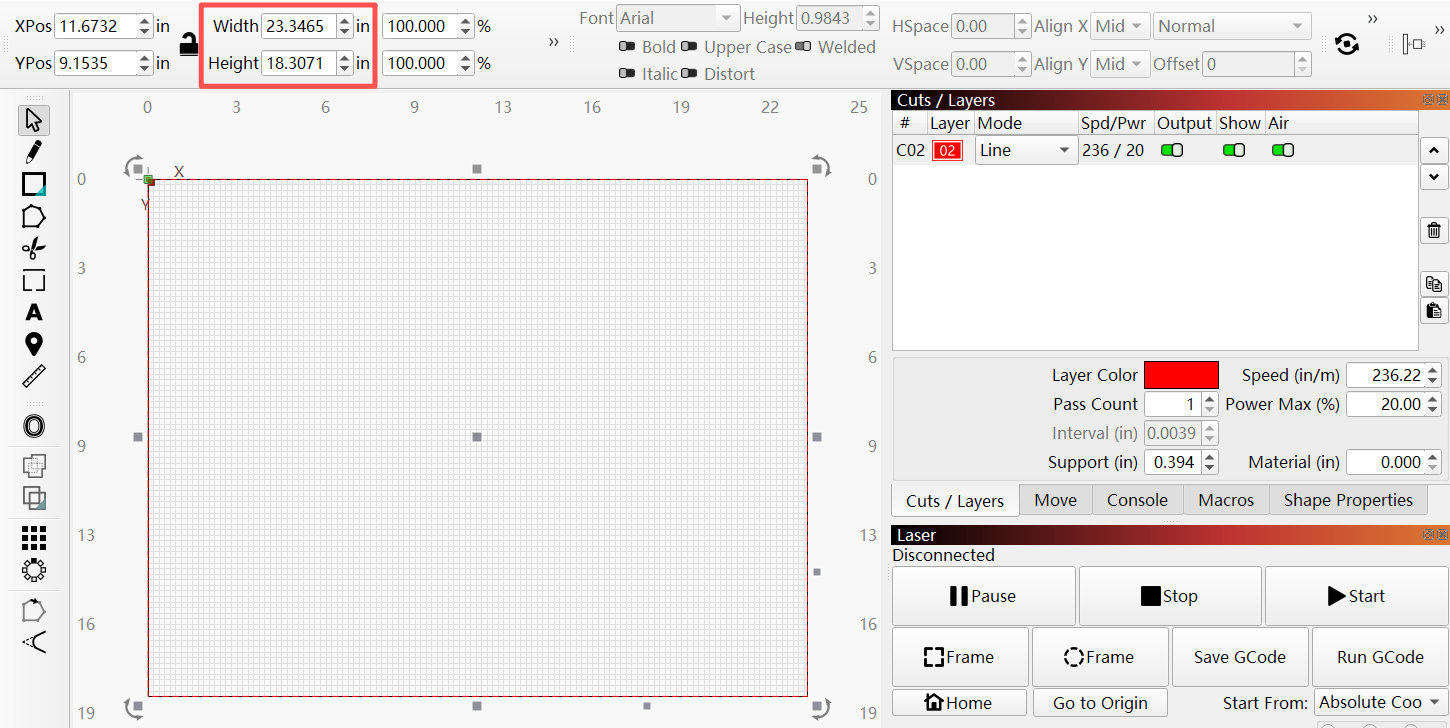
LightBurn controls the machine movement boundary through the configuration file and firmware coordinate range. When processing in LightBurn, use the working area shown on the LightBurn workspace as the reference. The maximum processing area shown in LightBurn may differ from the area shown in Aliencell Space. This is normal.
¶ Why can a frame preview fail even when the artwork is inside the maximum processing area?
Because different laser modules have different mechanical structures and red crosshair indicator positions, the frame-walkable area in LightBurn may be smaller than the maximum processing area. Some positions near the edge of the workspace can still be processed, but the red crosshair indicator may not be able to reach them for frame preview.
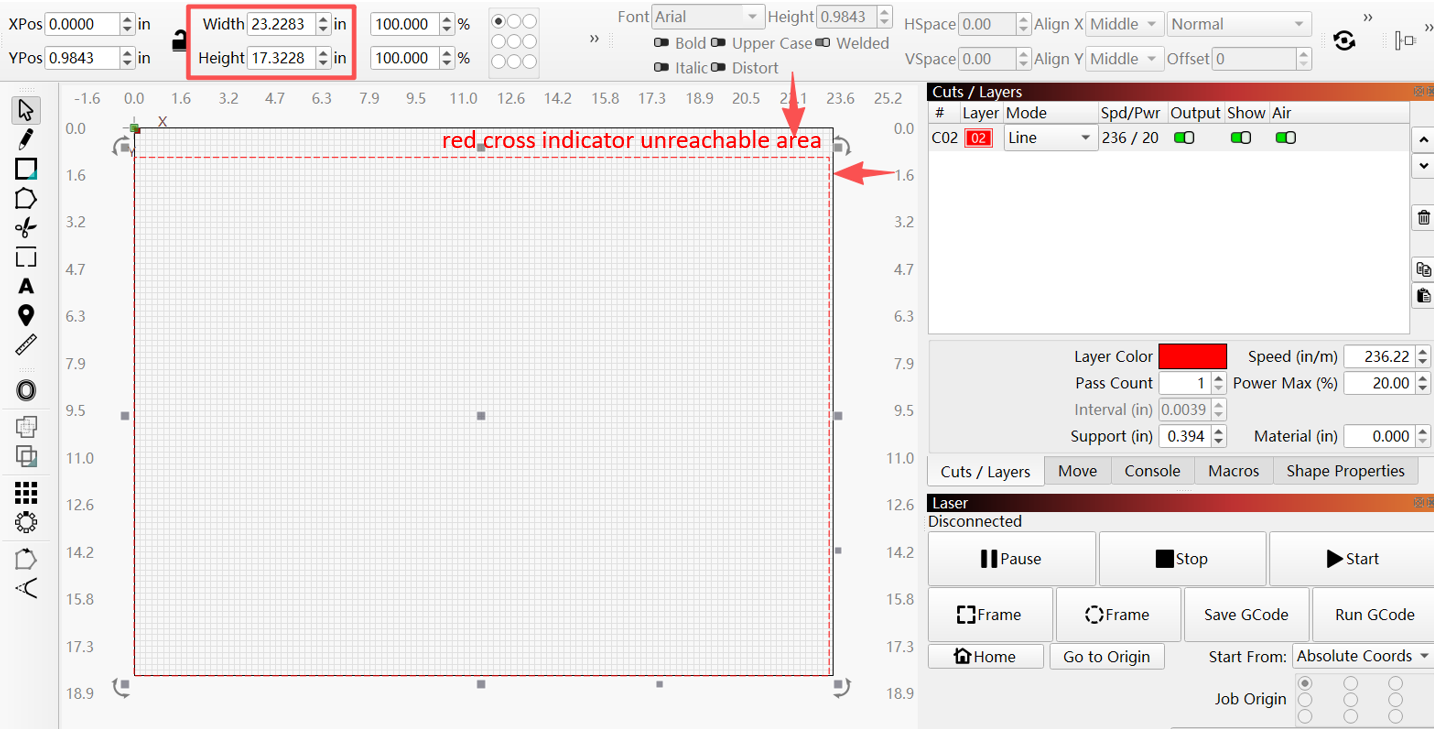
Warning: When using LightBurn, place the artwork inside the frame-walkable area and run Frame before starting the job. If the artwork is outside the frame-walkable area, LightBurn may show an Object Placement Exceeds Walking Border warning.
Tips: The maximum processing area is the area the laser can physically process. The frame-walkable area is the area where the red crosshair indicator can preview the boundary. These two areas may not be identical. Use the actual frame preview result as the final reference.
¶ Is LightBurn free?
No. LightBurn is paid software.
Tip: LightBurn usually provides a 30-day full-feature trial. Try the official version before purchasing.
¶ Does LightBurn support the camera function?
Not currently.
Camera support for the X1 series in LightBurn is currently under development. Follow Aliencell official announcements for future updates.
¶ Which LightBurn license should I purchase?
Purchase the G-Code License Key version.
For stable communication and full machine compatibility, use LightBurn 2.0 or later.
¶ Can I set up Wi-Fi connection for the machine in LightBurn?
No.
LightBurn does not support Wi-Fi setup for this machine. Connect the machine with a USB cable.