When the device encounters an issue (such as interrupted processing, network connection failure, or system error), the system log can help identify the root cause.
The Aliencell touchscreen allows you to export system logs to an external storage device. These logs assist technical staff with the following:
- Operation Tracking: The log keeps a record of actions performed on the device, making it easier to determine if the issue was caused by incorrect operation.
- Remote Support: You can send the log file to the Aliencell support team so engineers can analyze the issue remotely and provide solutions.
- Run History: The log stores the device’s operating history, which helps trace job records and system status.
¶ Steps to Export Logs
-
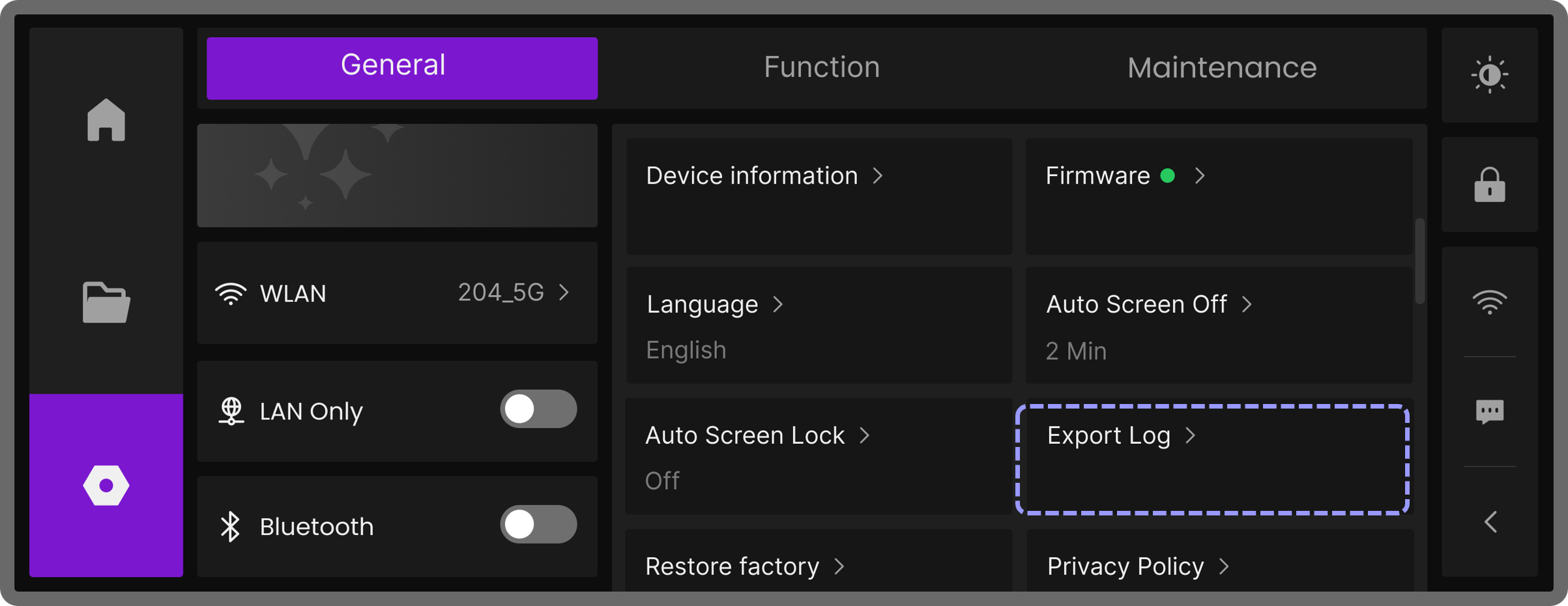
Tap the
 icon to open the General page. Locate and select Export Log.
-
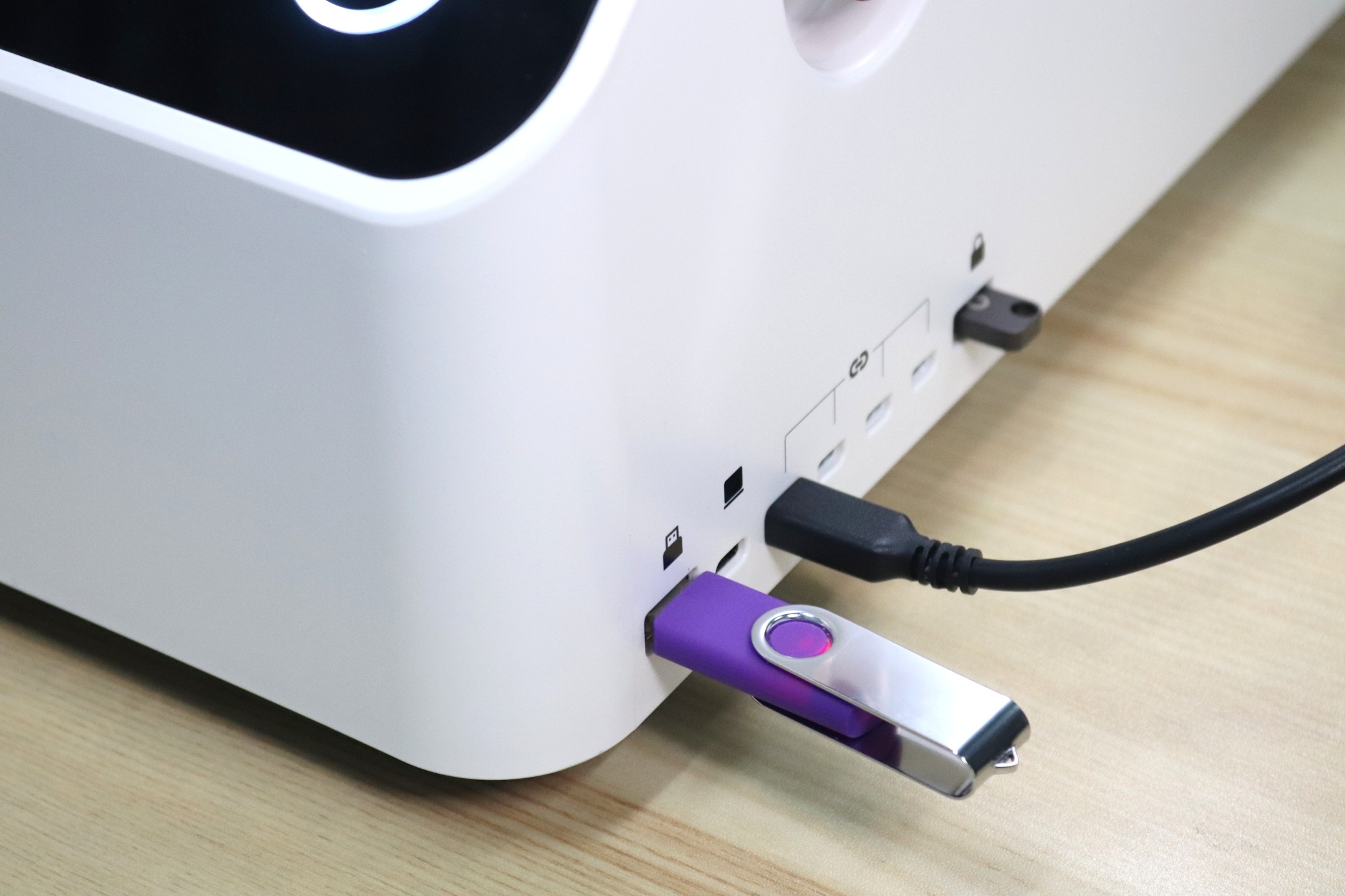
Insert a USB drive or another external storage device with at least 1 GB of free space.
-
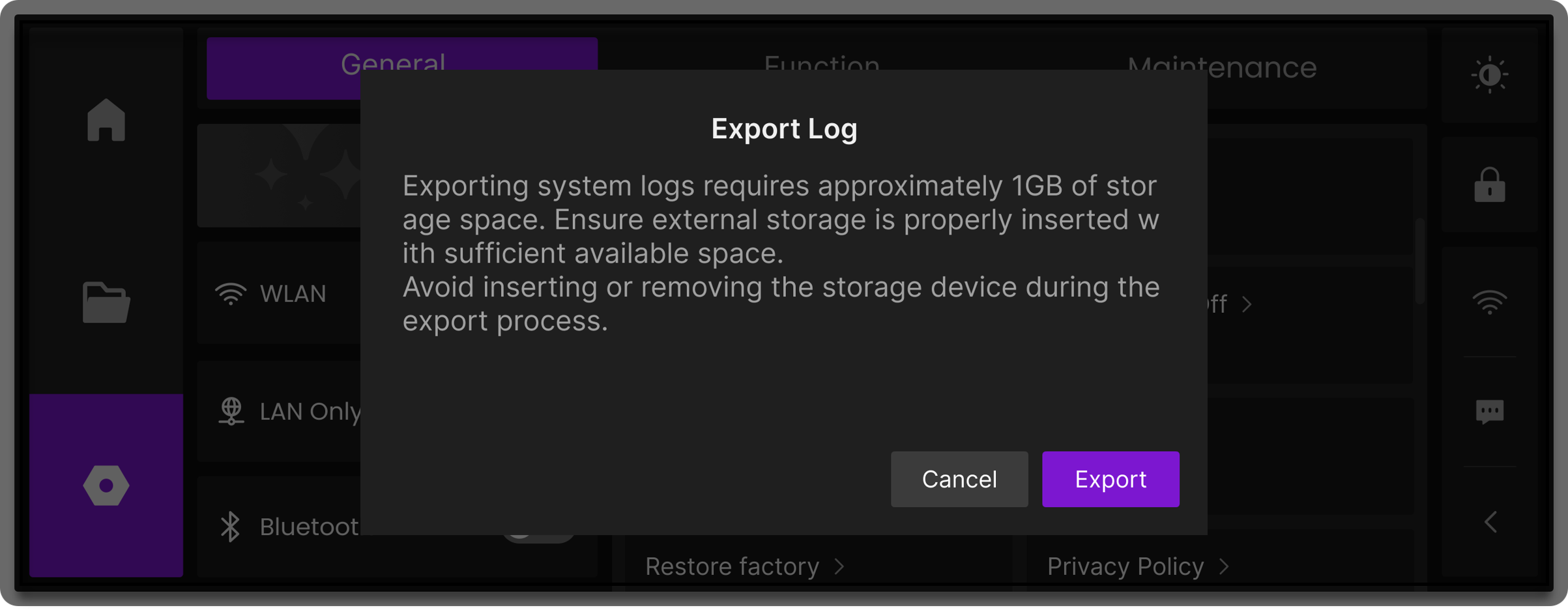
In the pop-up window, tap Export to start the process.
-
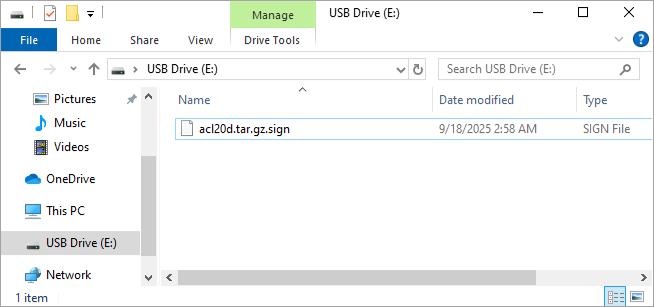
Wait for the system to finish exporting the log. Once complete, the log file will be saved to your external storage device.
¶ Notes
- Do not remove the USB drive or external storage device during the export process, as this may cause the export to fail.
- After export is complete, it’s recommended to safely eject the storage device before removing it.