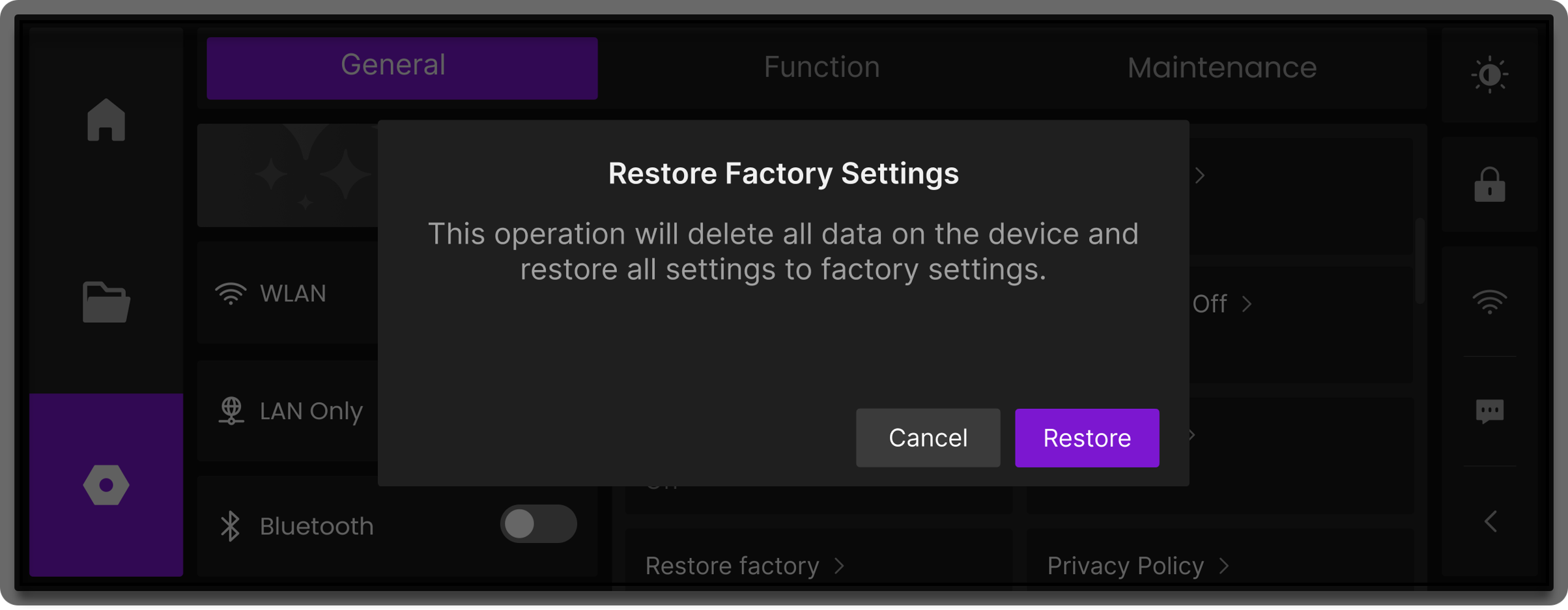
The touchscreen provides a Restore Factory Settings function. When the device needs to be redeployed, transferred, or when it encounters abnormal conditions, this operation can reset the device to its original factory state to ensure system stability.
¶ 1. What Gets Restored
Performing a factory reset will do the following:
| Reset Item | Description |
|---|---|
| User Configuration | Clears all user settings and work parameters |
| Network Information | Deletes saved network configurations |
| Local Files | Erases all user-stored files |
| Error States | Clears sensor error caches and abnormal states |
| OTA Firmware Status | Keeps the latest installed firmware |
| Log Data | Clears job logs; retains system logs, and records the reset action |
¶ 2. Important Notes
- Factory reset can only be performed when the device is idle.
- Do not power off or disconnect the device during the reset process.
- Once the factory reset is complete, user files and configurations cannot be recovered. Proceed with caution.
- It is strongly recommended to back up any important work files before performing a reset.
- The firmware version will not roll back—the device will remain on the latest installed firmware.
¶ 3. How to Restore
-
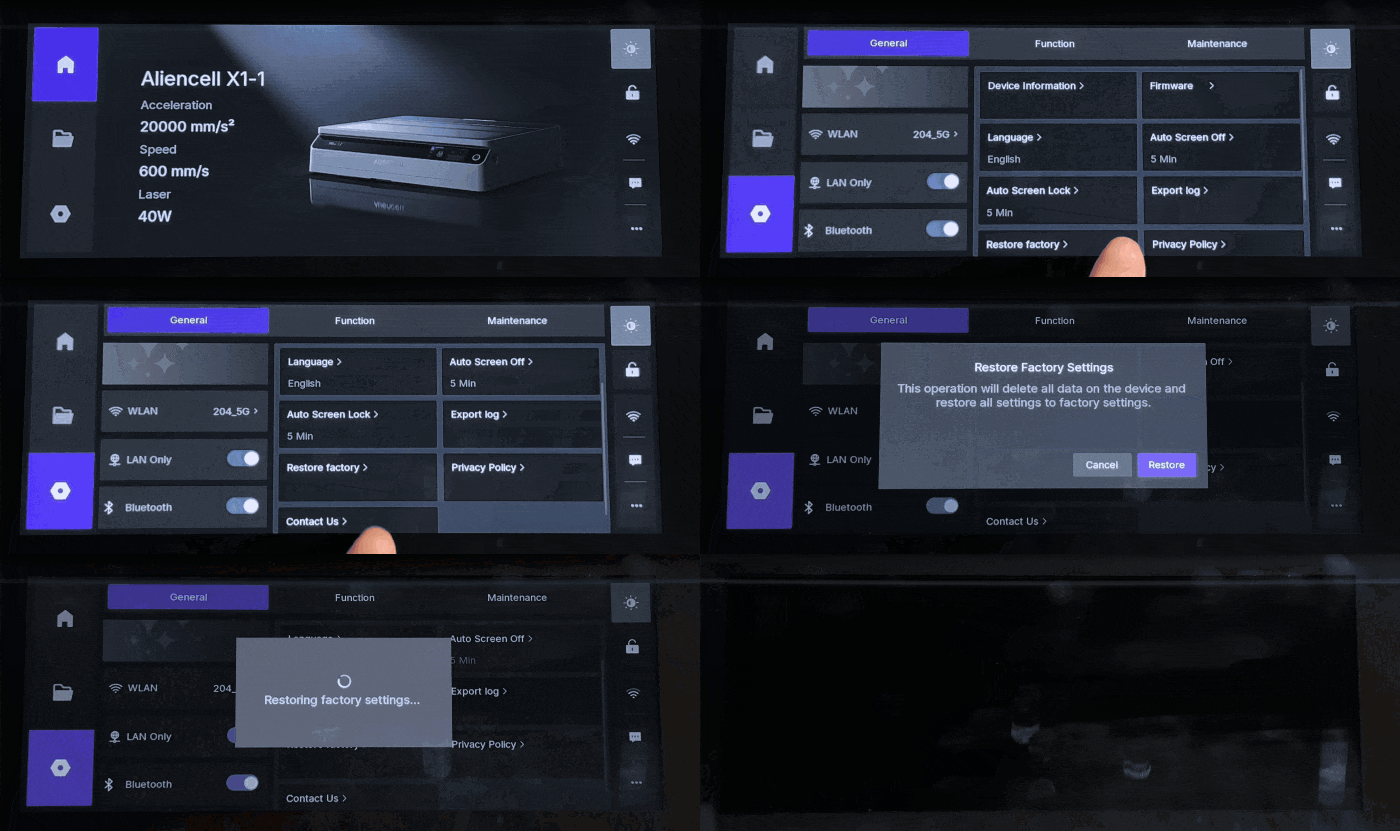
Tap the
 icon and go to the General page. Locate and select Restore Factory.
 -
A confirmation window will appear. Tap Restore to confirm and start the reset process.
-
Once the factory reset is completed, the device will automatically restart, and the screen will guide you through the startup wizard.
¶ 4. Startup Wizard
The startup wizard will appear in two cases:
- When using Aliencell X1 for the first time;
- After performing a factory reset and restarting the device.
The touchscreen startup wizard helps you quickly set up the device for smooth engraving tasks.
¶ 4.1 Select Language
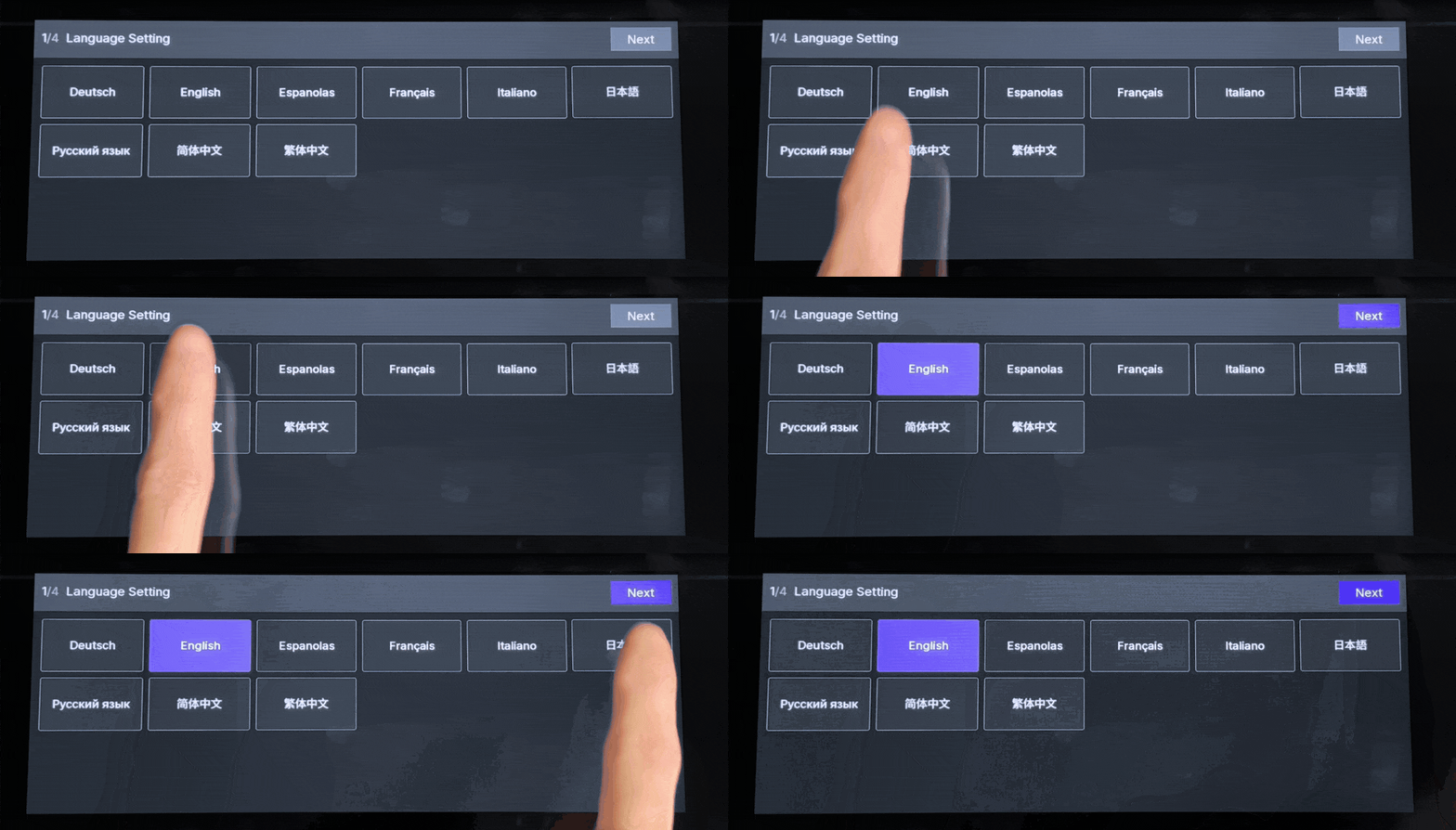
The Aliencell X1 touchscreen supports 8 languages. On startup, select the desired interface language and tap Next.
¶ 4.2 Terms and Conditions
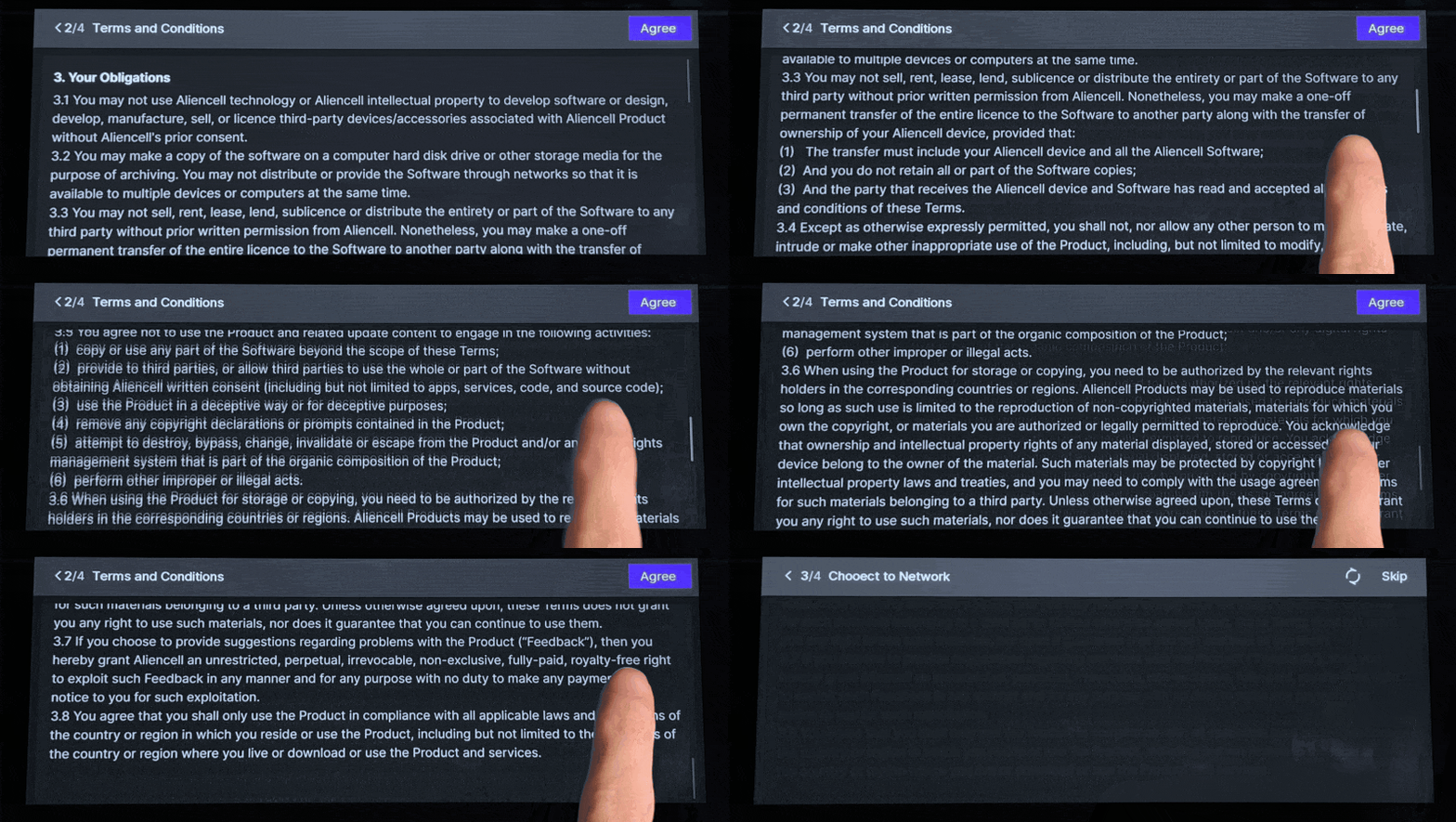
Please carefully read the related policies and Terms and Conditions, then tap Agree to proceed.
¶ 4.3 Connect to Wi-Fi
- Select a wireless network and enter the correct password to connect.
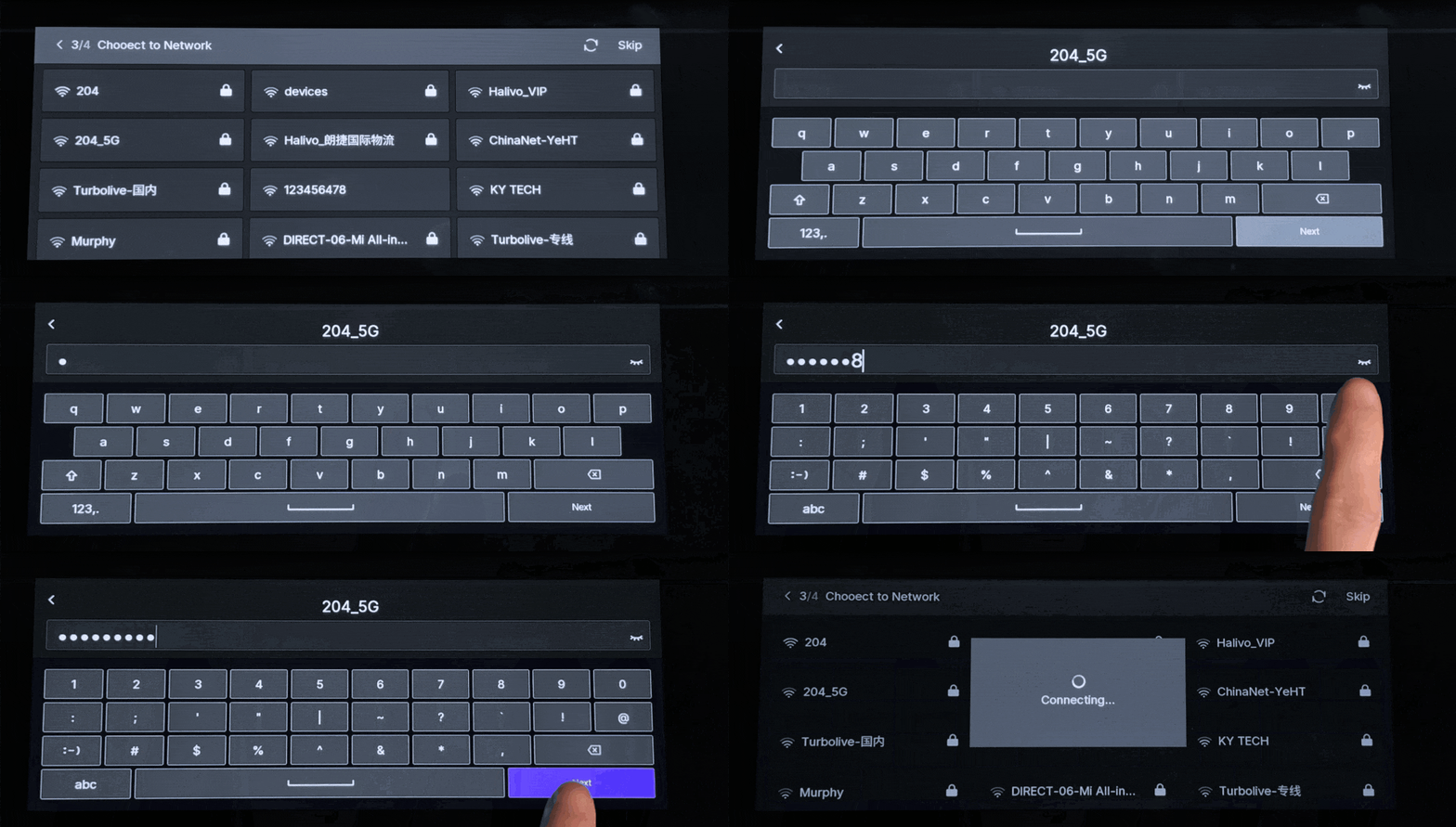
- If you don’t need internet access right away, tap Skip in the upper right corner. You can configure the network later in the settings menu.
Once the device is connected to a network, you will be able to receive the latest firmware updates and transfer files directly from your computer.
¶ 4.4 Device Self-Test
The device will perform a self-test on its core modules to ensure everything is working correctly. Running the self-test helps guarantee better engraving quality and a more stable overall experience.
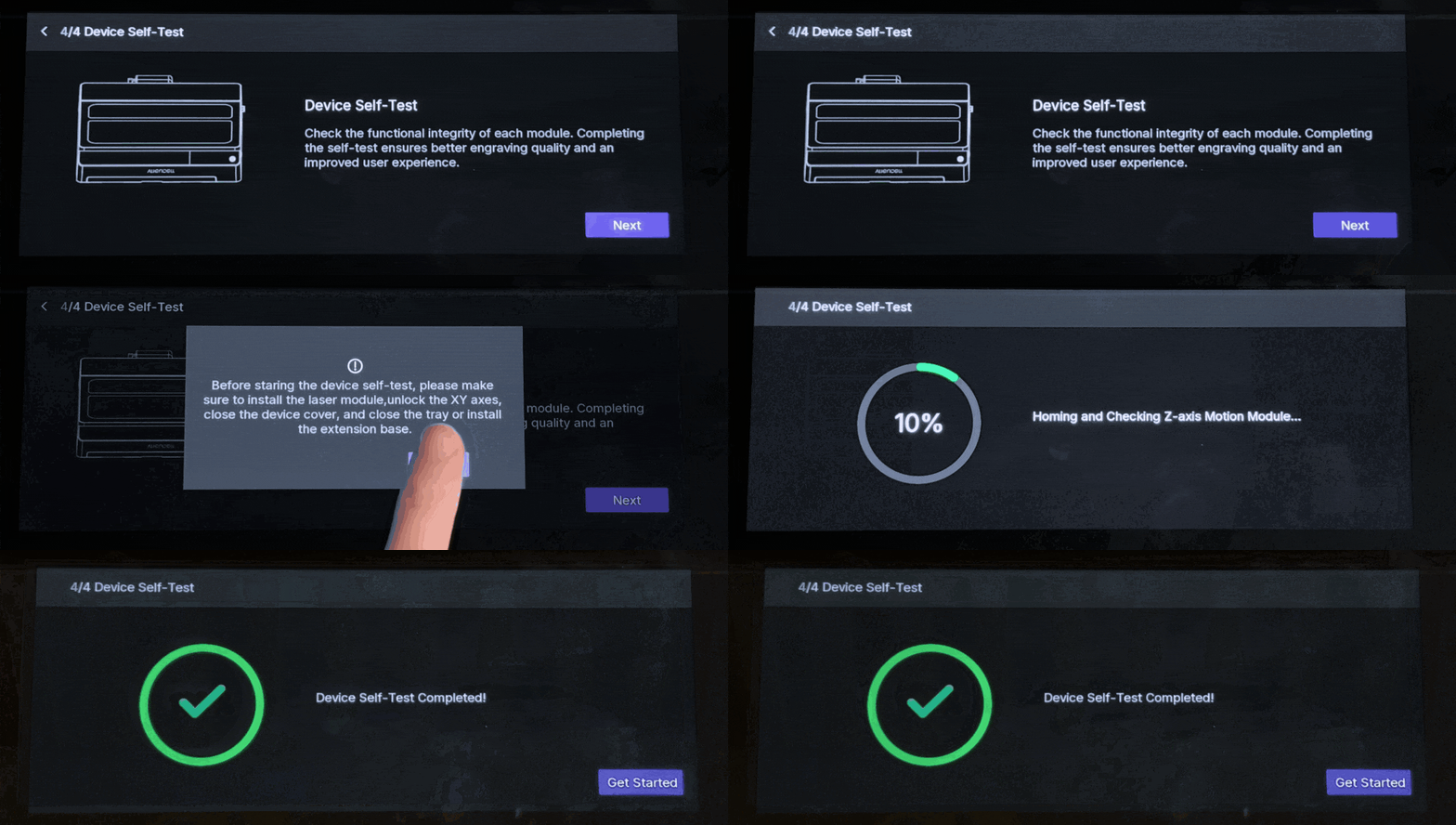
Preparation before self-test:
- Install the laser module
- Unlock the XY axis
- Close the top cover
- Close the tray or install the extension base
¶ 💡 Tips
- For your first use, it’s recommended to keep the device connected to the internet. The system will automatically check and notify you if new firmware is available.
- Keeping the firmware updated ensures better performance, more stable operation, and access to the latest features and optimizations.