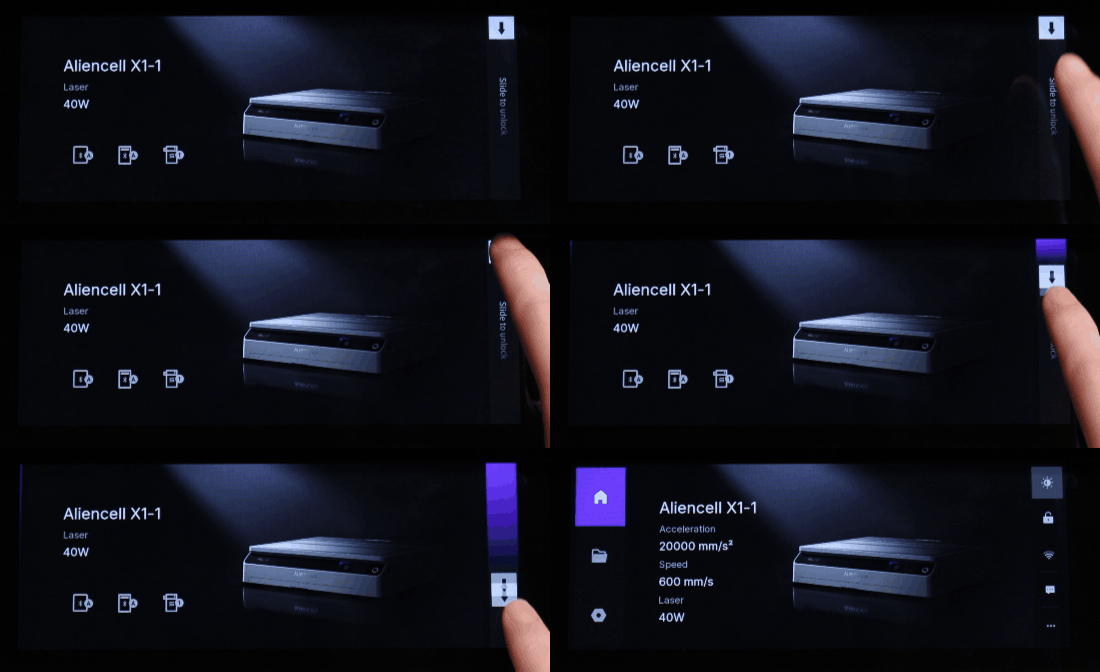
¶ Screen Lock Function
The Screen Lock function protects the touchscreen interface during both standby and job operations, preventing unintended touches from triggering actions.
¶ 1. Lock Screen Button
On the home screen, tap the  icon to instantly activate the lock screen.
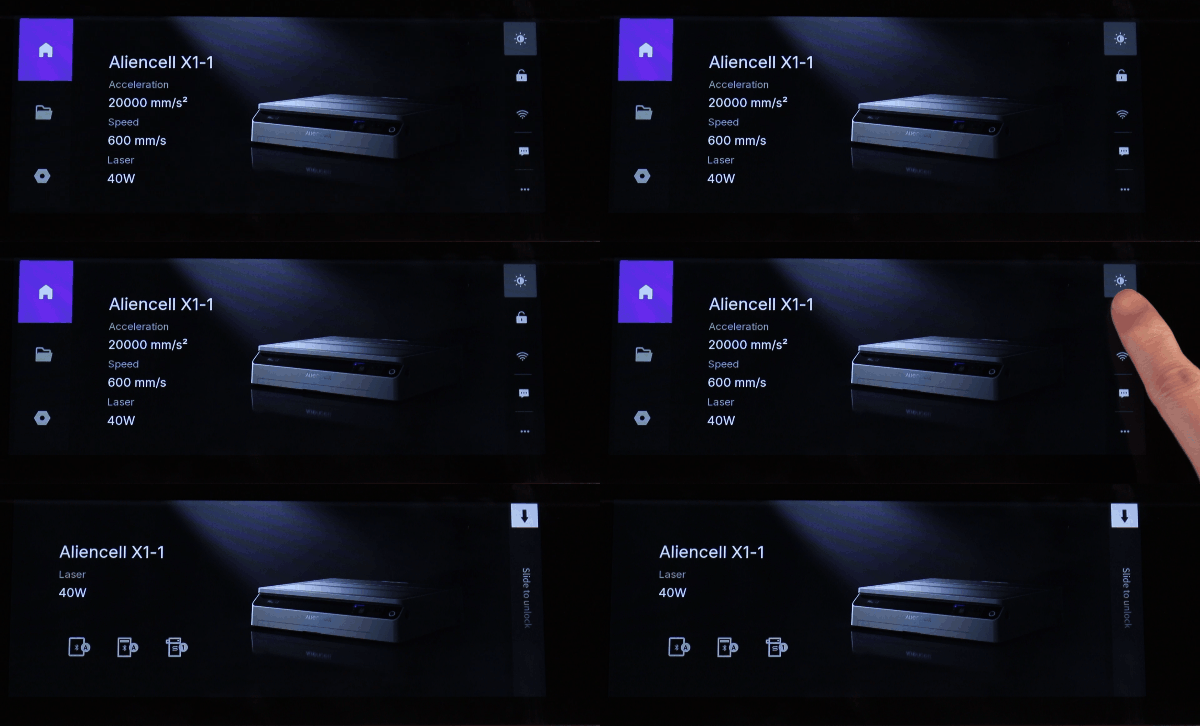
¶ 2. Auto Screen Lock Settings
Tap the  icon to enter the General page.
Select Auto Screen Lock and choose how long the touchscreen should wait before locking when idle: 2 Min / 5 Min / 10 Min / 15 Min.
If Off is selected, the auto-lock feature will be disabled. Tap Confirm to save your settings.

¶ 3. Lock Screen Modes
- Standby Lock Screen: Displays the device name and connected accessories, preventing accidental touches during standby.
- Job Lock Screen: Displays the job file name, current status, progress bar, percentage, and connected accessories—allowing you to monitor progress while locked.
The following table illustrates the lock screen under different states:
| Screen Preview | Description |
|---|---|
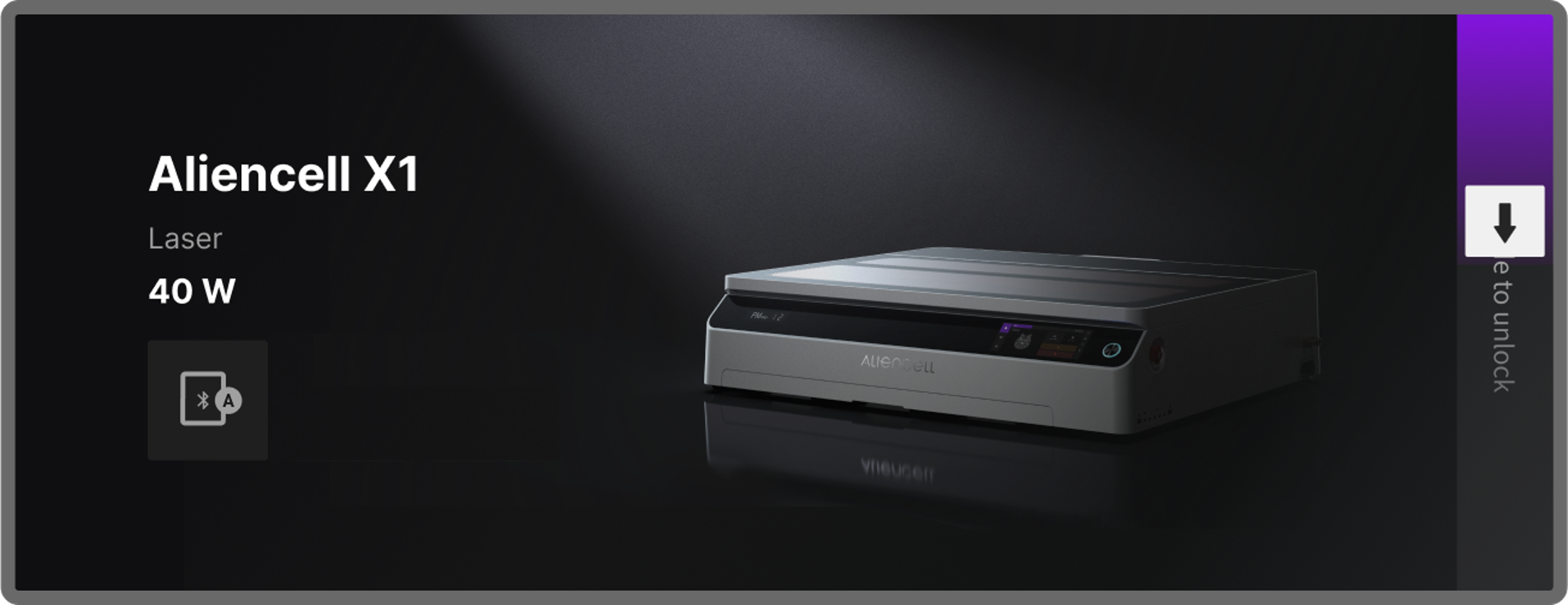 |
Standby mode lock screen shows the device is idle, preventing misoperation. |
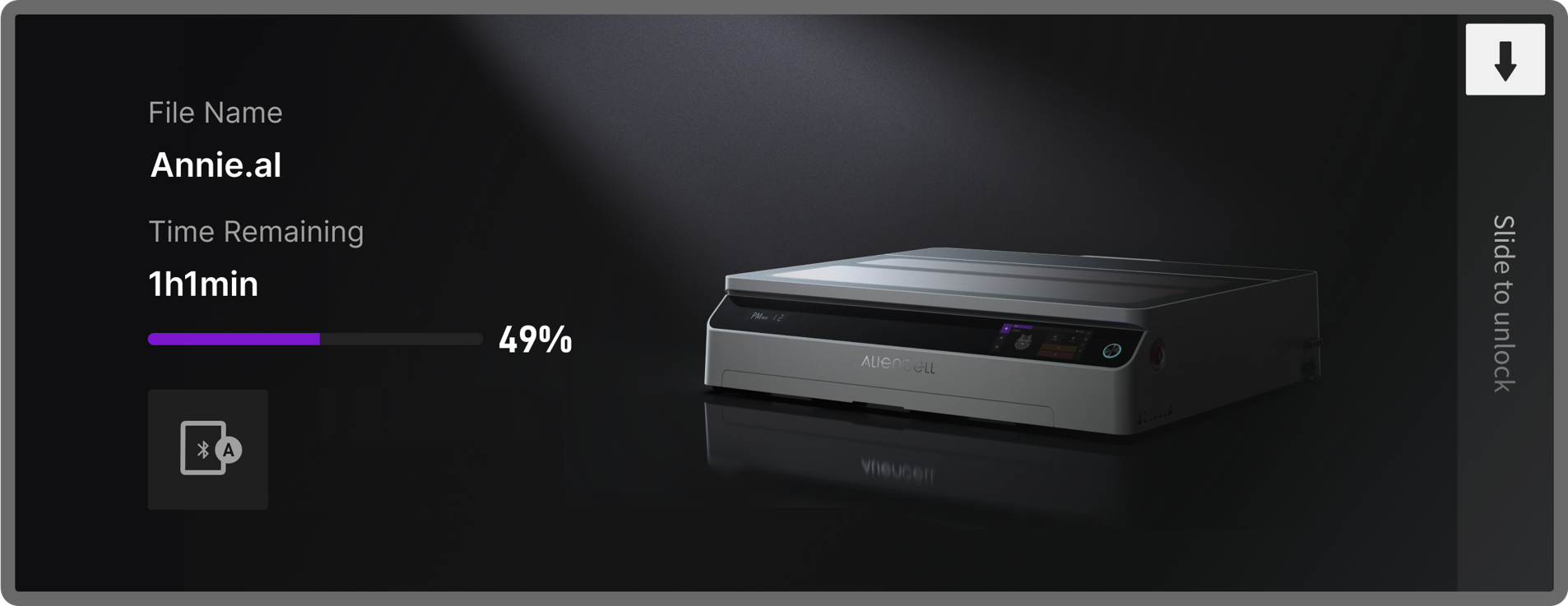 |
During a job, displays the remaining processing time so you can track progress while locked. |
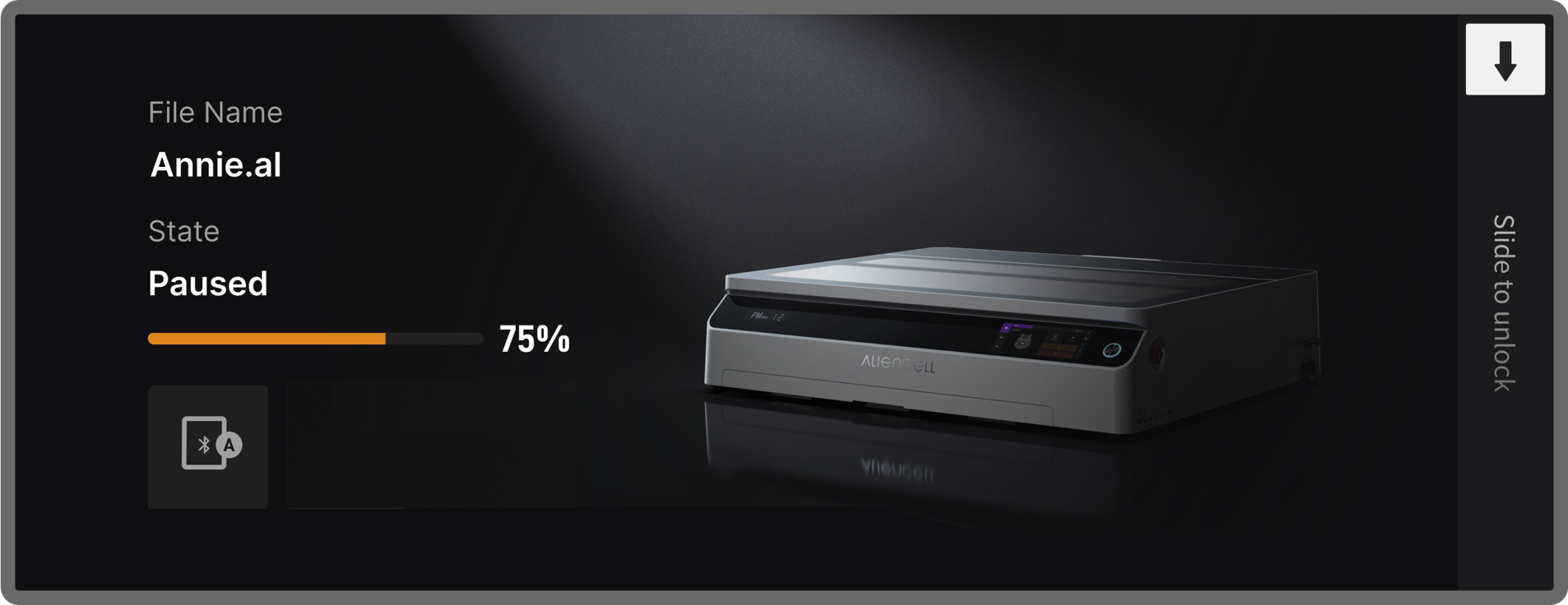 |
Indicates the device is paused, helping to avoid unintended operations. |
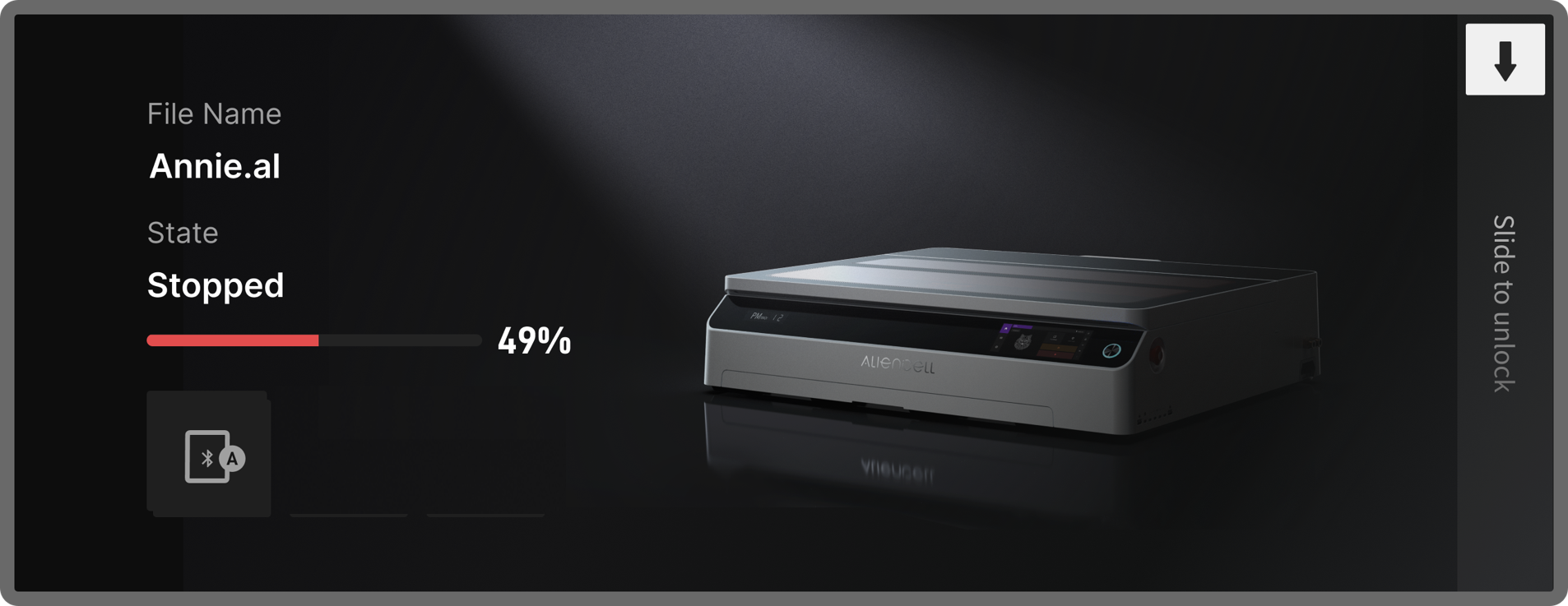 |
After a job is stopped, the screen confirms that the task has been terminated. |
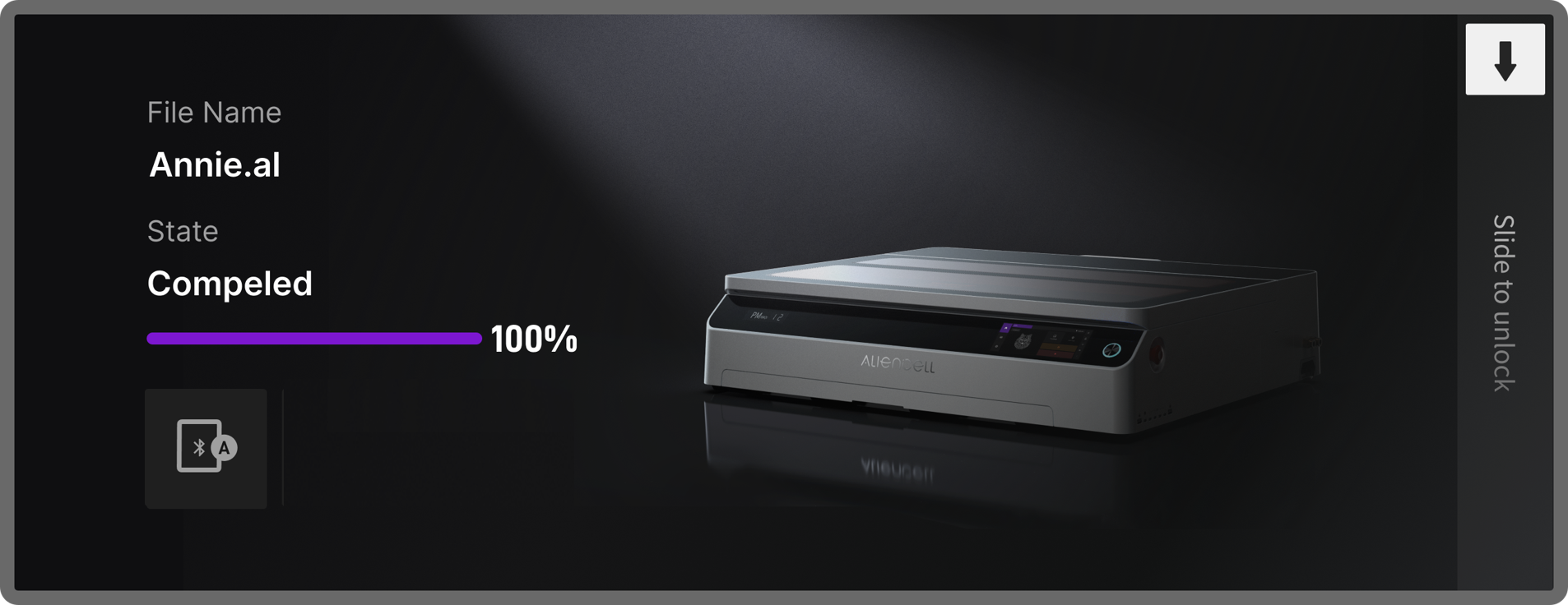 |
After a job is completed, the screen notifies you that the task is done and awaits confirmation. |
¶ 4. Unlocking the Screen
On the lock screen, swipe the slider at the top right corner down to the bottom of the screen to return to normal operation.