¶ 1. Wi-Fi Settings Interface Overview
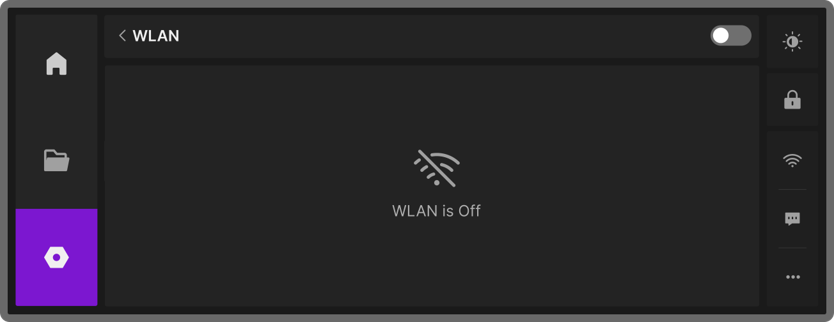
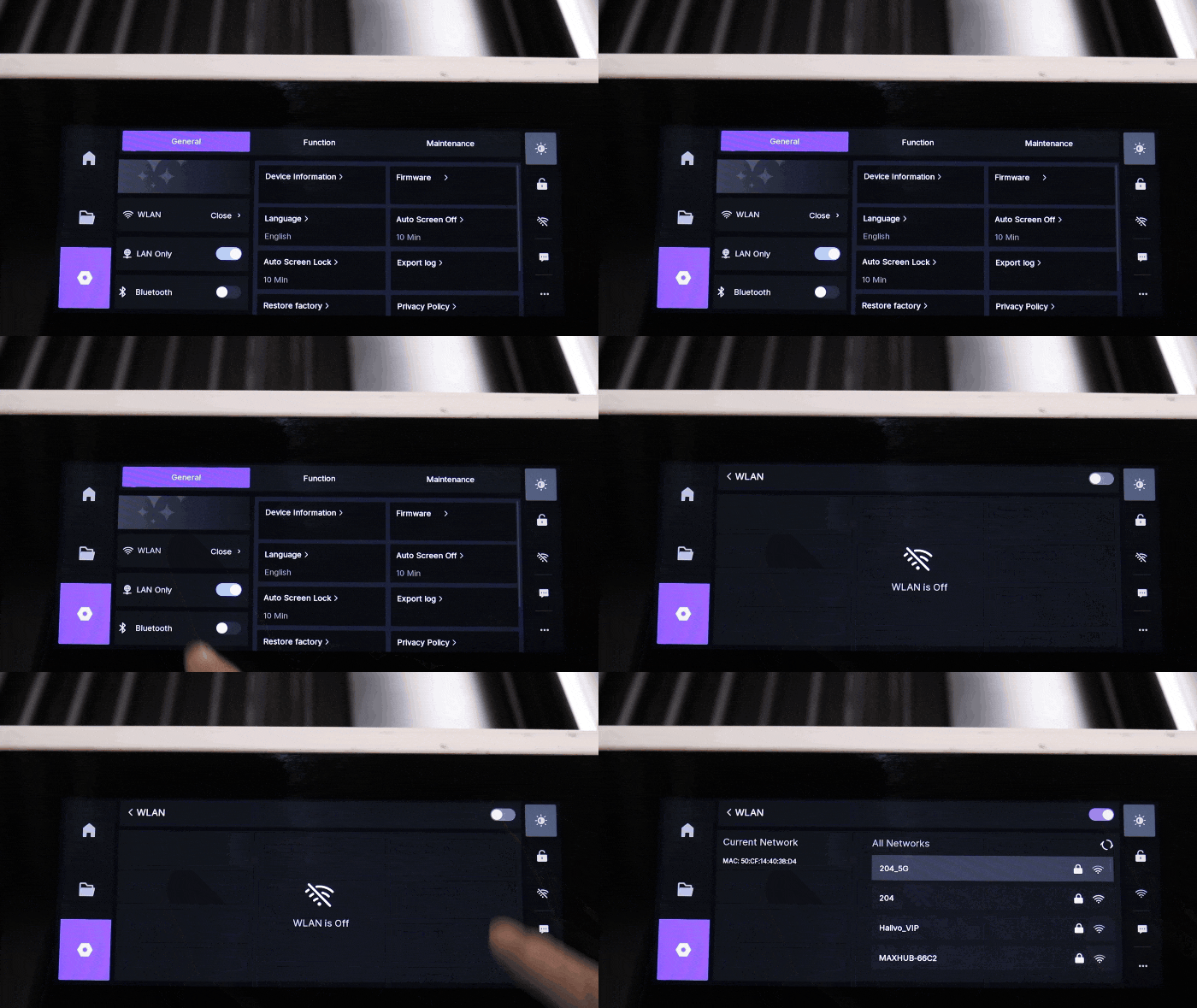
¶ 1.1 Wi-Fi Turned Off
¶ 1.2 Wi-Fi Connection Information
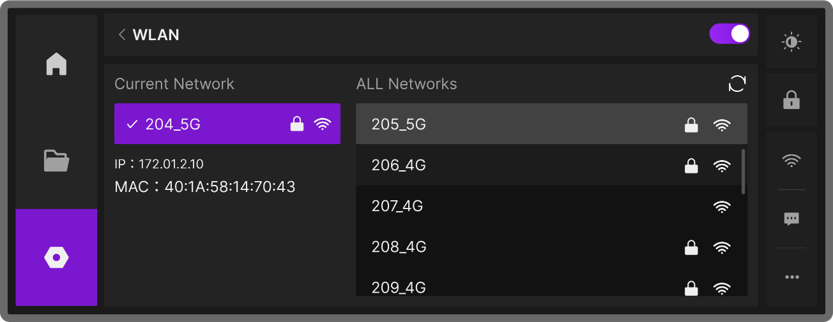
Once the Wi-Fi switch is turned on and successfully connected, you can view the current network’s IP address and the device’s MAC address under Current Network on the left side of the Wi-Fi settings screen. The right side of the screen displays all available Wi-Fi networks nearby.
¶ 1.3 Wi-Fi Action Buttons
Tap on any Wi-Fi network to open the Network Details window, which shows the currently selected Wi-Fi name and provides operation options.
| Icon | Description |
|---|---|
 |
Close: Close the popup without any other action |
 |
Forget: Delete the saved network information. Next time, the password must be entered again to reconnect |
 |
Connect: Connect to the selected Wi-Fi network |
¶ 2. Configuring Wi-Fi via Touchscreen
Your device allows you to configure Wi-Fi directly from the touchscreen. Follow these steps:
¶ 2.1 Enter the Wi-Fi Settings Screen
-
Method 1: Tap the
 icon on the touchscreen, then select the
  icon to access the Wi-Fi settings screen.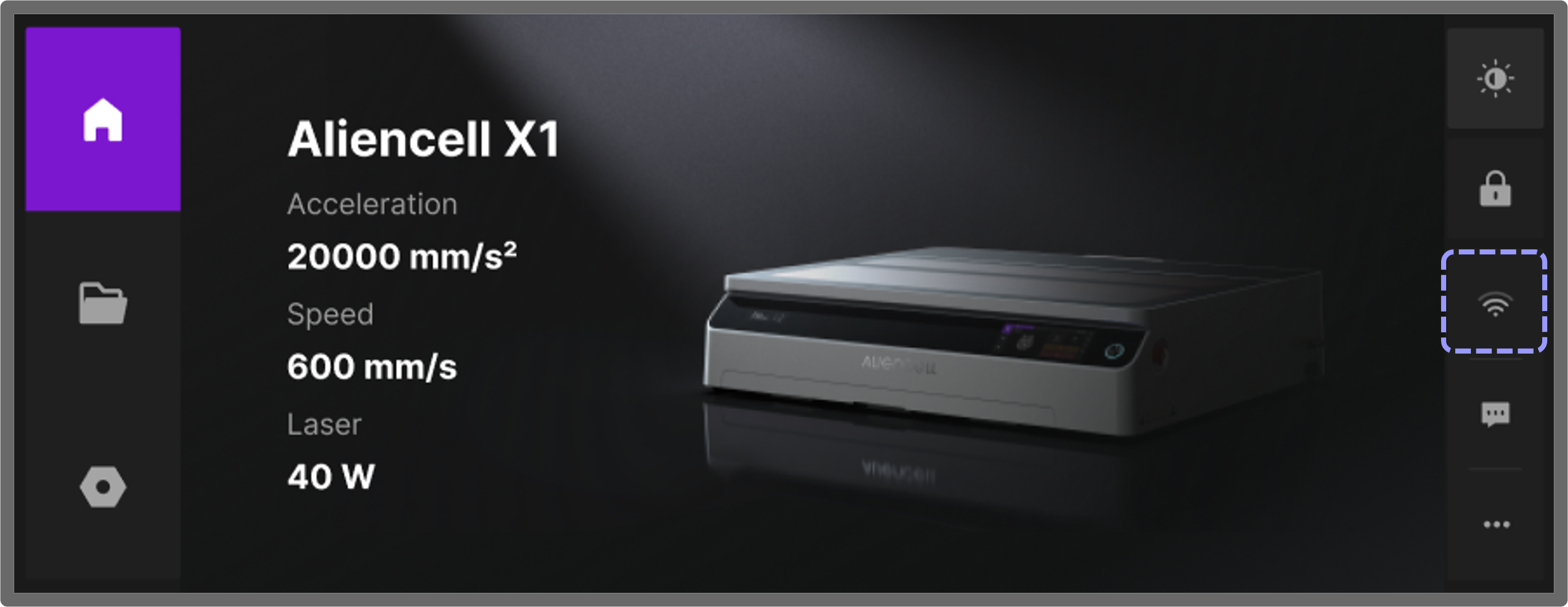
-
Method 2: Tap the
 icon, then choose the option to enter the Wi-Fi settings screen.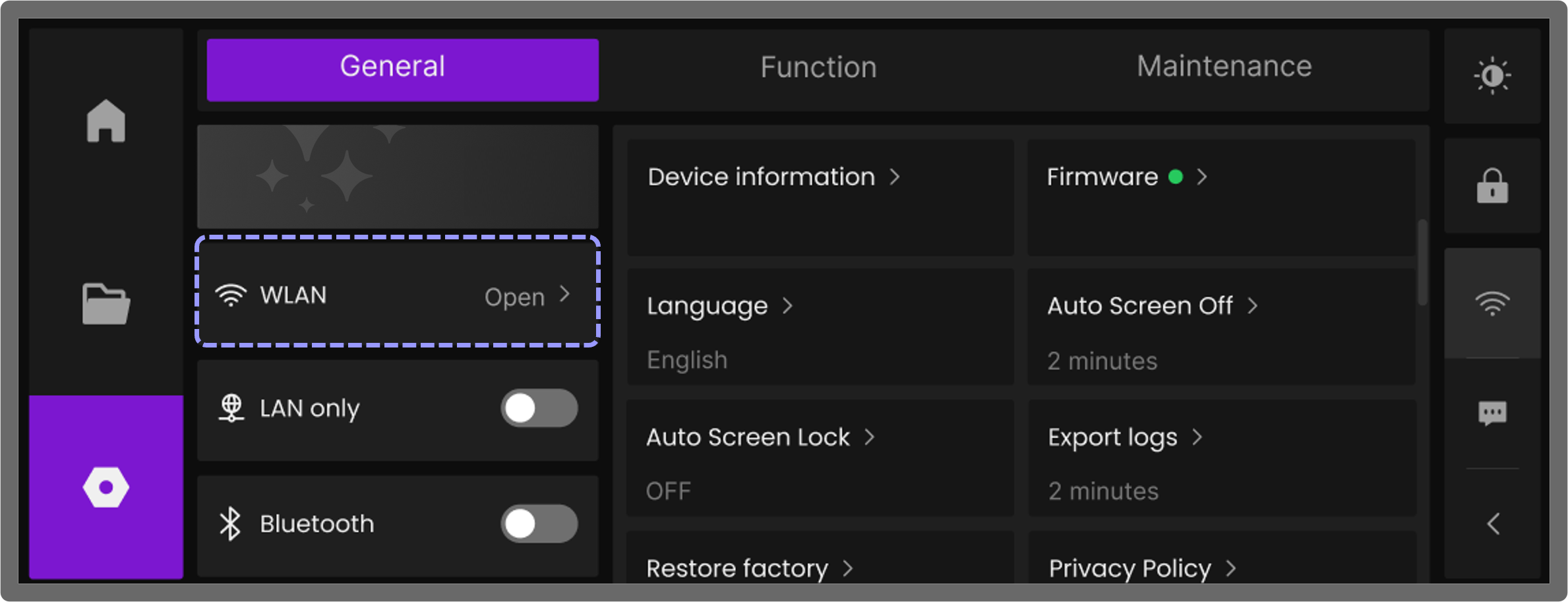
¶ 2.2 Turn On Wi-Fi and View Available Networks
If Wi-Fi shows as Close or the Wi-Fi icon on the right is  , tap the Wi-Fi toggle at the top of the screen to turn it on. Once enabled, the device will automatically scan and display all available Wi-Fi networks nearby.
¶ 2.3 Select a Network and Connect
-
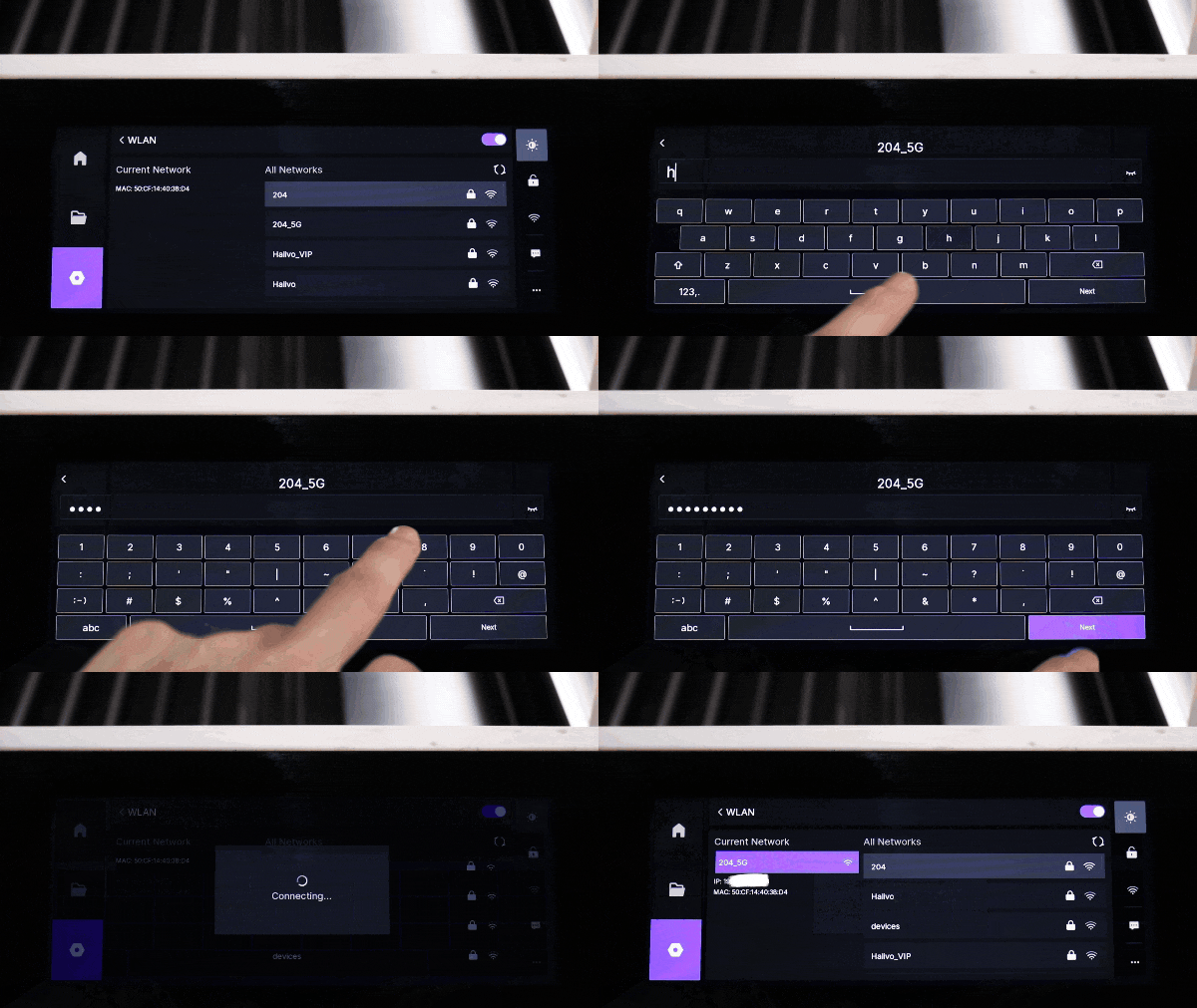
Choose the Wi-Fi network you want to connect to from the list. A password input box will appear. Enter the correct password and tap Next. Once connected, a confirmation message will appear on the screen.
-
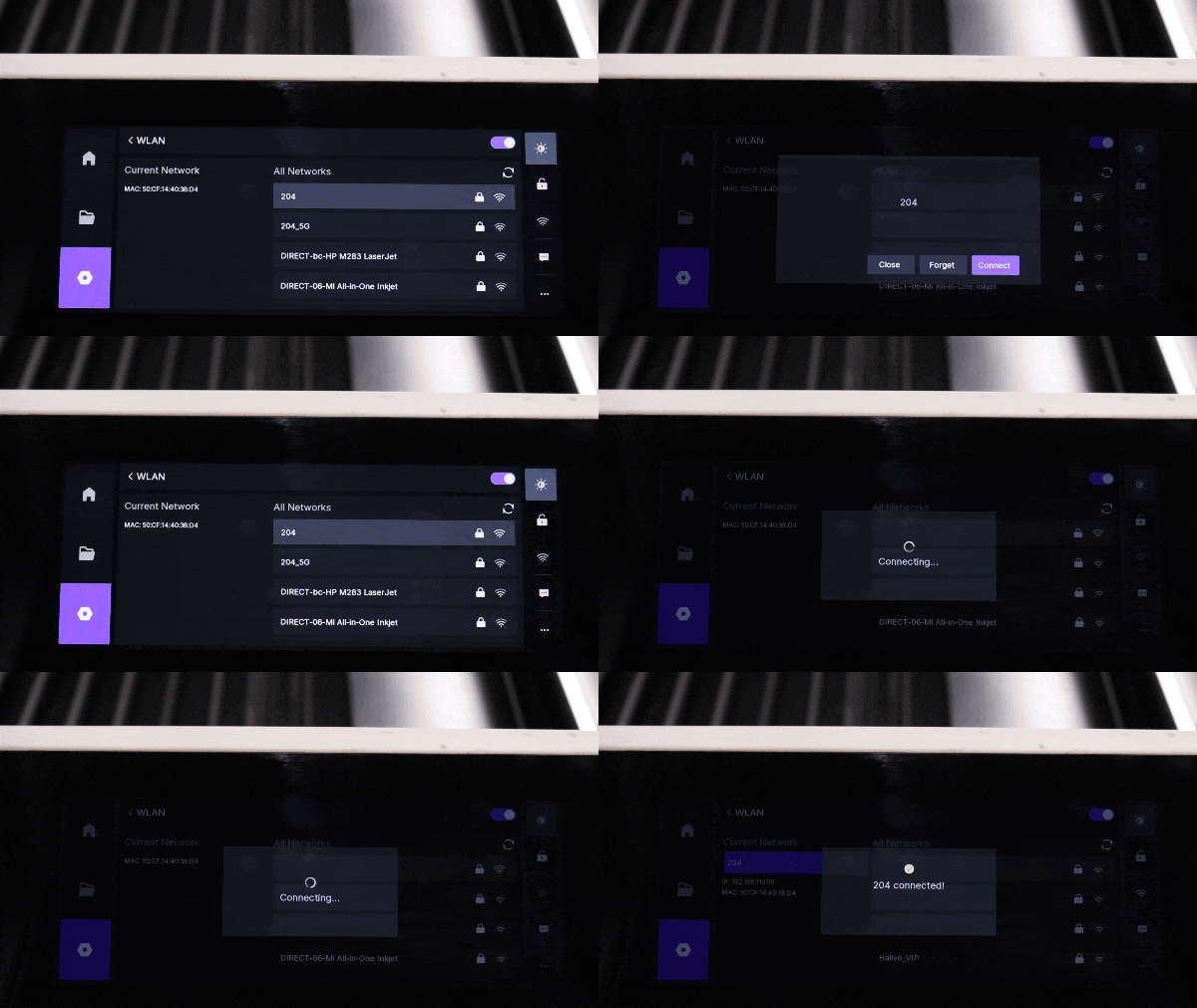
If a network in the ALL Networks list is highlighted in gray, it means the network has been connected to before. You can simply tap it and select Connect without re-entering the password.
¶ 2.4 Forget a Wi-Fi Network
To prevent the device from automatically reconnecting to a Wi-Fi network, or to remove an unused network, tap the network name and select Forget in the pop-up window. The device will remove the saved connection details.