The Aliencell X1 laser engraver supports direct connection to external storage devices, allowing you to manage and process files via the touchscreen. Make sure your files are in .al format before transferring them to the external storage device.
¶ 1. Prepare Your Files
¶ 1.1 Export Files from Aliencell Space to External Storage
Step 1: Insert your USB drive into your computer.
Step 2: Export the processing files in .al format from Aliencell Space to the USB drive.

Step 3: Insert the USB drive into the Aliencell X1 device.
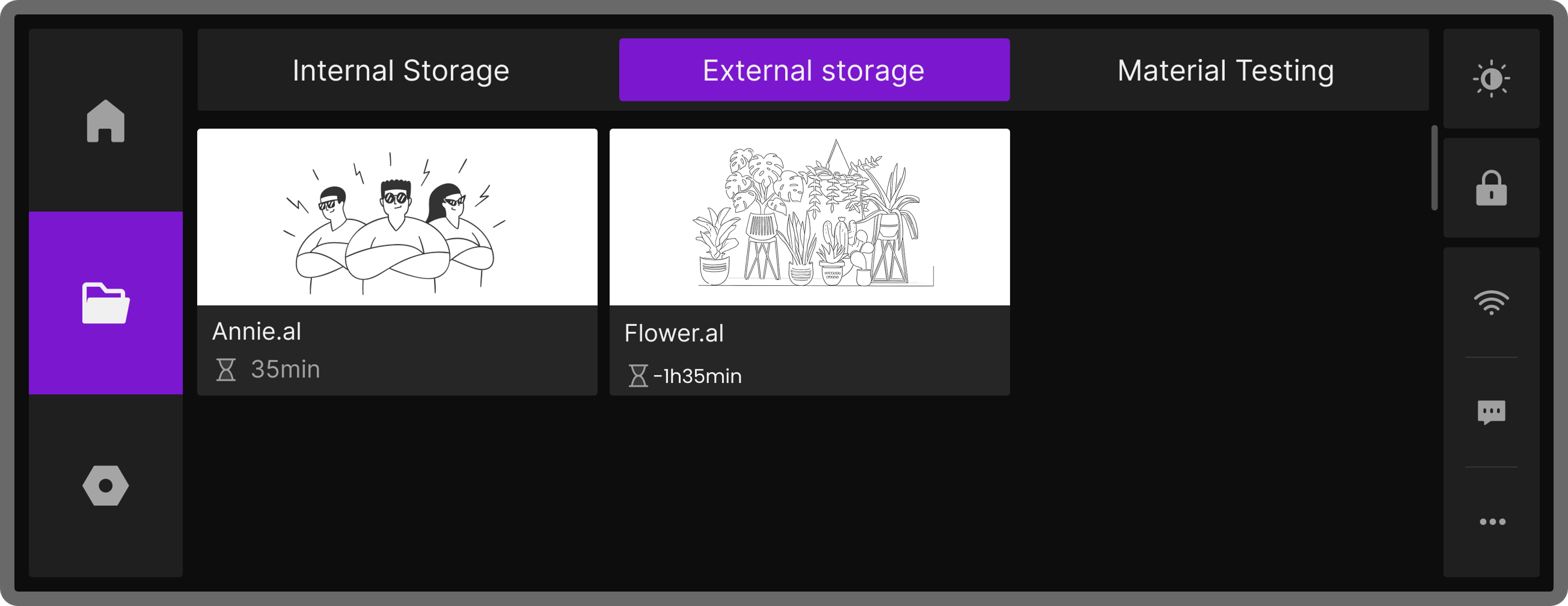
Step 4: On the touchscreen, tap Files, then select External Storage to view all .al files on the USB drive.
¶ 2. File Management
¶ 2.1 Delete External Files
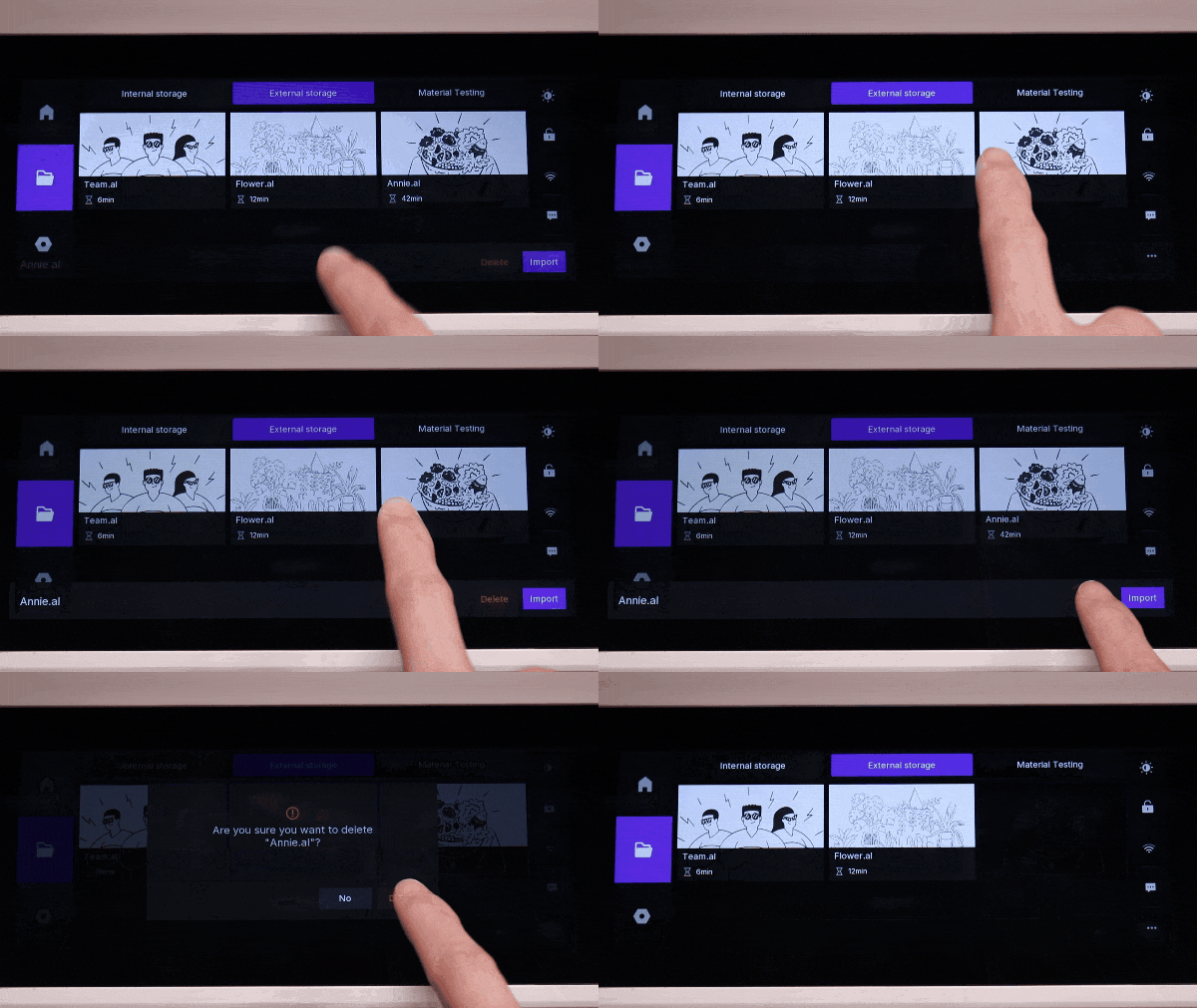
Long-press the file you want to delete. The action menu will slide up from the bottom of the screen. Tap Delete, then confirm by tapping Delete again. The file will be permanently removed from the external storage.
¶ 2.2 Import External Files
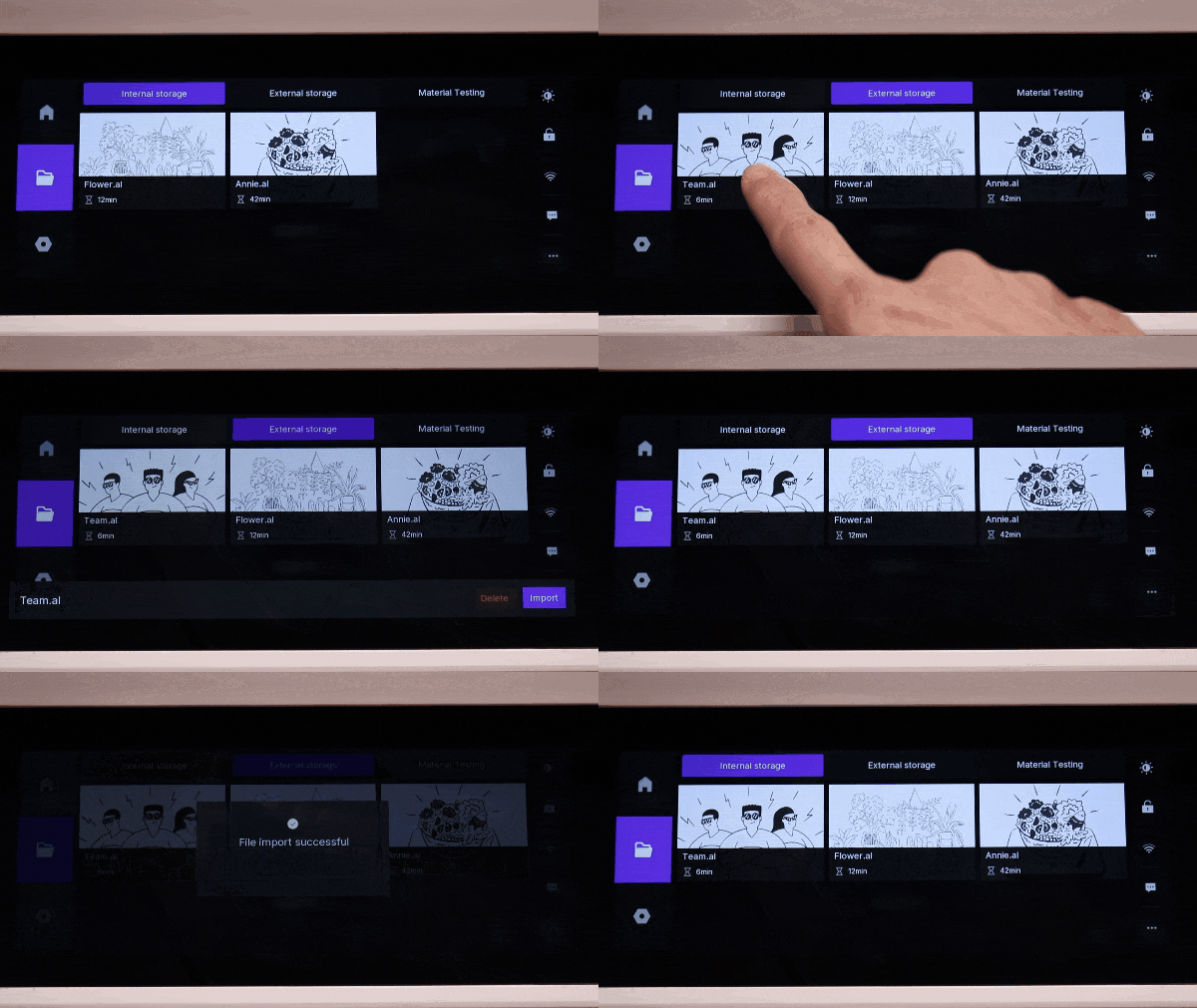
Transfer files from external storage to the device’s internal storage. Long-press the file, then tap Import from the sliding menu. The file will be copied from the external storage to internal storage.
¶ 3. File Processing
Tap a file in external storage, then tap Confirm to start processing. The file will first be saved to internal storage as a temporary file. The subsequent processing interface is the same as internal storage processing. For detailed instructions, refer to Offline Job Processing.