This guide introduces offline processing using the touch screen and external storage devices (such as a USB drive). Make sure to copy the job files to your external storage device in advance, then process them through the device’s external storage function.
¶ 1. Preparation
¶ 1.1 Items to Prepare
- Aliencell X1 and its power cable
- Air pump and accessories (we recommend using the official Aliencell air pump to protect the laser module lens effectively)
- USB drive
- Processing materials, e.g., 3mm basswood
¶ 1.2 Pre-Job Checklist
 |
 |
|---|---|
a. Ensure the exhaust pipe outlet is placed toward a ventilation duct or connected to an air purifier. b. Make sure the workspace is clean and clear of clutter. Avoid placing any heavy items on the machine cover. |
c. Check that the U-key is properly inserted into the corresponding port. d. Make sure the Emergency Stop Button is released. |
¶ 1.3 Powering On the Machine
 |
 |
|---|---|
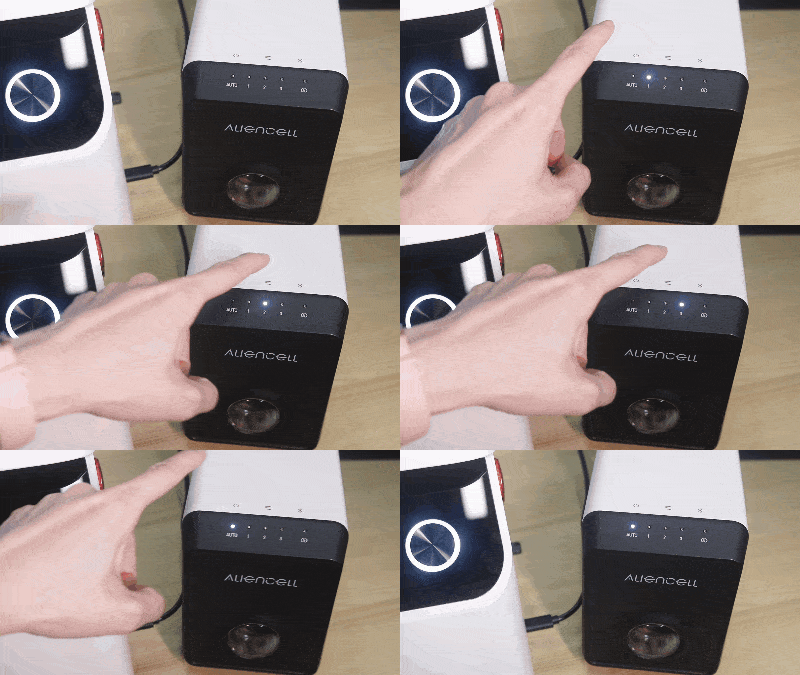
a. Turn on the Air Pump and switch it to Auto mode. |
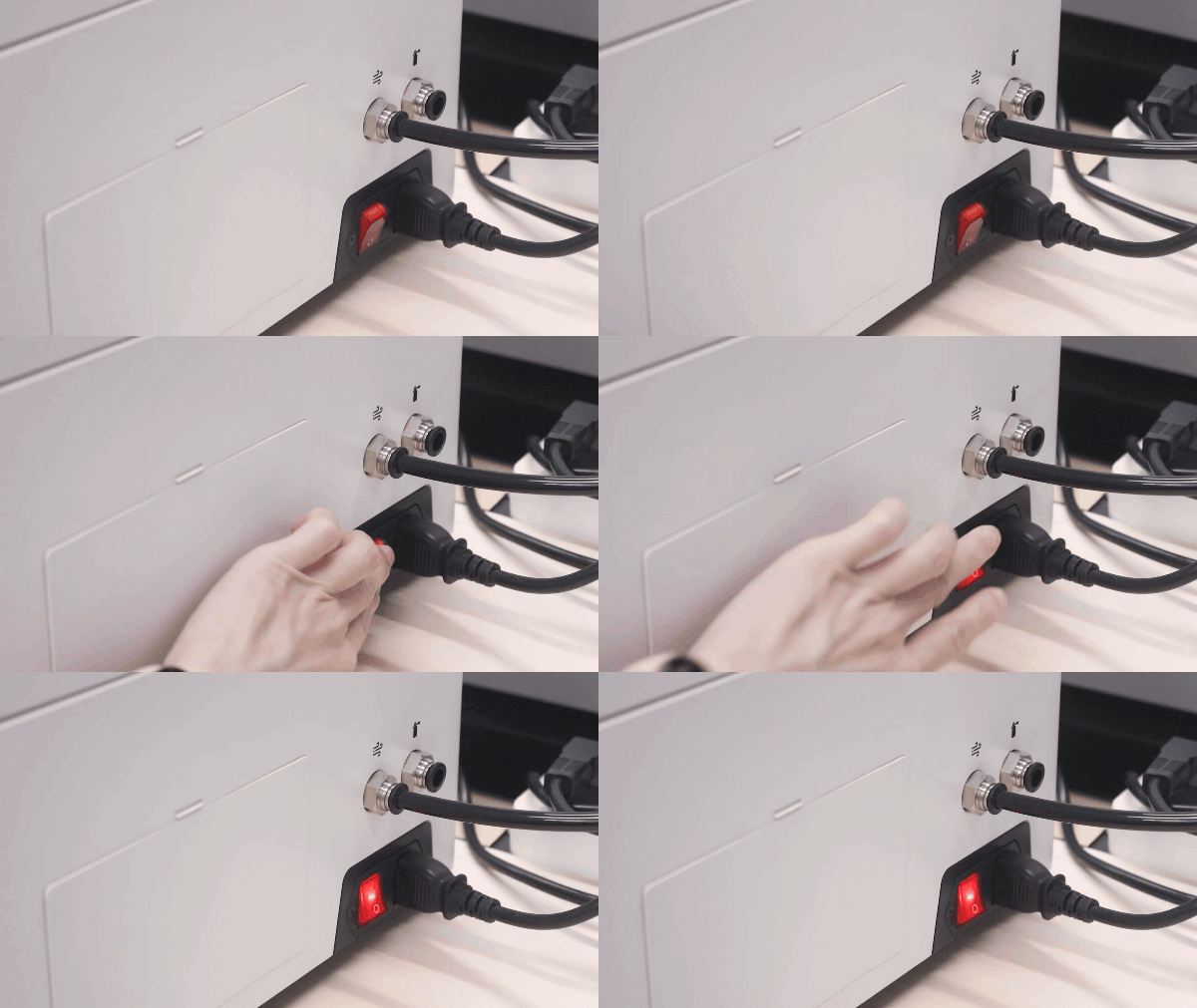
b. Turn on the Main Power Switch of the laser engraver. |
¶ 1.4 Placing the Material
- Place the material in the center of the work area and close the machine cover.
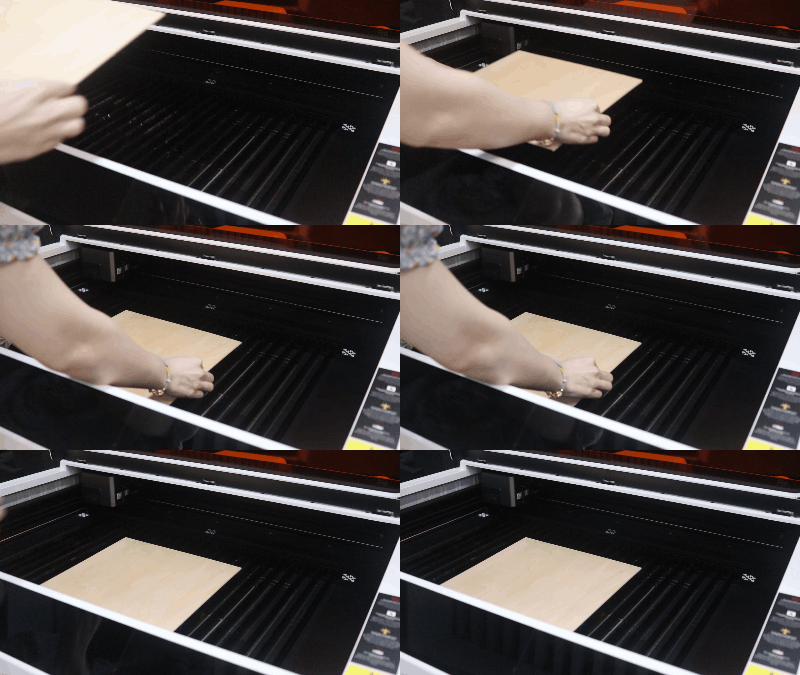
For lightweight or thin materials, use material clamps to secure them.
¶ 2. Using External Storage Files
¶ 2.1 Preparing Job Files
- Copy job files to the USB drive in advance:
- Insert the USB drive into your computer
- Export
.alfiles from Aliencell Space to the USB drive
- Save the
.alfiles on the USB drive
¶ 2.2 Inserting the USB Drive
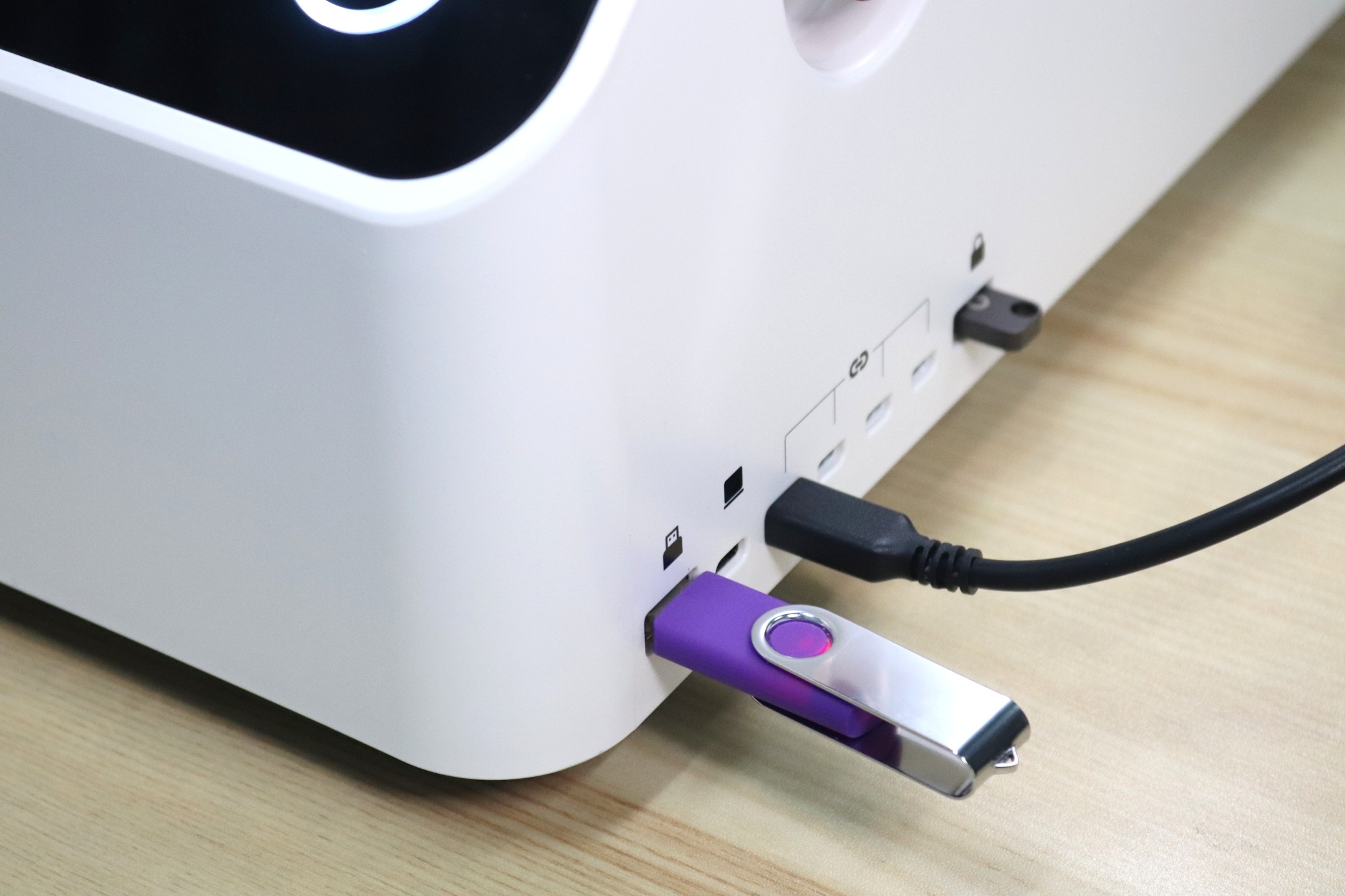
- Plug the USB drive into the external port on the right side of the machine.
¶ 2.3 Selecting the Job File
- On the touch screen, tap the
 icon in the left-hand menu
 - Tap External Storage, then select the file from the USB drive
- The job’s design parameters will appear. Tap Confirm to enter the job settings page

¶ 2.4 Positioning the Job
- Before starting, manually set the Laser Module’s starting point to align the design on the material.
Method 1: Canvas Drag Positioning
- Drag the design in the left-hand grid (canvas) with your finger
- The Laser Module follows the red crosshair cursor in real time

Method 2: Jog Control Panel
- Use the arrow buttons on the right side of the screen to move the laser head
- Each tap moves the laser head by the set step (default: 1mm)

Method 3: Manually Move the Laser Module
- Push the Laser Module gently so the red crosshair aligns with a reference point on the material

¶ 2.5 Framing
- Tap Framing. The Laser Module will trace the design outline on the material, helping confirm it fits the material size

If the framing crosshair goes outside the material, reposition the job or use a larger material to avoid failure
¶ 2.6 Parameter Settings
- Tap Parameters Edit to adjust job parameters
Skip this step if no changes are needed
¶ 2.7 Running the Job
¶ 2.7.1 Start the Job
- Tap Start to begin. The machine will automatically focus first, then start the job once focus is achieved

¶ 2.7.2 During the Job
- To pause: tap

- To resume: tap

- To cancel/stop: tap

¶ 2.7.3 Job Completion
- After completion, clean the workspace and turn off both the Aliencell X1 and the air pump