¶ Version Comparison
¶ Version v1.4.0 and later
- Added Switch Device button
- The original device list has been redesigned as a dedicated Current Device Panel, providing quick access to: device status monitoring, live camera preview, job controls (Start / Pause / Resume / Stop), and device switching.

¶ Before v1.4.0

¶ 1. Menu
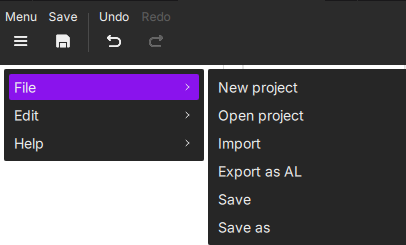
| File | Edit | Help |
|---|---|---|
 |
 |
 |
New Project – Create a new project file with the .alp extension. |
Delete – Remove the selected object(s) from the canvas. | User Feedback – Submit feedback or suggestions about the software. |
Open Project – Open an existing .alp project file. |
Select All – Select all objects on the canvas. | |
| Import – Support for image formats such as PNG, BMP, JPG, JPEG, SVG, and DXF. | Undo – Reverse the previous action. | |
Export as AL – Export all objects on the canvas as an .al file. |
Redo – Restore the last undone operation. | |
Save – Save the current project to your computer in .alp format. |
Copy – Copy the selected object(s) to the clipboard. | |
Save As – Save the current project to a different location with a new name, in .alp format. |
Cut – Remove selected objects and store them in the clipboard for repositioning or reuse. | |
| Paste – Insert the copied content from the clipboard at the desired location. |
Difference between
.aland.alpfiles:
.alp– Project file containing complete design data: layers, paths, parameter settings, and object attributes. It is editable within the software..al– Machine file that contains path data and processing commands. It can be recognized and processed by the device but cannot be opened or edited in the software.
¶ 2. Save
- If the current project hasn’t been saved yet, the system will prompt you to name the file and choose a location.
- Once saved, subsequent saves will automatically overwrite the same file without prompting.
¶ 3. Undo
Reverse the most recent action.
¶ 4. Redo
Restore the last undone action.
¶ 5. Position
Display or adjust the coordinates of the selected object(s) on the canvas.
- X: The object’s horizontal coordinate (in millimeters).
- Y: The object’s vertical coordinate (in millimeters).
The coordinate point refers to the upper-left corner of the object’s bounding box.
You can precisely move objects by editing the X/Y values, allowing accurate alignment or distribution among multiple objects.
¶ 6. Size
Adjust the width and height of objects.
You can either input values manually for precision or drag the object’s borders to resize freely.
- W: Width of the object.
- H: Height of the object.
The
chain icon controls aspect ratio:
- Lock
- Unlock
– The aspect ratio is unlocked. Width and height can be edited independently.
¶ 7. Rotation
Set the rotation angle of an object.
¶ 7.1 Specify Angle
- Positive values rotate clockwise; negative values rotate counterclockwise.
- Absolute Angle: The angle represents the object’s rotation relative to the canvas (not cumulative). Default is 0°.
- Valid rotation range: 0°–360°.
If you enter a value beyond -180° to 180°, the system automatically maps it to an equivalent angle within that range (e.g., 270° becomes -90°).
¶ 7.2 Rotation
You can also freely rotate an object by clicking and dragging the rotation handle at its top-right corner.
¶ 8. Flip
Flip objects horizontally or vertically.
- Flip Horizontal: Flip left-to-right.
- Flip Vertical: Flip top-to-bottom.
¶ 9. Arrange
When multiple objects exist on the canvas, you can adjust their stacking order.
- Bring Forward
- Send Backward
- Bring to Front
- Send to Back
¶ 10. Align
Align multiple objects in a specific way.
Align Left |
Align Right |
Align Horizontally Center |
Align Vertically Center |
Align Top |
Align Bottom |
Align Center |
When only one object is selected, alignment is based on the canvas center or boundary.
¶ 11. Distribute
Automatically distribute multiple objects evenly.
Horizontal Distribution: Evenly space multiple objects horizontally. |
Vertical Distribution: Evenly space multiple objects vertically. |
This function appears only when three or more objects are selected.
¶ 12. Job Preview
▶️ Job Preview simulates the engraving process dynamically.
It allows you to preview the laser head’s movement path, processing order, and estimated duration — helping optimize efficiency and prevent setup errors.

¶ 13. Device Connection
¶ 13.1 Applicable to version 1.4.0 and later
¶ Switch Device
The right area of the top toolbar  is used for Device Connection and switching devices.
Click "Switch Device", expand the sub-options, and directly select the target device to complete the switch.
-
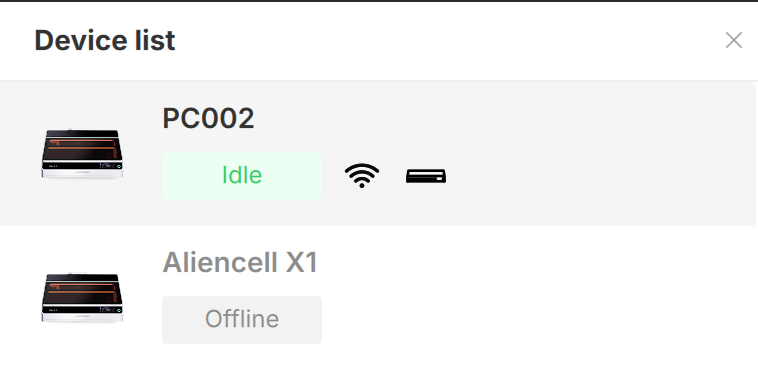
Device Status : Green indicator light means the device is online and connected, while a gray indicator light means the device is offline.
-
Device Name : For example, Aliencell X1.
You can also switch to Virtual Device mode for offline simulation. -
Current Device: Click to expand "Current Device" to display the basic information of the device currently being connected.
-
Device Status Display Bar: When the machine is correctly connected, the status bar will show the current status of the device. There are three statuses: idle, processing, and offline.
idle: Displayed when communication with the machine is established and no task is being executed. The three icons from left to right are: connection communication method, lid open/close status, and internal light status.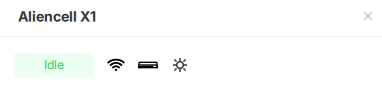
-
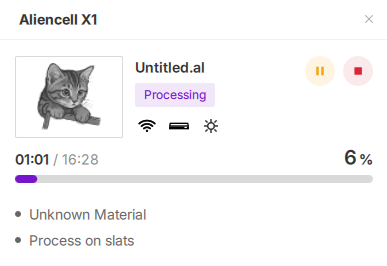
Processing: When the machine is working, the left area displays a project thumbnail for preview. The right area has two icons: the left icon
 , click once, and after a brief delay, the machine pauses, and the icon changes to the
  resume button; click again to resume the project. The right icon
  is the stop button; clicking it will pop up a confirmation window to confirm whether to terminate the project. The progress bar is located below, showing work progress, with the number on the left indicating elapsed time, the number on the right indicating estimated total time, and the percentage indicating overall project progress.
-
Offline: If communication with the machine is not properly established, it will display as offline.
-
Device Model: The model of the currently connected device, e.g., "X1".
-
Laser Model: The specific model identifier of the laser generator, used to distinguish different power performance configurations (e.g., PW40 = 40W).
-
Live View: Click the purple camera icon to connect to the internal camera and view the real-time working status inside the machine.
Note: This guide applies only to software version 1.4.0 and later. For version 1.3.0 or earlier, please follow the operating procedures under "Applicable to versions before 1.4.0".
¶ Applies to versions earlier than 1.4.0
Note: This guide applies only to software versions earlier than 1.4.0. For version 1.4.0 or later, follow the updated workflow.
The right section of the top toolbar is for Device Connection.
Click this area to expand the device list, view connected machines, and select which one to operate.
- Device Status: The green indicator light means the device is online and connected, while the gray light indicates the device is offline.
- Device Name: e.g. Aliencell X1.
You can also switch to a Virtual Device mode for offline simulation.