Tap the  icon and select Firmware under General. On the firmware page, you can check the current firmware version, perform updates, or view additional version details.
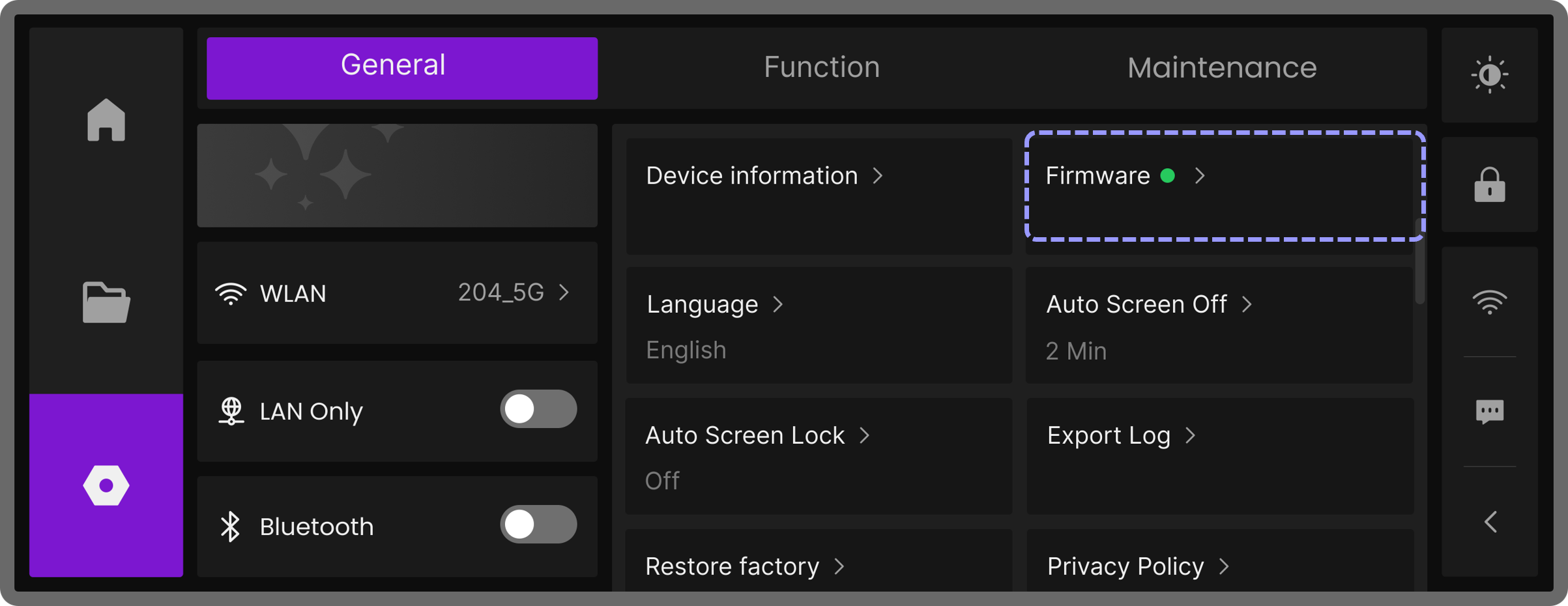
¶ 1. Viewing Firmware Information
The Current Firmware section shows the version of the firmware currently running on the device.
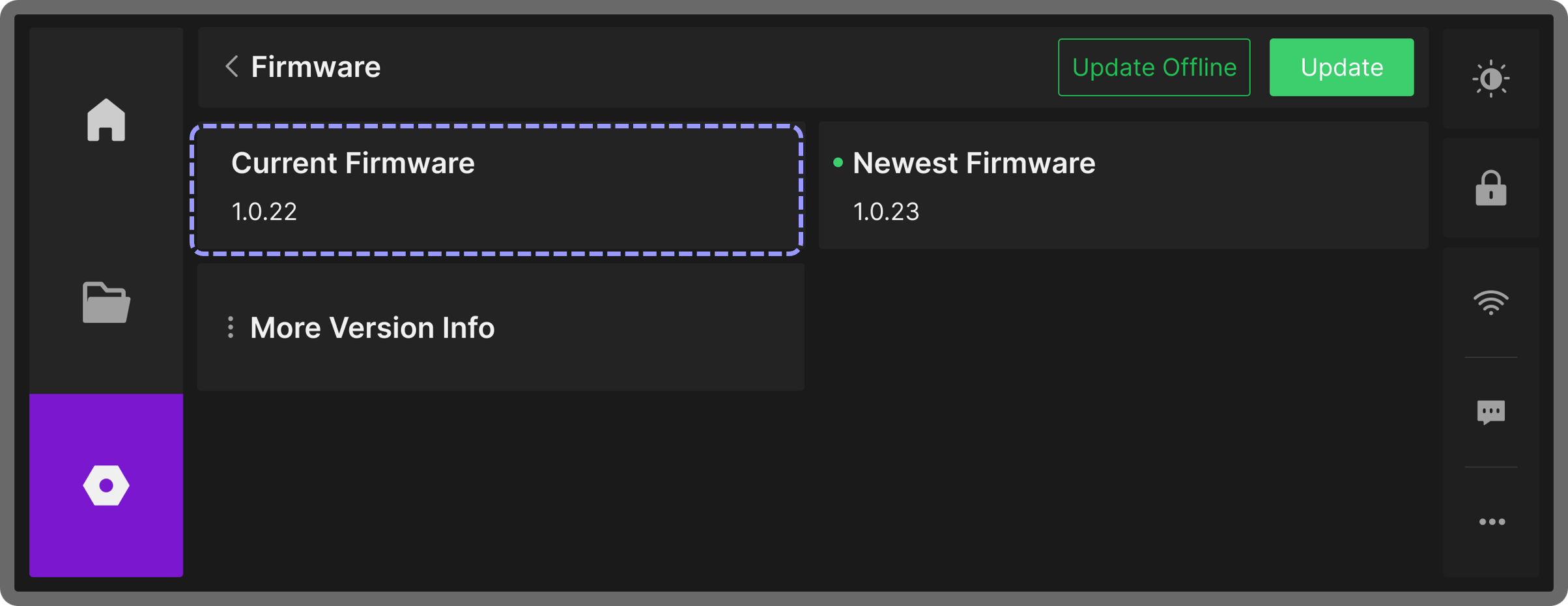
¶ 2. OTA Firmware Update – Online Update
OTA updates download and install the latest firmware from the server via network connection.
Make sure Wi-Fi is turned on and LAN Only mode is off. Otherwise, the device cannot detect available updates.
¶ 2.1 Detecting New Firmware
-
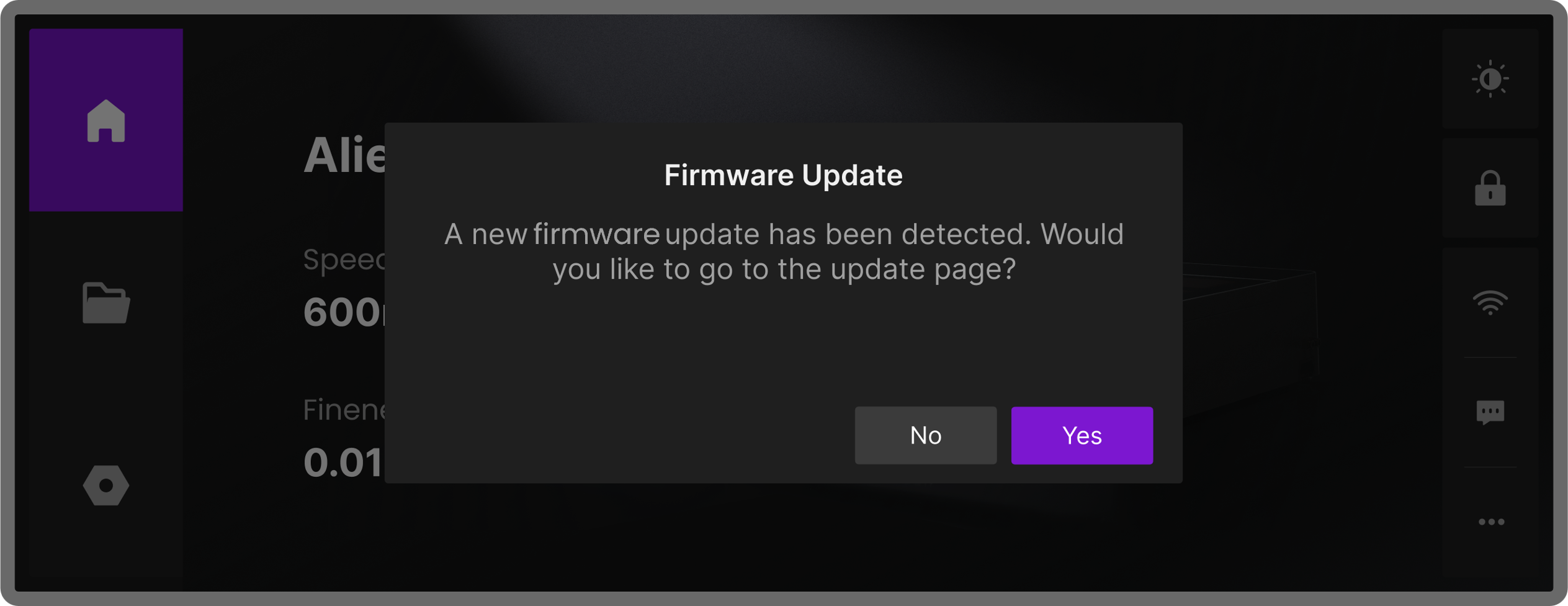
Automatic Check on Startup: When the device powers on and connects to the server, it automatically checks for new firmware. If a new version is available, a popup will notify you. Tap Yes to enter the firmware update page.
-
Manual Check: Tap the
icon, go to General > Firmware, and if a green dot appears next to Newest Firmware, a new firmware is available.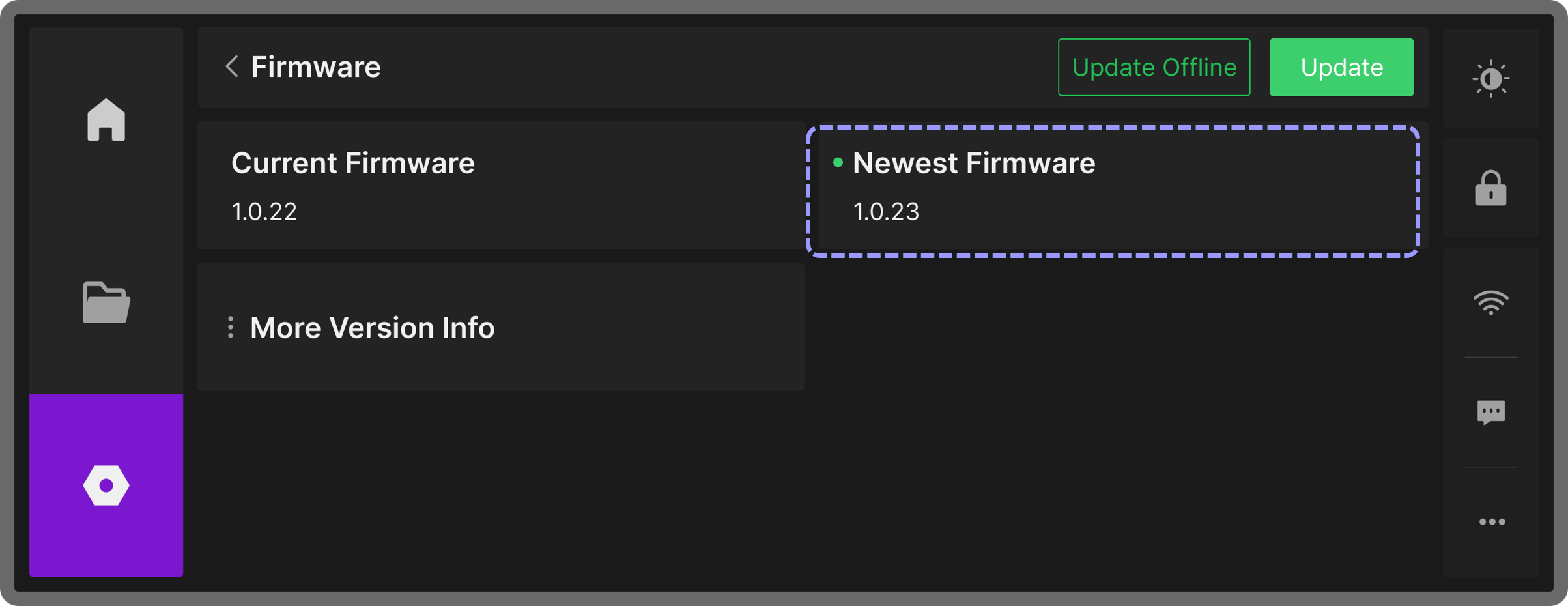
¶ 2.2 Performing OTA Update
-
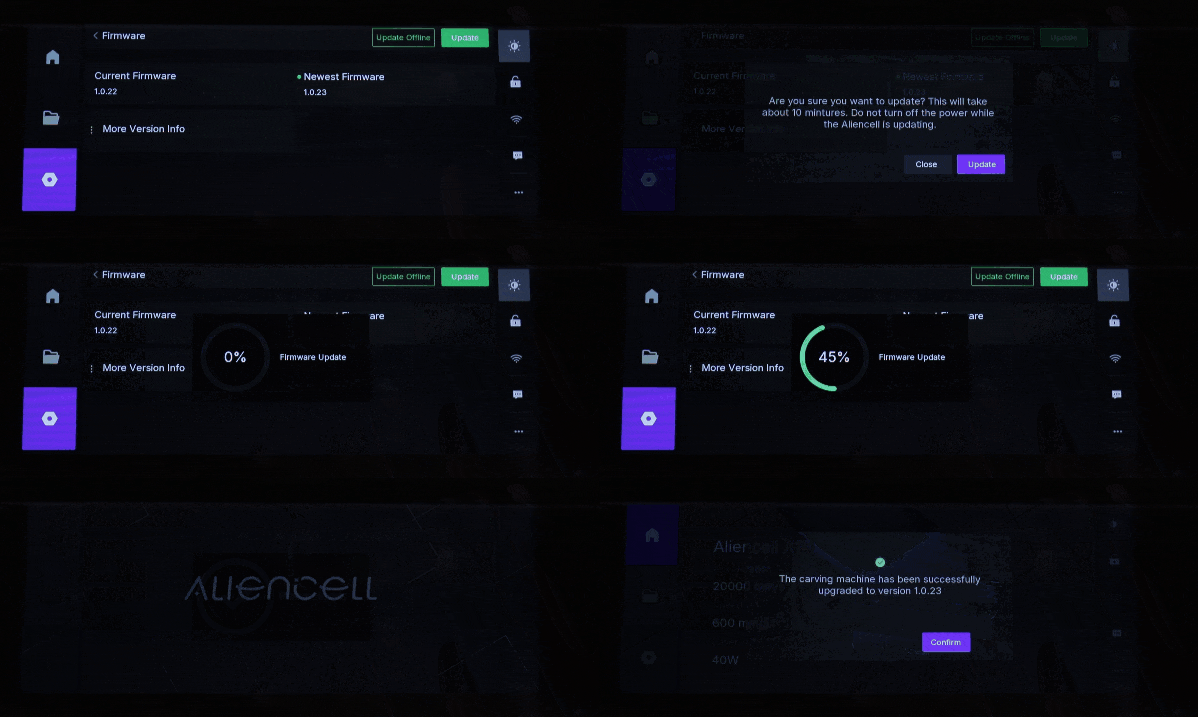
Tap Update in the top-right corner. A popup will confirm the update and show estimated update time.
-
Tap Update again to start downloading and installing the firmware. After downloading, the installation process starts automatically.
-
Once completed, the device will automatically reboot and display a confirmation popup indicating a successful update.
¶ 3. Local Firmware Update – Offline Update
Offline updates install a pre-downloaded firmware package via external storage (e.g., USB drive).
¶ 3.1 Prepare Firmware on USB Drive
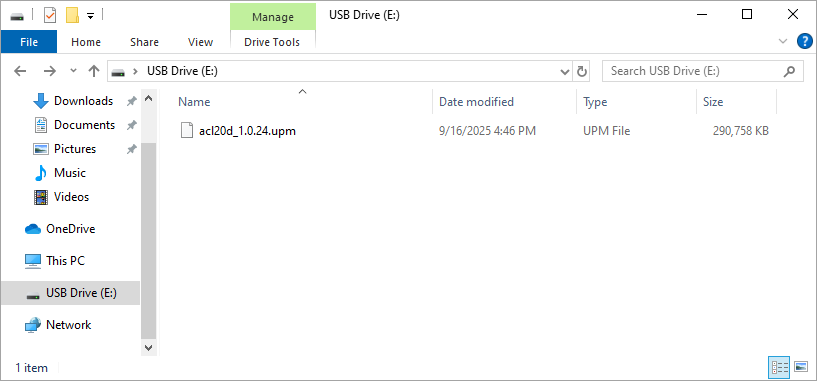
Download the required firmware version from Firmware Version Details and copy the file to a USB drive.
¶ 3.2 Connect the USB Drive
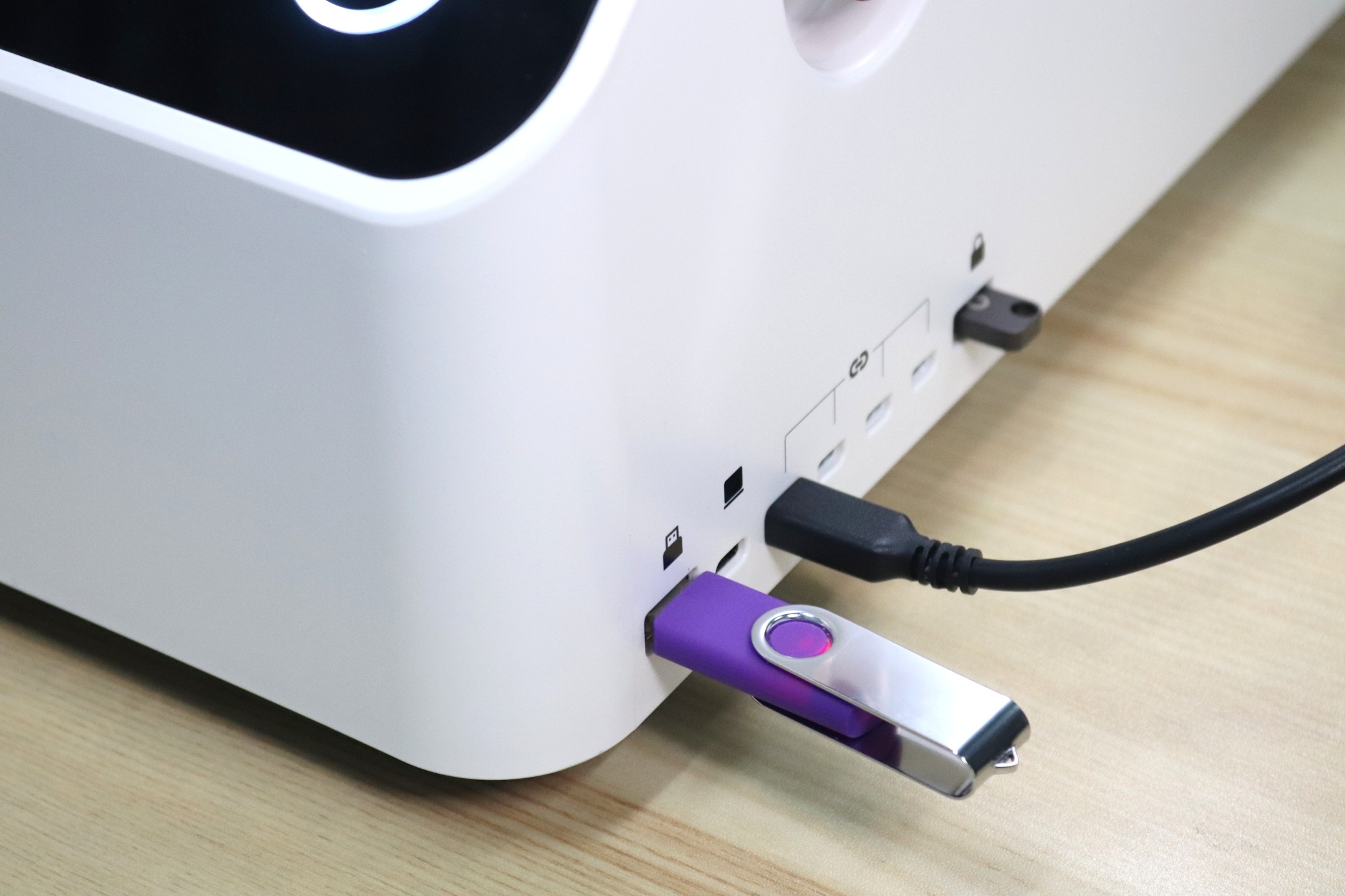
Insert the USB drive into the device’s USB port.
¶ 3.3 Performing Offline Update
-
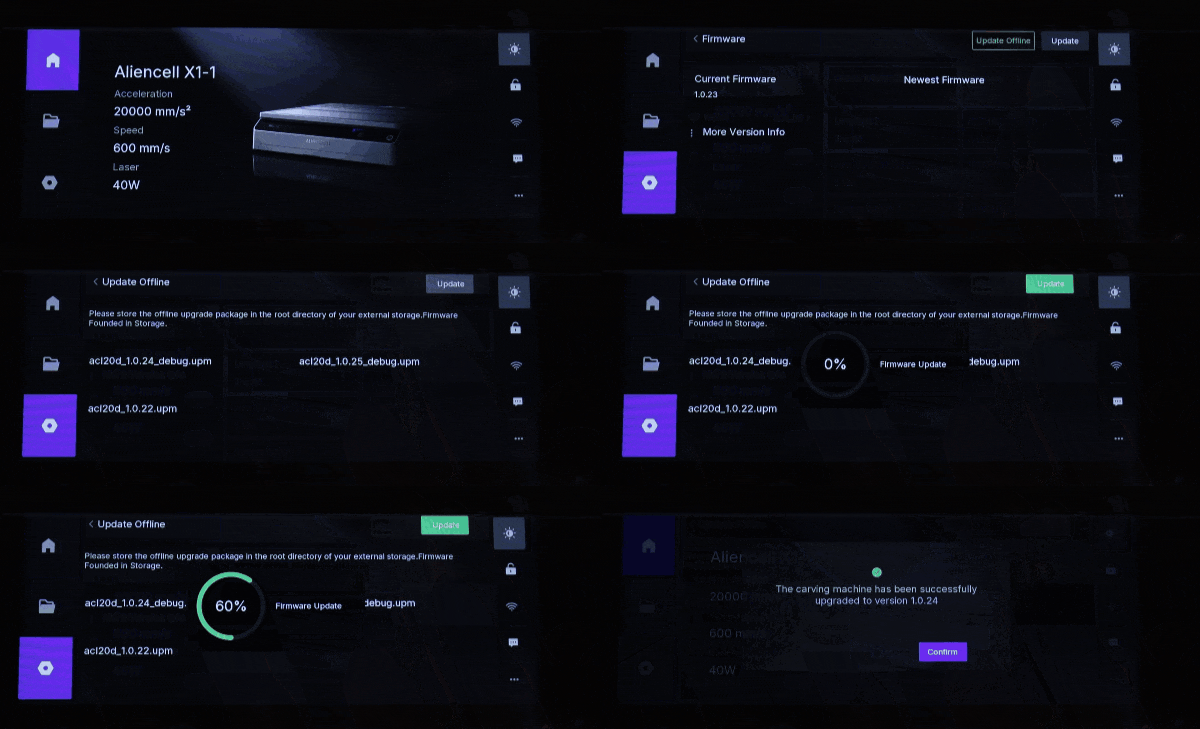
Tap the
icon, select Firmware under General. -
Tap Update Offline. The popup will display firmware packages on the USB drive. Select the target firmware and tap Update in the top-right corner to confirm and start the update process.
-
After completion, the device will automatically reboot and display a notification that the firmware update is complete.
¶ 4. Firmware Update via Aliencell Space
You can also update the firmware using the Aliencell Space software. Once the update is complete, the device will automatically restart and prompt a message confirming the successful update.
¶ 4.1 Connect the Device
-
Method 1: Connect the device to your PC using a USB-C cable.
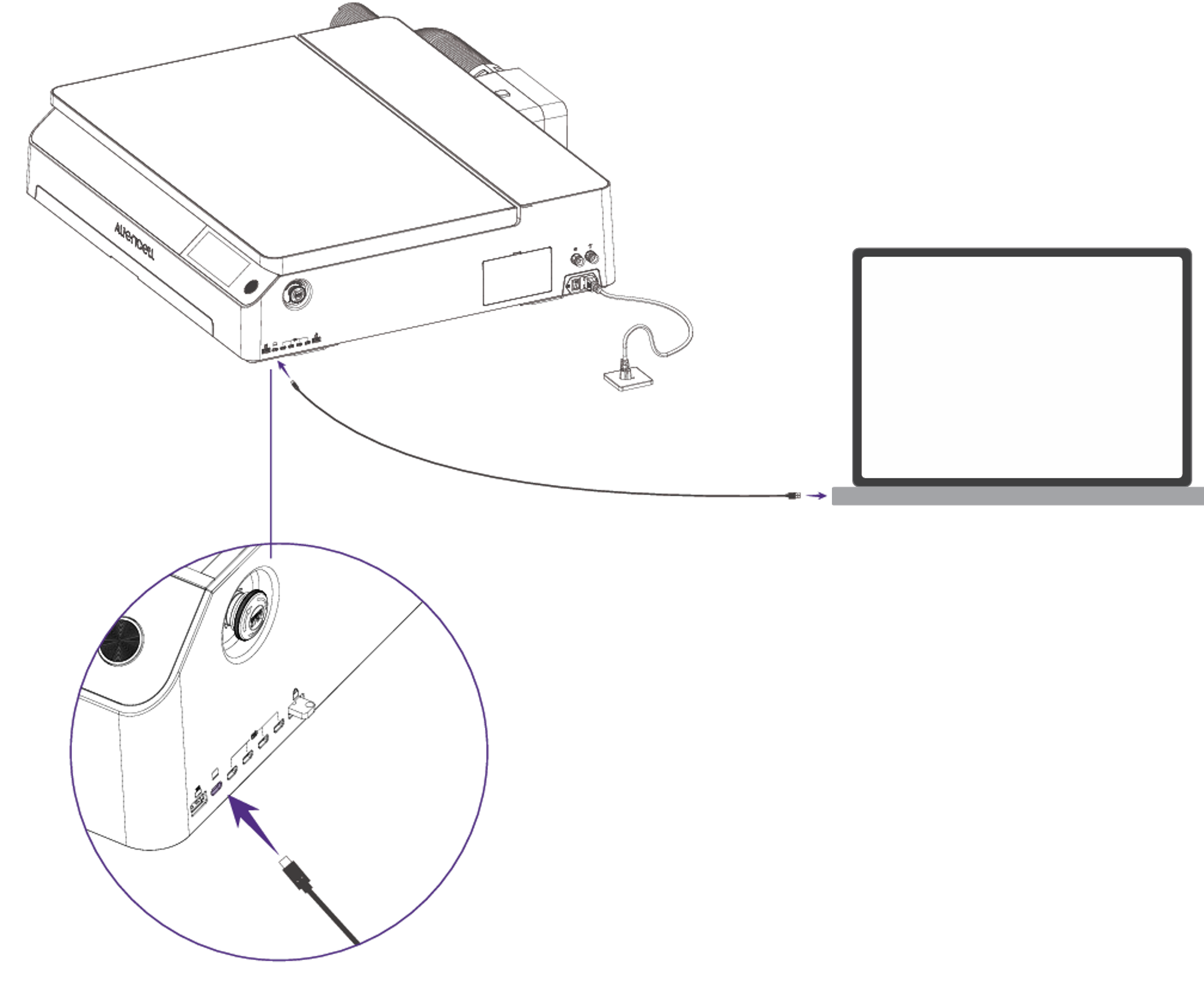
-
Method 2: Connect via Wi-Fi.
¶ 4.2 Update Procedure
-
Launch Aliencell Space and select the device you wish to update from the device list.
-
Click the Live View icon
 in the top-right corner. In the pop-up window, locate the Firmware Version section and click the Check for Updates button.
-
Once a new version is detected, click Update to start the upgrade.