Preparation: E1 machine, power cable, cutting material, vector file, air purifier (optional)
¶ 1. Pre-Job Check
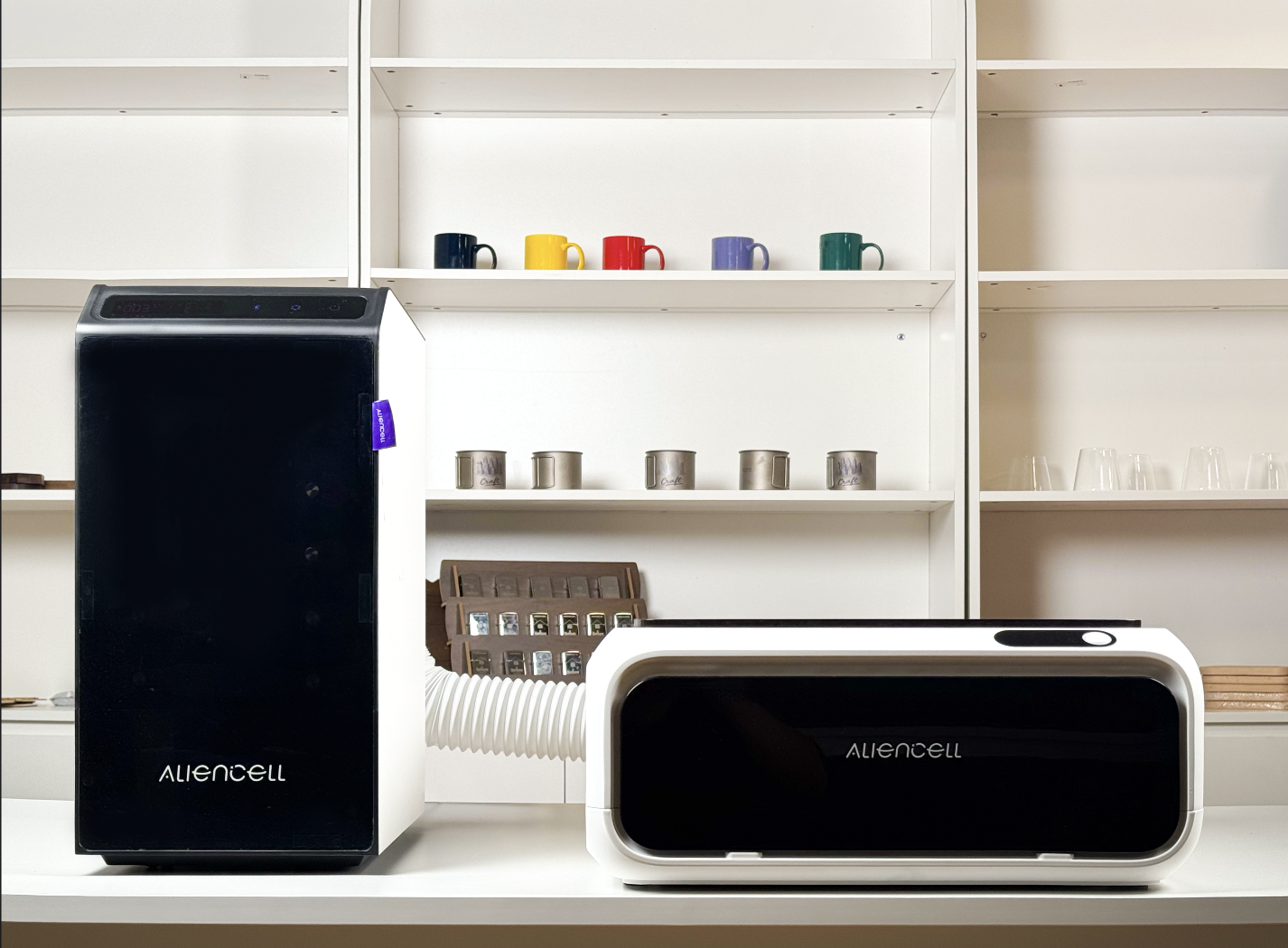
a. Make sure the end of the exhaust pipe is placed at a ventilation opening or connected to an air purifier
b. Make sure the working environment is clean and free of clutter, including no heavy objects placed on the housing |
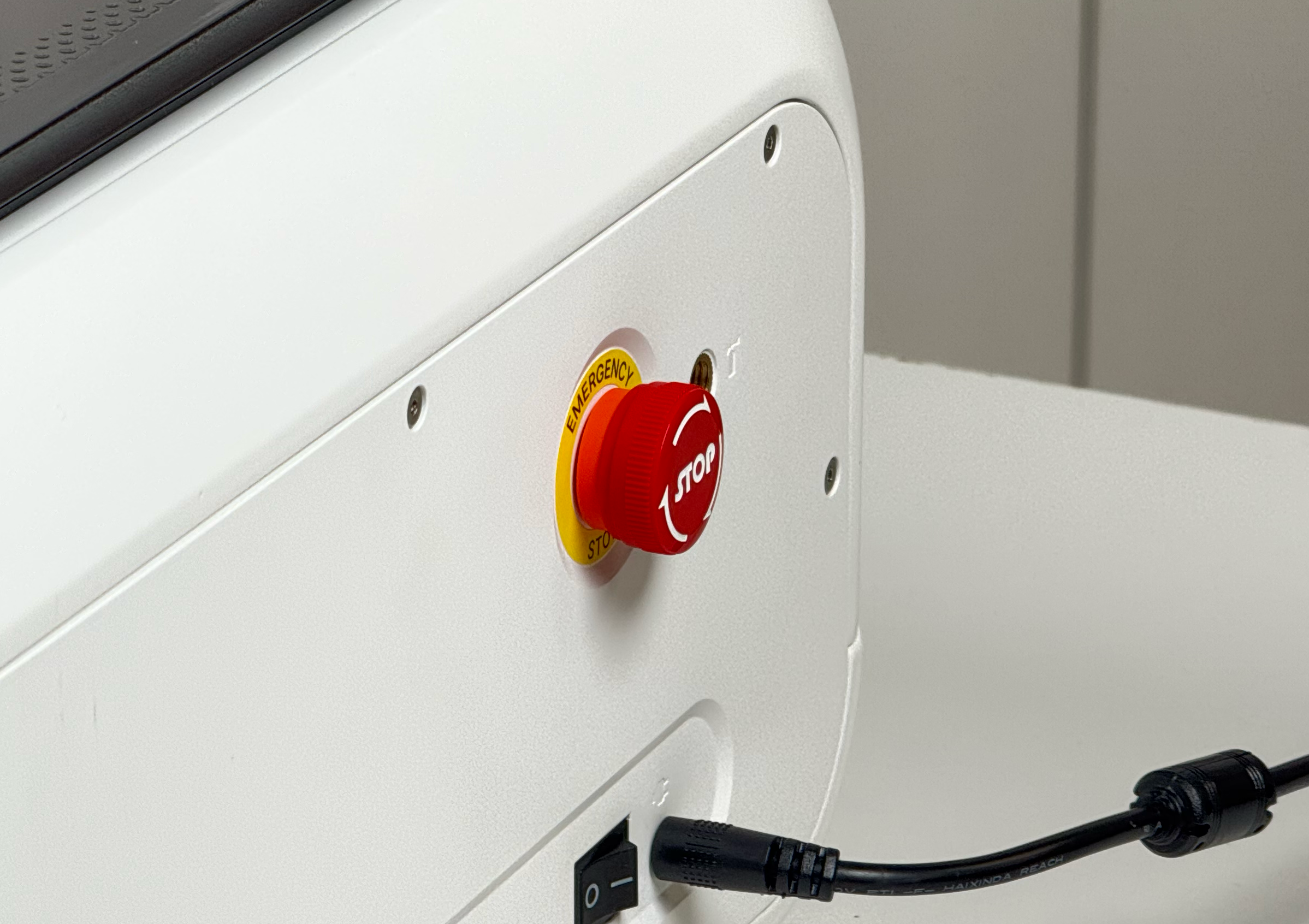
c. Check that the emergency stop knob is in the released state
|
¶ 2. Turning On the Device

¶ 3. Placing the Material
Place the material in the center of the work area, and close the top cover and the front cover.
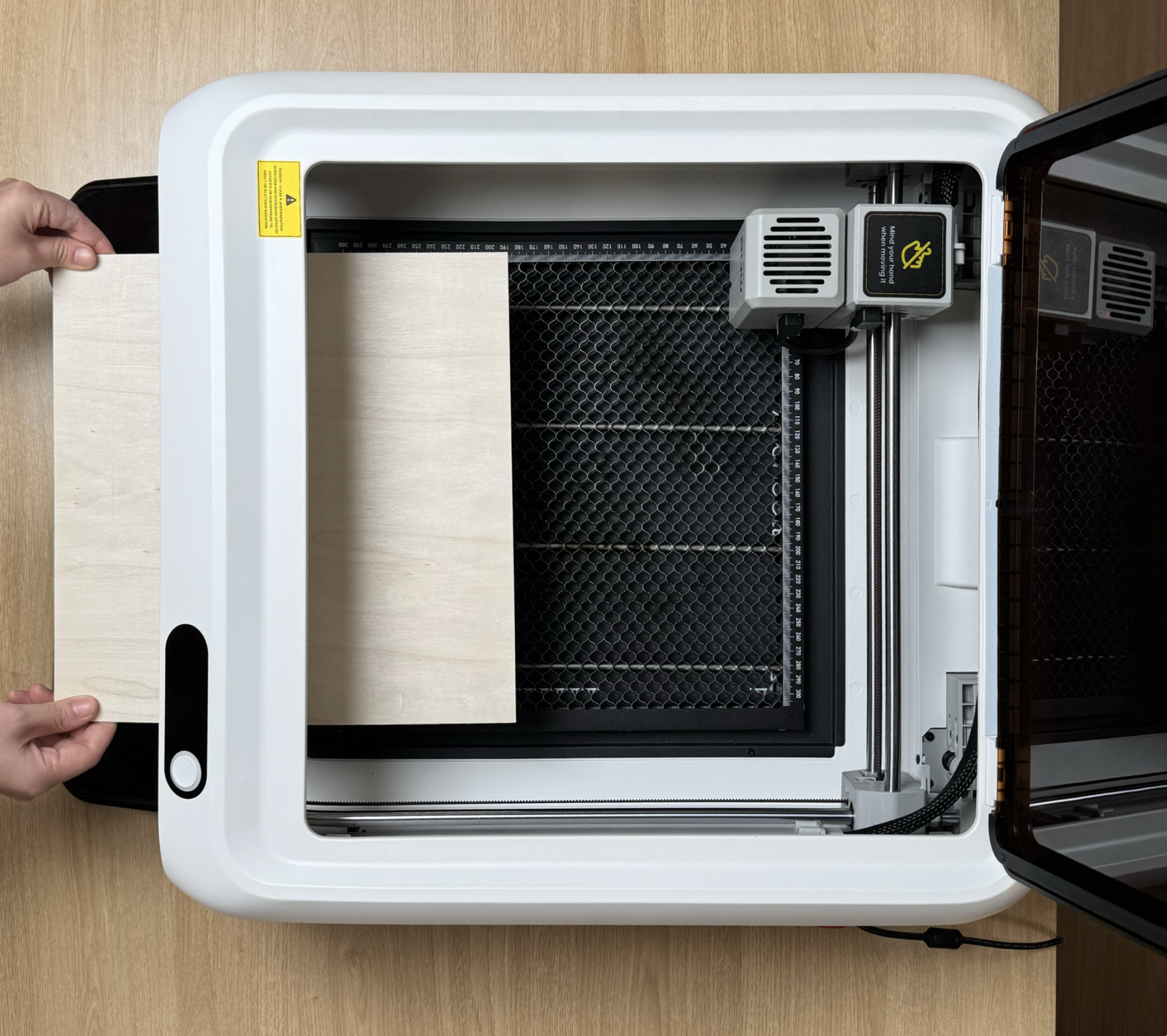
For thinner or lighter materials, you can use masking tape or the material clamps to secure the material.
¶ 4. Connecting the Device
-
The first time you connect the computer to the device, a data cable is required for communication.
-
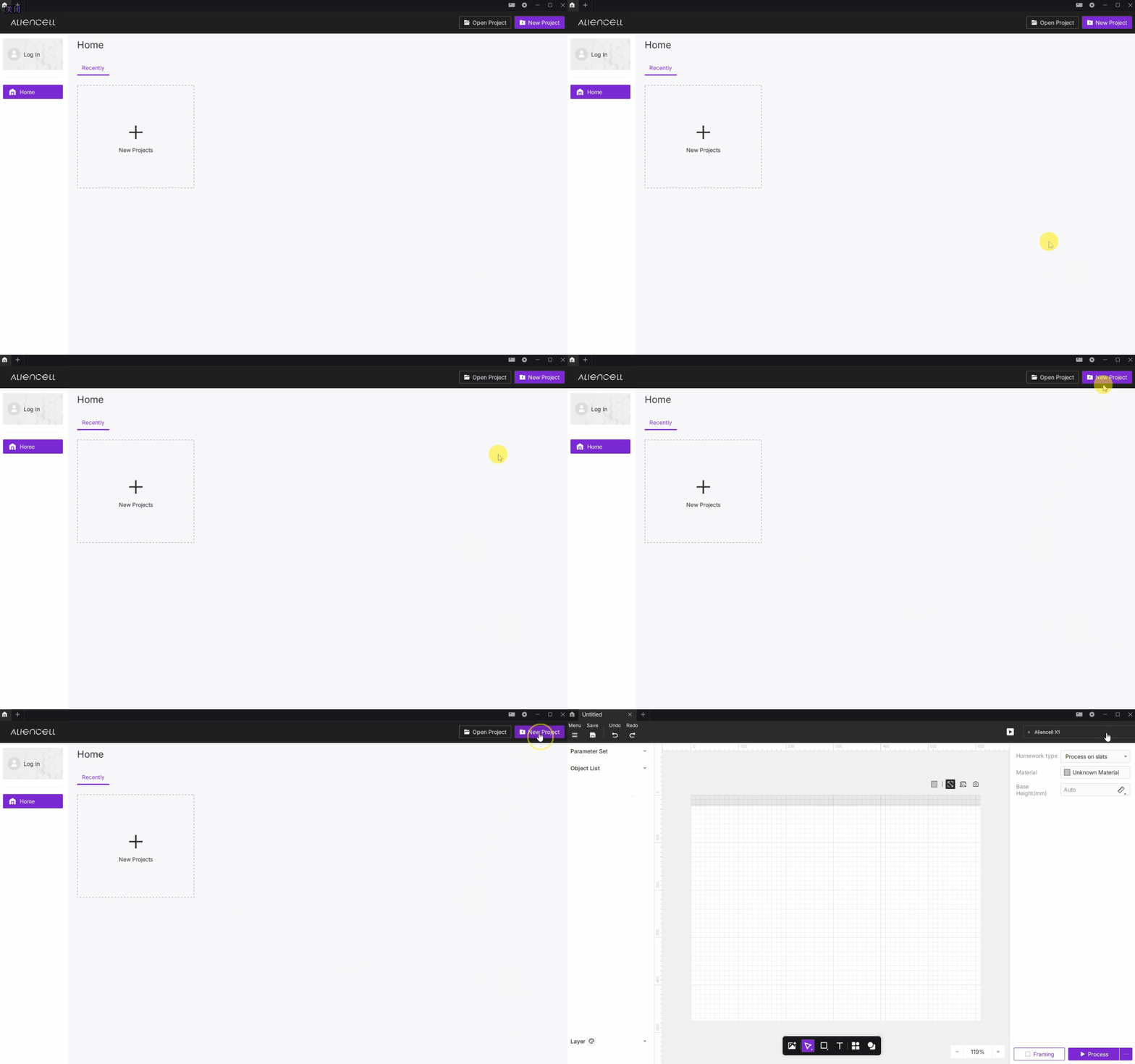
Open the Aliencell Space software and create a new project.
-
Open the device list, select the connected device, and check the device connection status.

A green circle indicates that the device is connected. When the device shows "Idle", it is in standby.
¶ 5. Designing the Cutting File
Using basic shapes, text, and image outlines as examples, the following sections introduce the corresponding design workflow for cutting jobs.
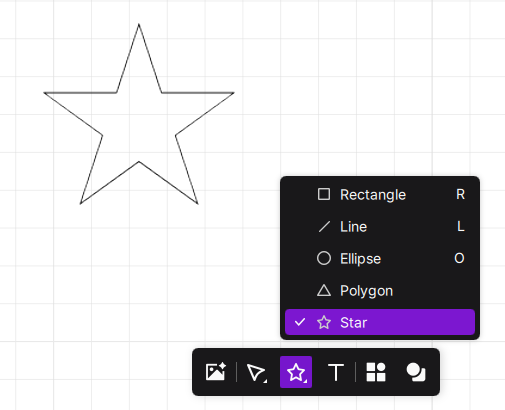
- This example cuts a five-pointed star. You can find this shape in the shortcut toolbar at the bottom.
-
Setting the processing parameters
- Job mode: Select "Flat Surface – Support Bars"
- Material: Select the actual cutting material, for example 3 mm basswood
- Processing type: Select the object and choose "Cut". The software recommends suitable processing parameters based on the selected material.
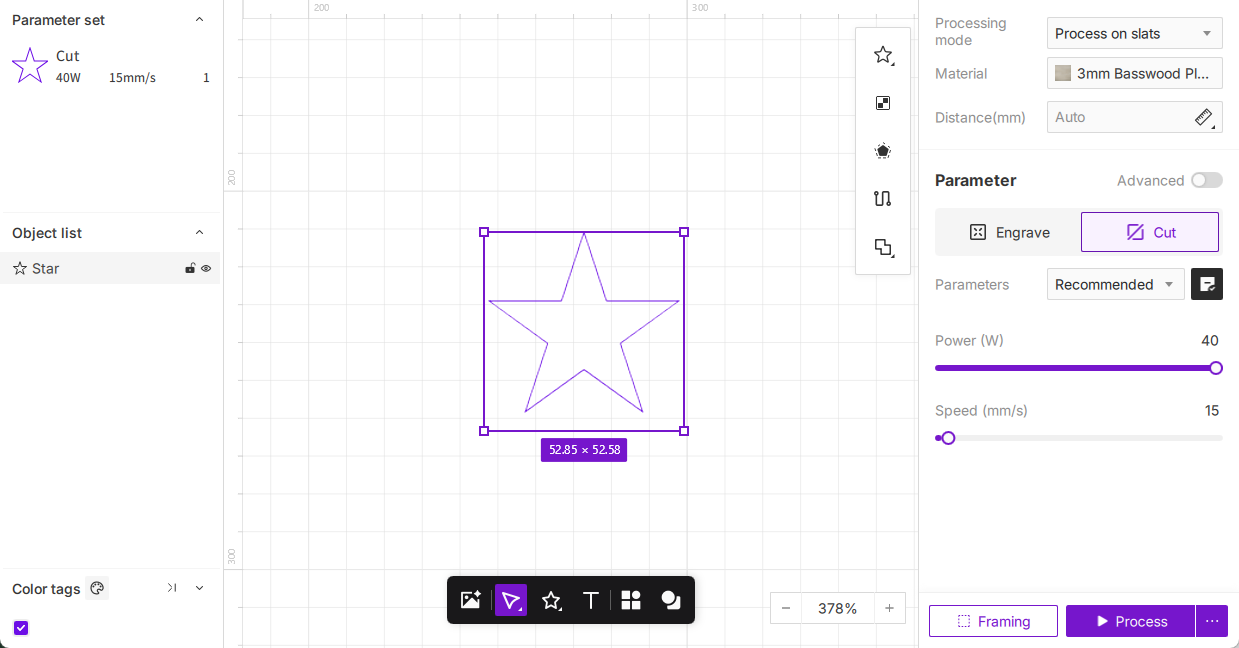
If you want to customize the parameters, you can change the power and speed in the parameter settings. If you want to add "bridging tabs" to keep the cut parts from falling out, you can set them in the advanced parameters.
-
This example cuts out an entire text. You can find the text editing tool in the shortcut toolbar at the bottom.
- Create the text object
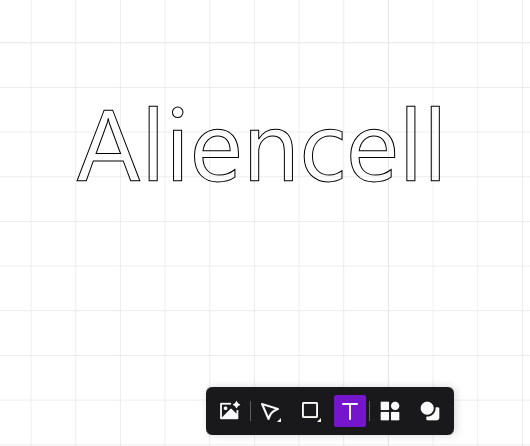
- Generate the outline of the text object
- Create the text object
-
Setting the processing parameters
- Job mode: Select "Flat Surface – Support Bars"
- Material: Select the actual cutting material, for example 3 mm basswood
- Processing type: Select the text object and choose "Engraving"; select the text outline object and choose "Cut". The software recommends suitable processing parameters based on the selected material.
In general, the processing type of a created text object defaults to Engraving, while the generated outline defaults to Cut.
-
Import the file from the bottom toolbar
Click the image icon in the bottom toolbar and select the file to process.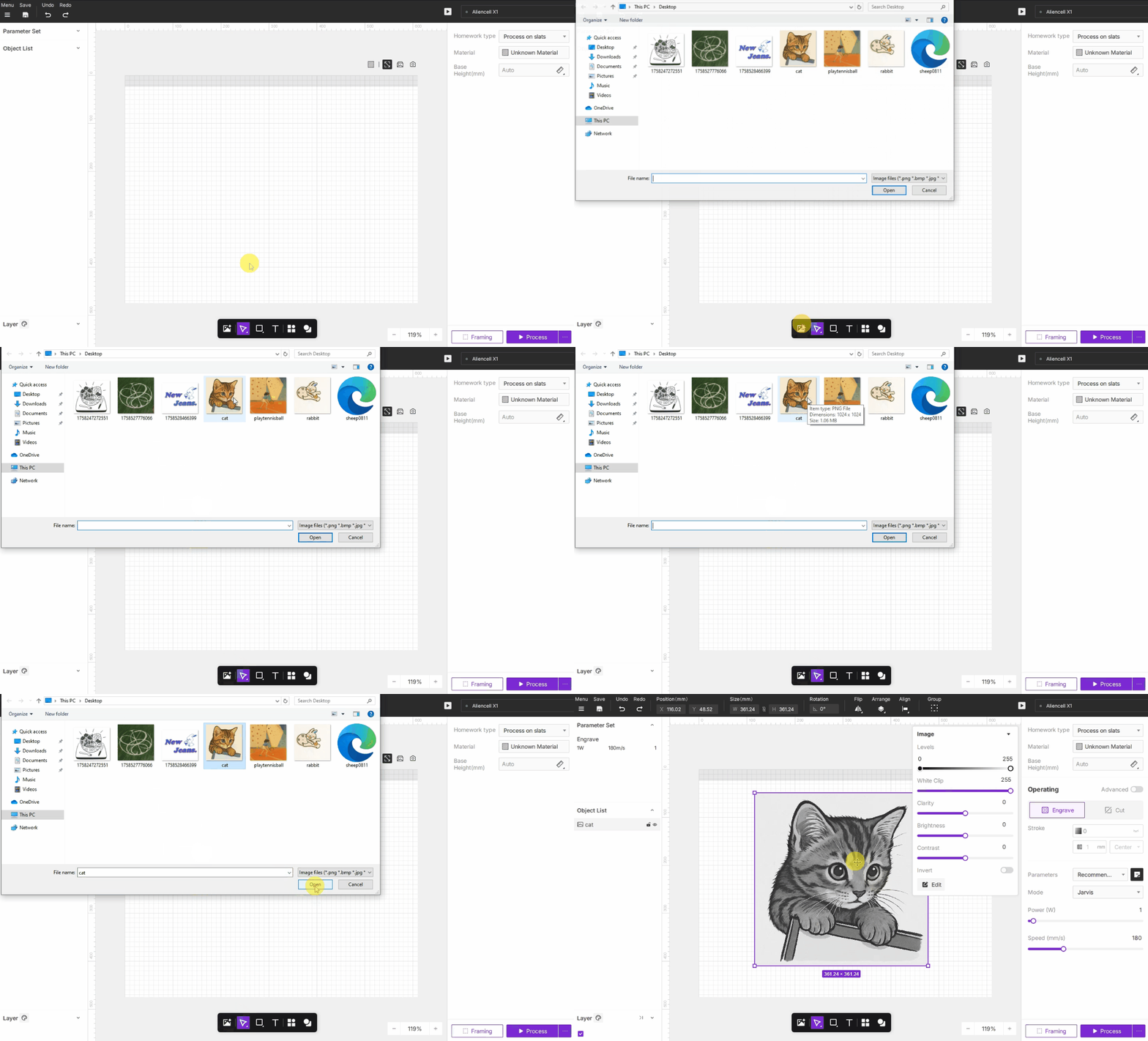
-
Generate an outline for the bitmap
Bitmap outline generation:
Regular images: If the image background is not transparent, the system generates an outline along the rectangular border of the image.
Transparent-background images (such as PNG) or cut-out objects: If the image has a transparent background, or you have processed it with the Magic Wand tool, the software generates an outline tightly following the actual edges of the graphic content.
- Generate the outline directly: after selecting the bitmap object, click the outline generation button, and the software generates an outline according to the shape of the bitmap.
If you want to cut along the outline of an element inside the image, you can first process the bitmap background and then generate the outline.
- Select the object, click Image Editing, and choose the Magic Wand. Click on the image background you want to remove to delete the unwanted background, then click Done to return to the canvas.
- With the object selected, click outline generation, and the software generates an outline tightly following the actual edges of the graphic content.
-
Setting the processing parameters
- Job mode: Select "Flat Surface – Honeycomb Panel"
- Material: Select the actual cutting material, for example 3 mm basswood
- Processing type: Select the bitmap object and choose "Engraving"; select the bitmap outline object and choose "Cut". The software recommends suitable processing parameters based on the selected material.
In general, the processing type of a created bitmap object defaults to Engraving, while the generated outline defaults to Cut.
¶ 6. Framing
Framing is used before actual processing: the laser head moves along the outermost outline of the design to confirm whether the entire processing area fits within the material, and whether it will hit the material edge, clamps, or abnormal areas.
- Click the
 Framing button in the bottom right to confirm once again that the processing area is appropriate.
- Check whether the movement path of the laser's crosshair matches the required processing area or touches the material. If it exceeds the material size, adjust the size or position of the image on the canvas.
¶ 7. Running the Job
Be sure to close the device cover before running the job!
- Click the [Start Job] button in the bottom right. The software generates a job file from all the current settings and sends it to the device. After sending is complete, the interface prompts you to press the device button to start the job.
- Press the blue-blinking ring indicator light on the device, and the device starts the job. Before engraving, the device first completes the fully automatic focusing process.
Fully automatic distance measurement: the laser outlet is equipped with distance sensing. It moves to the center point of the job file, then the laser Z-axis moves down until the probe touches the material surface, and automatically detects the distance. In this case, you do not need to perform focusing separately — you can start the job directly.
In addition to fully automatic focusing, the ways the Aliencell E1 measures the height from the laser module to the material surface include: measurement at the current position, measurement at a selected point, photo-based measurement, and manual entry of the measured distance.
- After completing the job, clean the area and turn off the device and the air purifier.
© 2026 Aliencell. All rights reserved. | Powered by Wiki.js