Preparation: E1 machine, power cable, engraving material, bitmap file, air purifier (optional)
¶ 1. Pre-Job Check
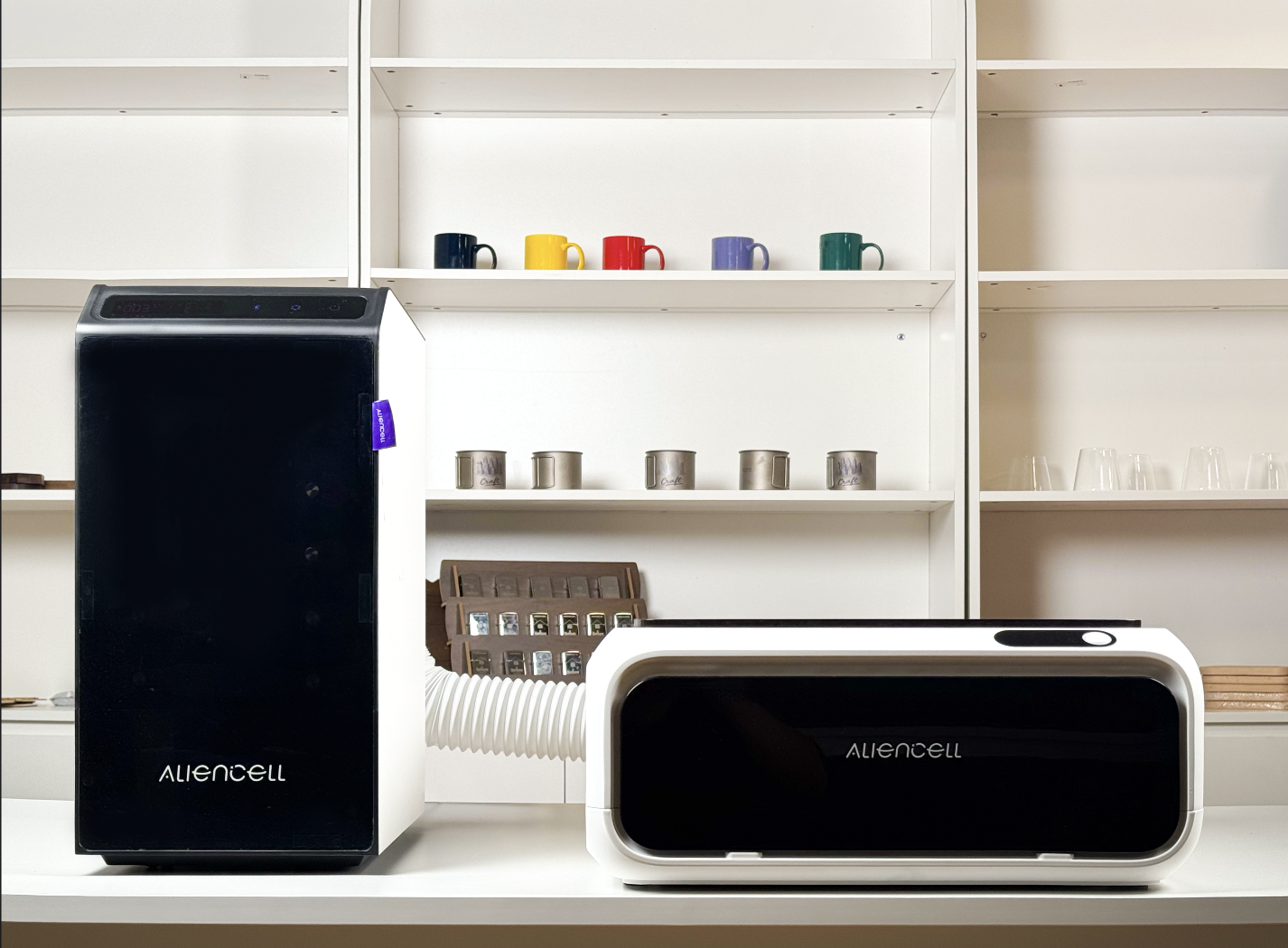
a. Make sure the end of the exhaust pipe is placed at a ventilation opening or connected to an air purifier
b. Make sure the working environment is clean and free of clutter, including no heavy objects placed on the housing |
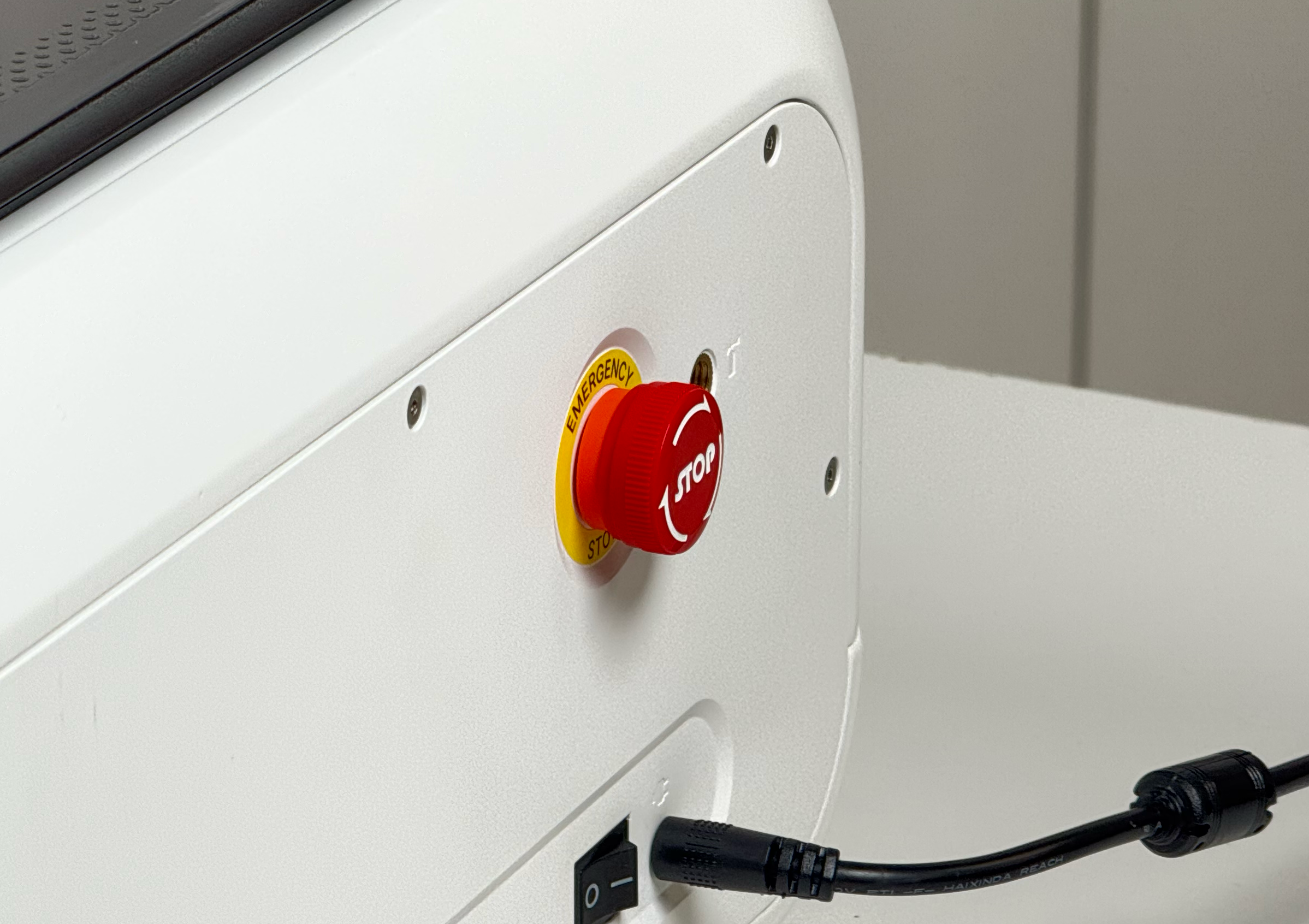
c. Check that the emergency stop knob is in the released state
|
¶ 2. Turning On the Device

¶ 3. Placing the Material
Place the material in the center of the work area, and close the top cover and the front cover.
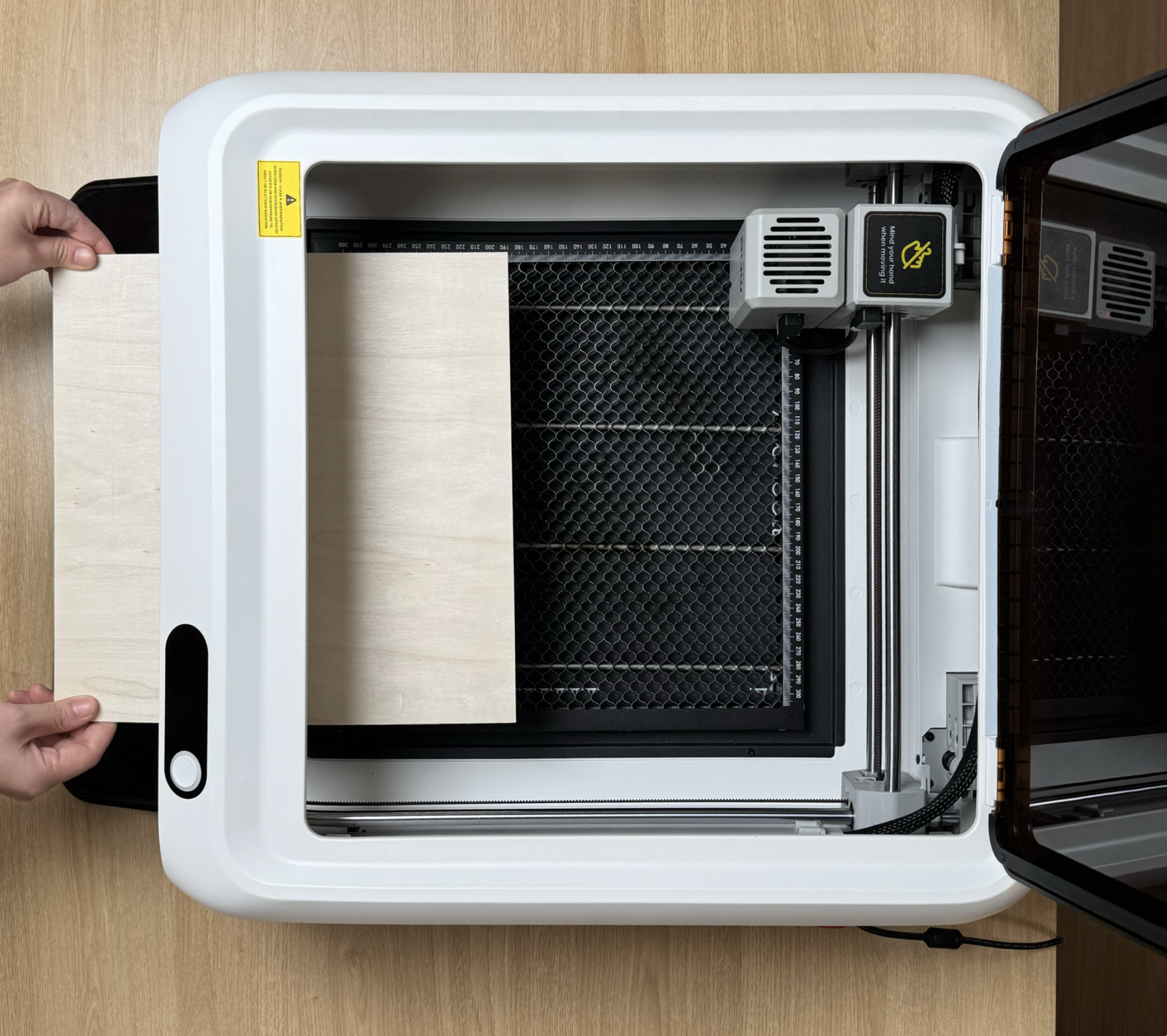
For thinner or lighter materials, you can use masking tape or the material clamps to secure the material.
¶ 4. Connecting the Device
-
The first time you connect the computer to the device, a data cable is required for communication.
-
Open the Aliencell Space software and create a new project.
-
Open the device list, select the connected device, and check the device connection status.
A green circle indicates that the device is connected. When the device shows "Idle", it is in standby.
There are two methods for material positioning: absolute coordinates (absolute positioning) and current laser position (relative positioning). You can switch between them using the Job Origin control at the top right of the software interface, for different processing scenarios.
- Absolute coordinates (absolute positioning): based on the device's fixed mechanical origin. The position on the software canvas corresponds one-to-one with the work platform, and wherever the laser head is stopped does not affect the processing position. Suitable for materials placed according to a reference edge, as well as repeated positioning and batch processing.
- Current laser position (relative positioning): based on the current position of the laser head as a temporary origin; the processing position moves together with the laser head — processing starts wherever the laser head points. Suitable for freely adjusted materials, small pieces, or projects with a clear starting point: just move the laser head to the material's starting point to begin.
¶ 5. Importing the Bitmap File
-
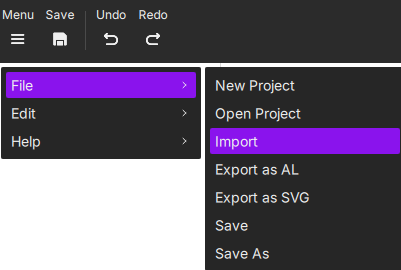
Method 1: Import from the menu
Click Menu → File → Import.
-
Method 2: Import from the bottom toolbar
Click the image icon in the bottom toolbar and select the file to process.
¶ 6. Processing the Bitmap File (Image Preprocessing)
Before setting the engraving parameters, complete the image preprocessing steps to ensure the best engraving result.
Image preprocessing means editing and optimizing the original digital image. It covers all optimization steps from importing the image to engraving, including sizing, grayscale conversion, mode selection, editing, and property adjustment. The goal is to produce an image file suited to the engraving process that clearly expresses the intended visual result.
¶ 6.1 Image Adjustment
Adjust image properties such as Levels, White Limit, Sharpness, Brightness, and Contrast to change the image effect, making its details and tones more suitable for engraving.
¶ 6.2 Image Editing
If the imported file is a bitmap image, you can use the image editing tools to edit it at the pixel level, including Cropping the image, the Magic Wand, the Eraser, and the History Brush, to remove unwanted areas or elements.
¶ 7. Engraving Preview
-
In the top right, select the material and canvas fill type to preview the engraving effect. Click the
 icon, select a material (for example, "3mm Basswood"), and confirm.
 -
Next, you can choose the canvas fill method, such as Material Simulation. Click the
 icon, and the software will display a simulation of the selected material.
-
If you want to return to a blank canvas to adjust the image, click the
 icon to return to the grid canvas.
¶ 8. Setting Job Parameters
¶ 8.1 Setting the Processing Surface
- Select the job mode according to the current processing surface, for example, Flat Surface – Support Bars mode.
¶ 8.2 Setting the Processing Type
- Select the processing type according to your needs. Bitmap images can only be processed by Engraving.
¶ 8.3 Setting the Engraving Parameters
-
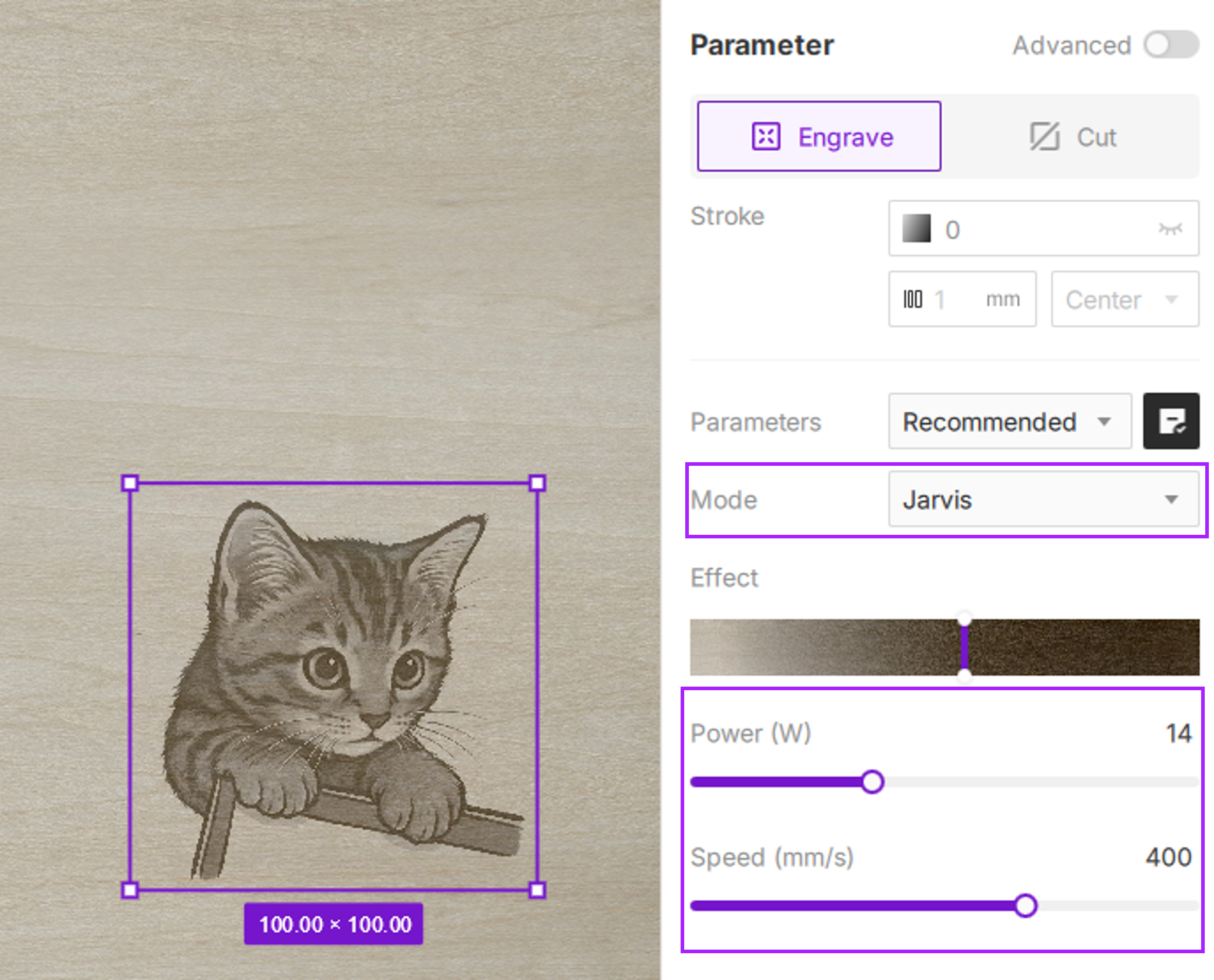
Select the Mode: for bitmap images, Jarvis is selected by default. This mode is suitable for most materials and image types, especially patterns with clear lines and high contrast.
-
Select the Power and Speed: after selecting the material and thickness, the software automatically loads the recommended parameters, which you can use directly. You can also choose suitable engraving parameters based on experience or the engraving preview.
-
Adjust parameters according to the effect: when the canvas fill is set to Material Simulation, you can also drag the Effect slider to select the engraving effect you want.
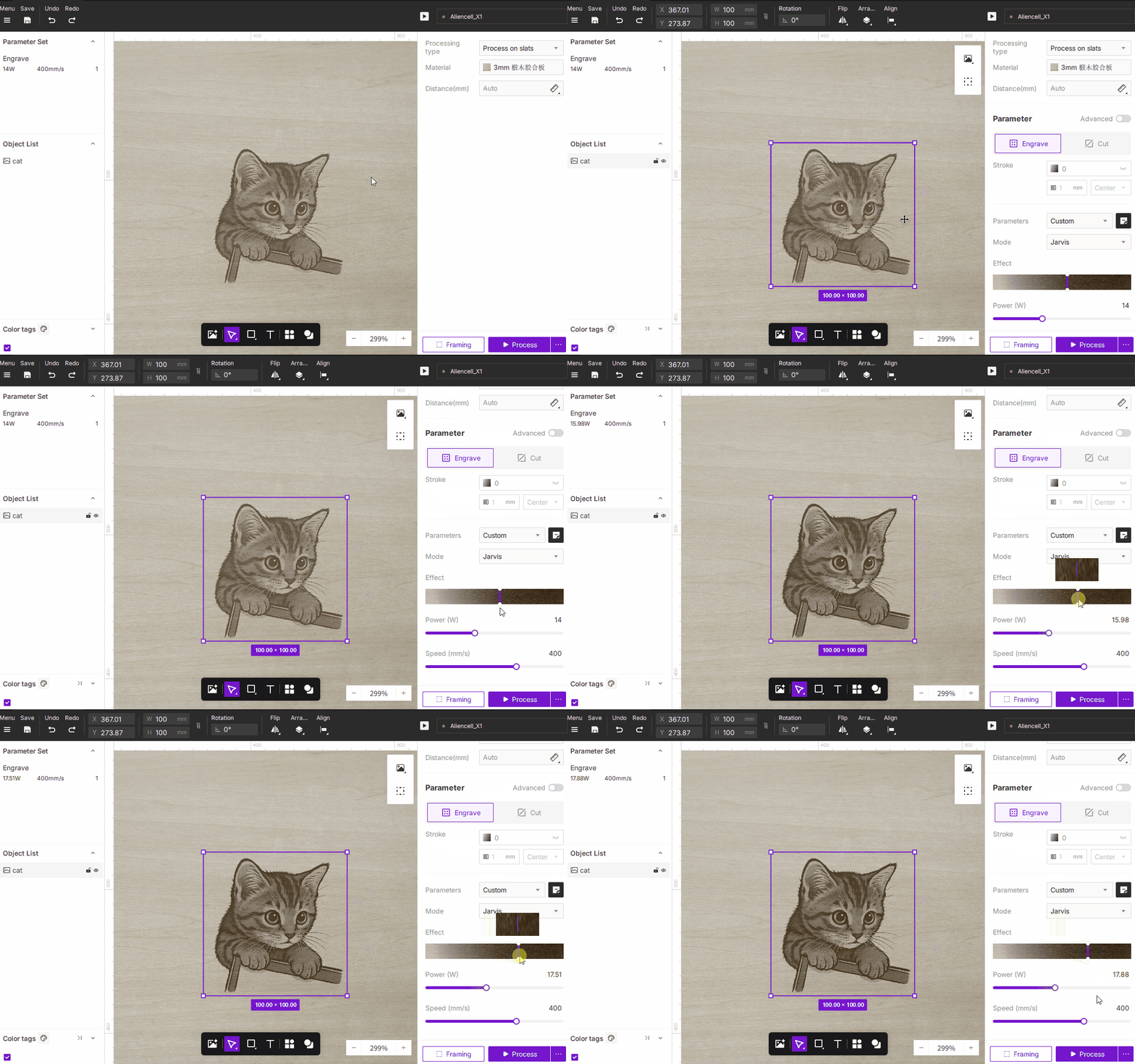
Material simulation can be close to reality, but cannot reproduce it 100%. Because laser engraving involves multiple non-linear factors such as variations between lasers and the absorption characteristics of materials, the goal of Aliencell Space's WYSIWYG is "realistic simulation," not "physical duplication." We therefore recommend treating the effect as the best starting point — a key step to ensuring your work reaches the highest professional standard.
¶ 9. Running the Job
Be sure to close the device cover before running the job!
-
Click the [Start Job] button in the bottom right. The software generates a job file from all the current settings and sends it to the device. After sending is complete, the interface prompts you to press the device button to start the job.
-
Press the blue-blinking ring indicator light on the device, and the device starts the job. Before engraving, the device first completes the fully automatic focusing process.
Fully automatic distance measurement: the laser outlet is equipped with distance sensing. It moves to the center point of the job file, then the laser Z-axis moves down until the probe touches the material surface, automatically returns the measured distance to the device, then returns to the origin and retracts the probe. In this case, you do not need to perform focusing separately — you can start the job directly.
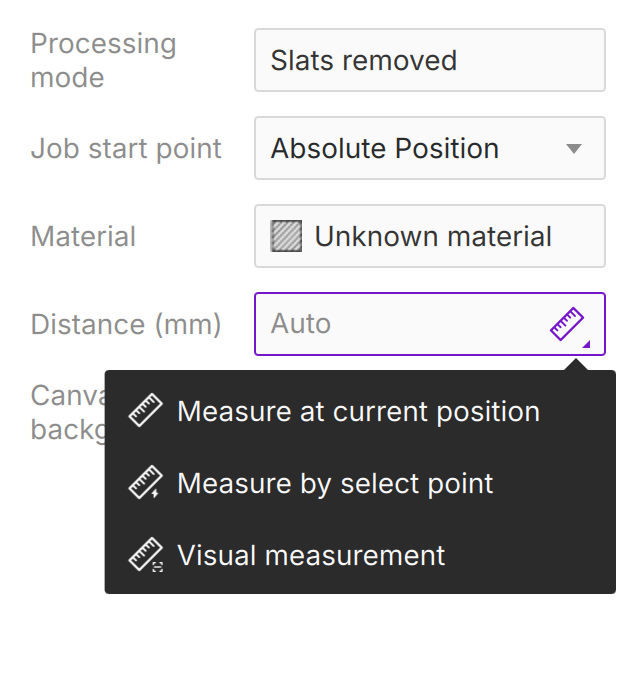
In addition to fully automatic focusing, the ways to measure the height from the laser module to the material surface include: measurement at the current position, measurement at a selected point, and manual entry of the measured distance.
- After completing the job, clean the area and turn off the device and the air pump.