¶ 1. Preparation
¶ 1.1 What You’ll Need
- Aliencell X1 and its power cable
- Air pump and accessories (we recommend the official Aliencell air pump for optimal lens protection)
- Material for your project, such as 3 mm basswood
¶ 1.2 Pre-Operation Checklist
 |
 |
|---|---|
a. Ensure the exhaust pipe outlet is placed toward a ventilation duct or connected to an air purifier. b. Make sure the workspace is clean and clear of clutter. Avoid placing any heavy items on the machine cover. |
c. Check that the U-key is properly inserted into the corresponding port. d. Make sure the Emergency Stop Button is released. |
¶ 1.3 Powering On
 |
 |
|---|---|
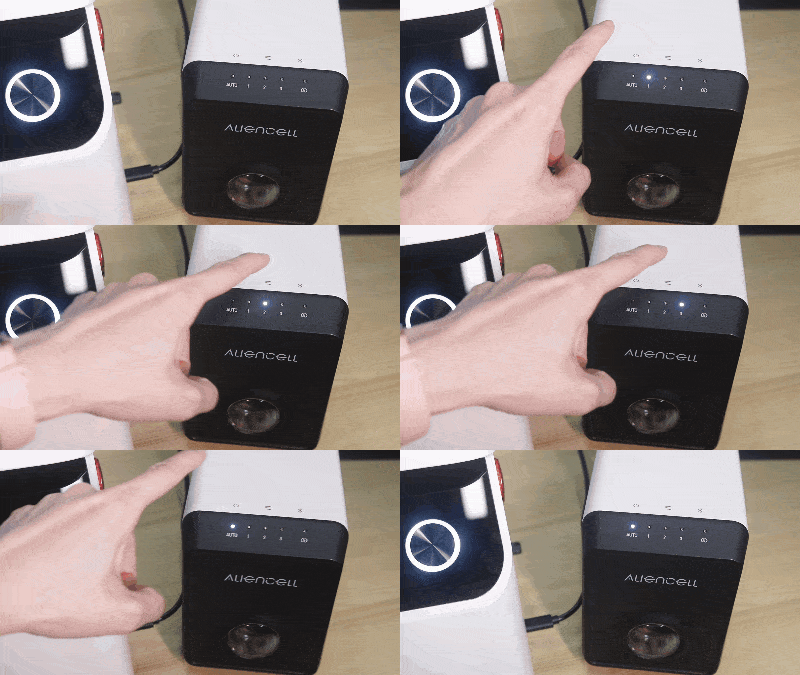
a. Turn on the air pump and set it to Auto mode. |
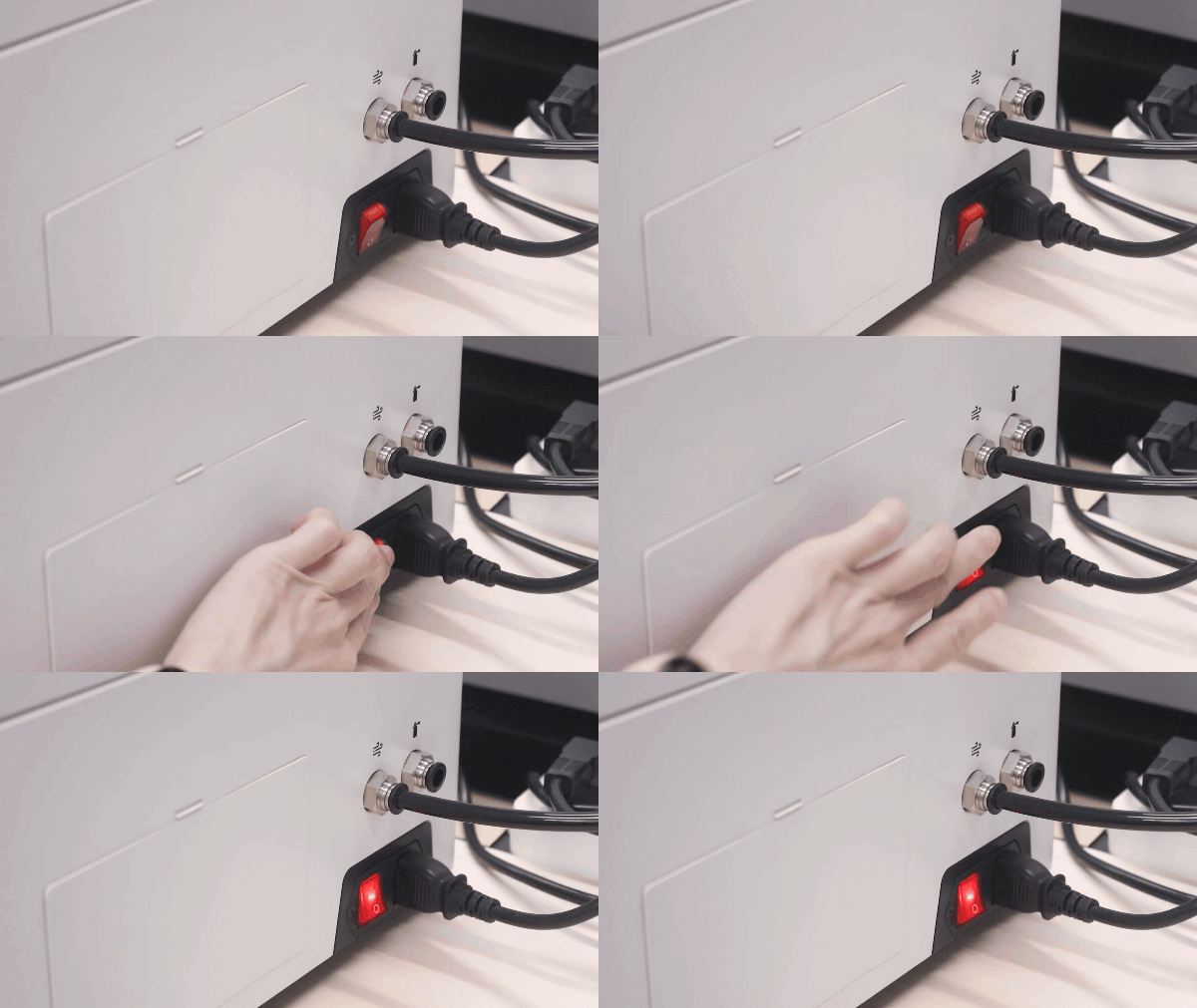
b. Switch on the laser engraver. |
¶ 1.4 Positioning the Material
- Place your material at the center of the workspace and close the machine lid.
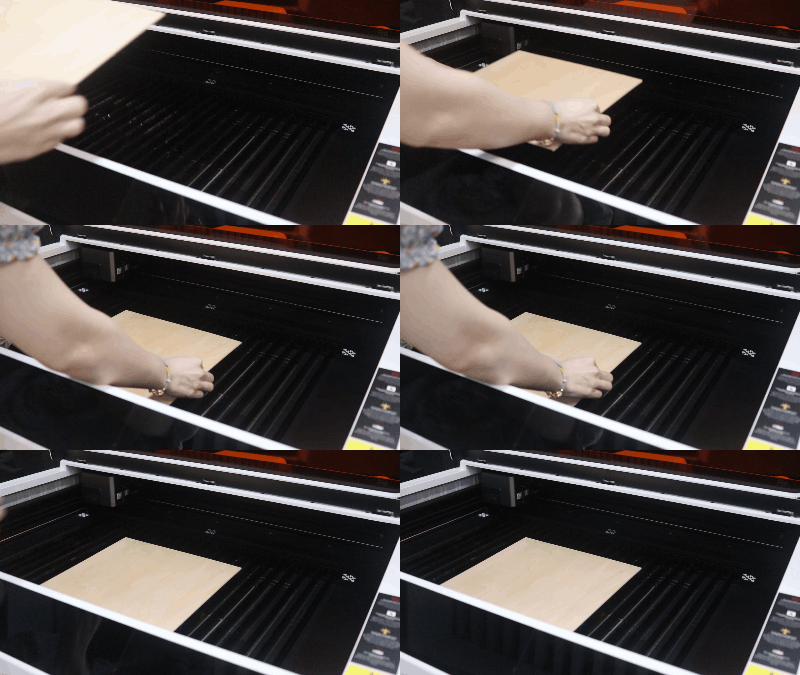
For lightweight or flexible materials, use the material clamps to keep them securely in place.
¶ 2. Quickly Using the X1 with Internal Storage Files
¶ 2.1 Selecting a File
-
On the touchscreen, tap the
 icon on the left menu.
 -
Tap Internal storage.
-
Select the desired file from the list. The file information dialog will appear. Tap Confirm to enter the job setup screen.

Note:
If the Internal storage is empty (e.g., during your first time using the machine), you will need to initiate a job using other methods. You can either:Tip: Whenever you successfully start a processing job from a USB drive or PC, the X1 will automatically cache a copy of the job file into the Internal storage. You can quickly access it here for future repeated runs.
¶ 2.2 Positioning the Cutting/Engraving Area
Before starting the job, you can manually set where the design will be placed on the material.
The position of the design on the touchscreen canvas directly corresponds to the actual cutting/engraving area on your material.
-
Method 1: Drag to Position (on the Canvas)
- On the left-side grid area (the canvas), tap and drag the design to the desired location.
- After you release your finger, the laser module will move accordingly, following the red crosshair on the canvas.

-
Method 2: Jog Control Panel
- Use the direction buttons on the right side of the touchscreen to move the laser head.
- Each tap moves the head by the preset step distance (default: 1 mm).

-
Method 3: Manually Move the Laser Module
- Gently move the laser module by hand so that the red crosshair falls on a reference point at the edge of the intended working area on your material.

¶ 2.3 Framing
- Tap Framing. The laser head will trace the outline of your design above the material, helping you verify that the design fits.

If the crosshair extends beyond the material during framing, reposition the design or use a larger piece of material to avoid failed prints.
¶ 2.4 Adjusting Parameters
- Tap Parameters Edit to modify the engraving or cutting settings.
You may skip this step if the default settings meet your needs.
¶ 2.5 Running the Job
¶ 2.5.1 Start the Job
Always close the machine lid before starting the job.
- Tap Start. The machine will auto-focus first. After focusing is complete, the job will begin.

¶ 2.5.2 During the Job
- To pause the job, tap the
 button.
 - To resume, tap
 .
. - To cancel or stop the job, tap
 .
.
¶ 2.5.3 After the Job Finishes
- When the job is complete, clean the workspace and turn off both the machine and the air pump.